How to do a Hubspot integration
Prospects in Samplead can be automatically exported to Hubspot through this integration.
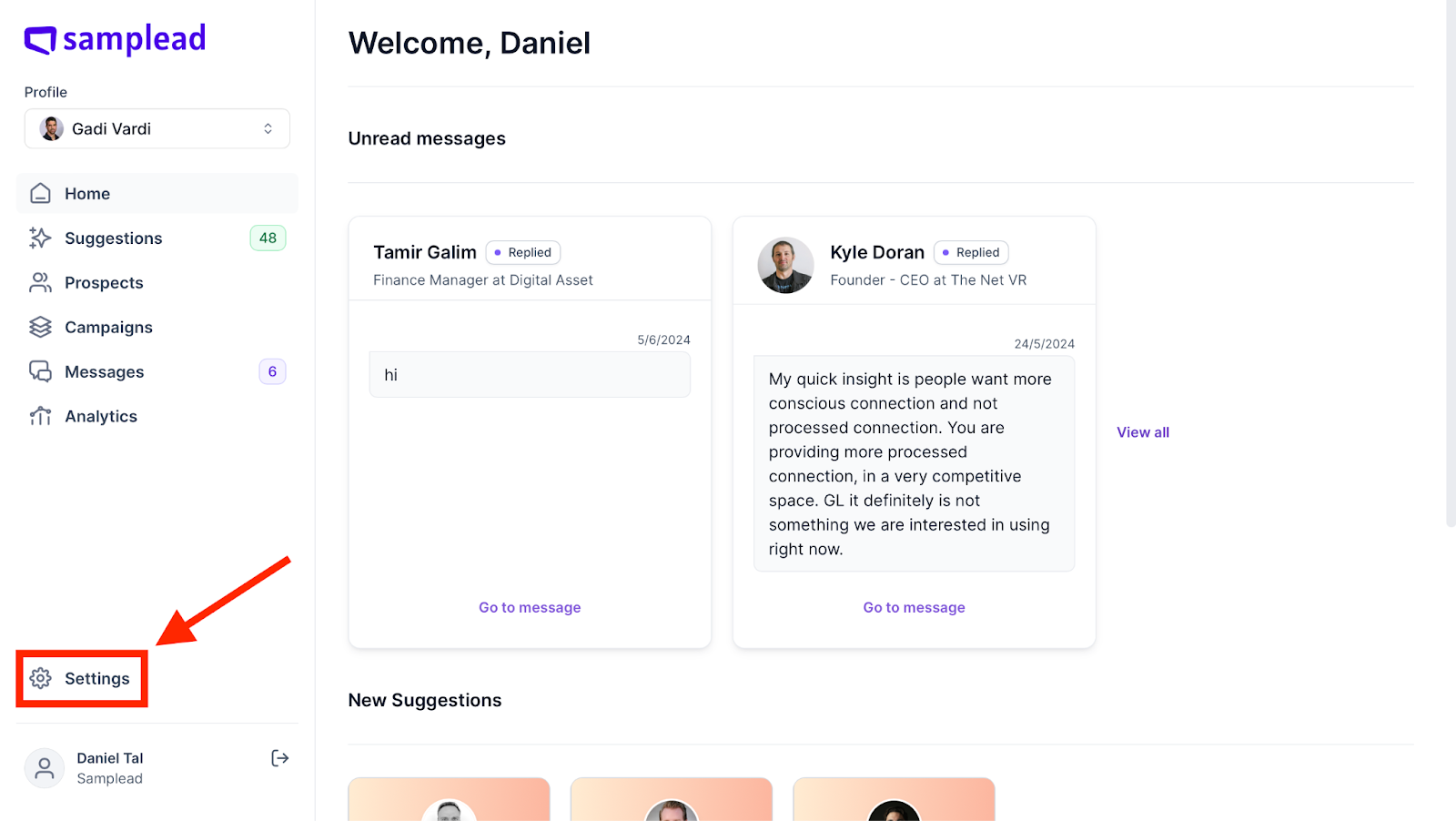
- From the home page, go into ‘Settings’ at the left hand side of the screen.
- From settings, click on the ‘Integrations’ tab at the top of the screen.
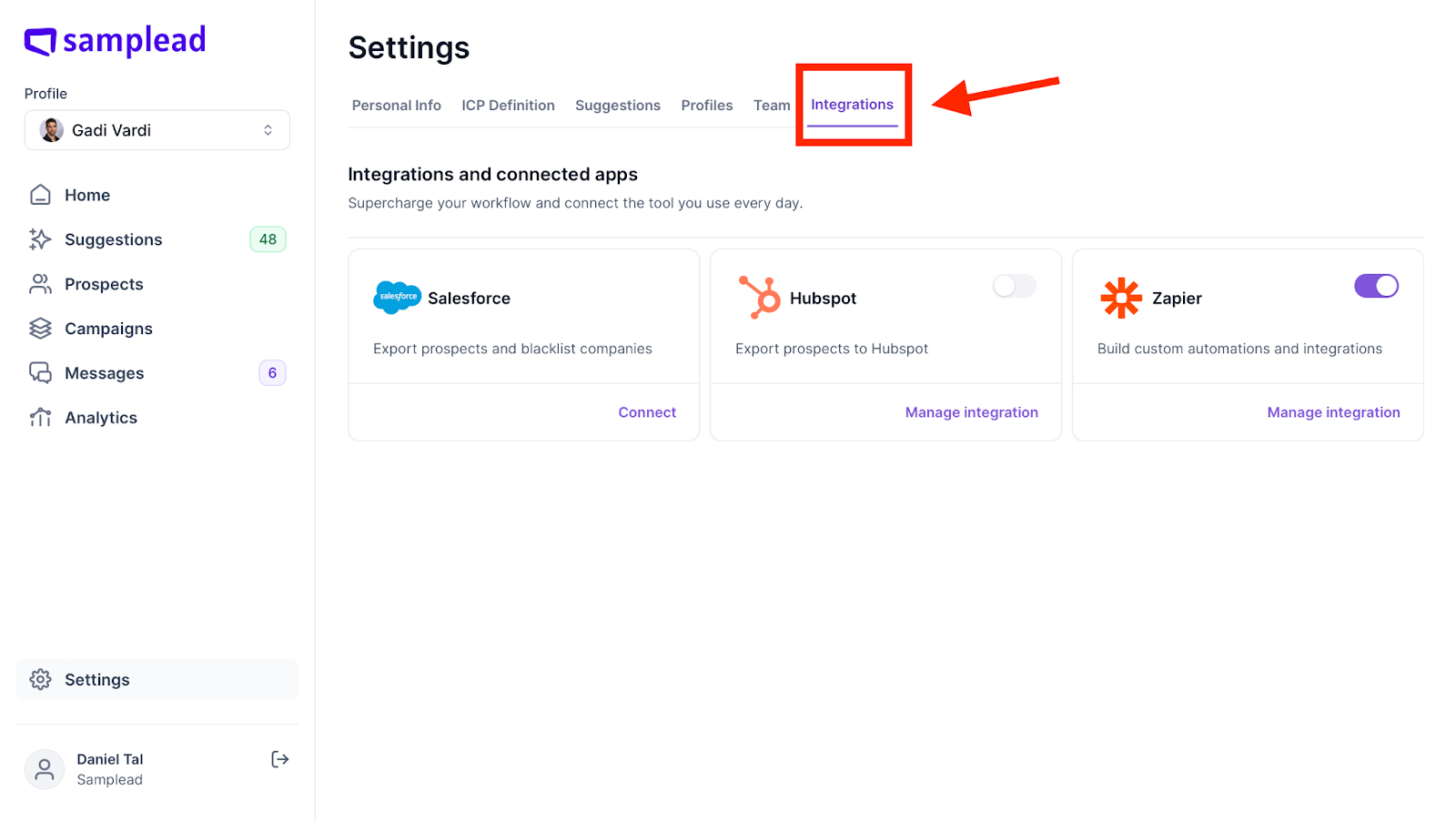
- Now you want to activate by turning the toggle switch to purple when clicking it.

- Clicking on "Manage Integration" allows you to customize how prospects will appear in the HubSpot CRM.

- In General Settings, you can specify the status of prospects to be exported to HubSpot. For example, if you select the "interested" status, only prospects marked as "interested" within the conversation will be exported.

6. Field mapping allows you to customize the information about prospects, how it will appear in your HubSpot. You can choose to sync according to the prospect or company.

7. When mapping if you want the source of the prospect (Samplead) to appear in Hubspot add this field …

8. You can blacklist companies that are competitors or current clients you don't want to reach out to. To customize their representation, click on "Blacklisted Companies" and fill out the required information.
The values will be different per client as it depends on how the sales cycle is set up in your Hubspot.
Note: Blacklists can also be provided to us separately from the Salesforce integration

*Object represents a primary entity within the CRM*
A field represents a specific characteristic of an object, meaning the object must possess this characteristic to appear in the CRM.
Select Values are values associated with the Object and Field. You can choose these values based on your desired data display.
The Company Name Field is a field within the Company object that stores the name of the business or organization. This field is essential for identifying and organizing companies in your CRM
This is an example of how a client has set up their blacklist:

9. When finished, make sure you click save before leaving the screen.

10. If you wish to export prospects manually, simply go to prospects, choose who is getting exported, then click export at the top right and choose Hubspot.