How to Export Prospects from a specific campaign
You can export prospects from specific campaigns to either to a CSV file or manually to your CRM (if automated export isn’t set up).
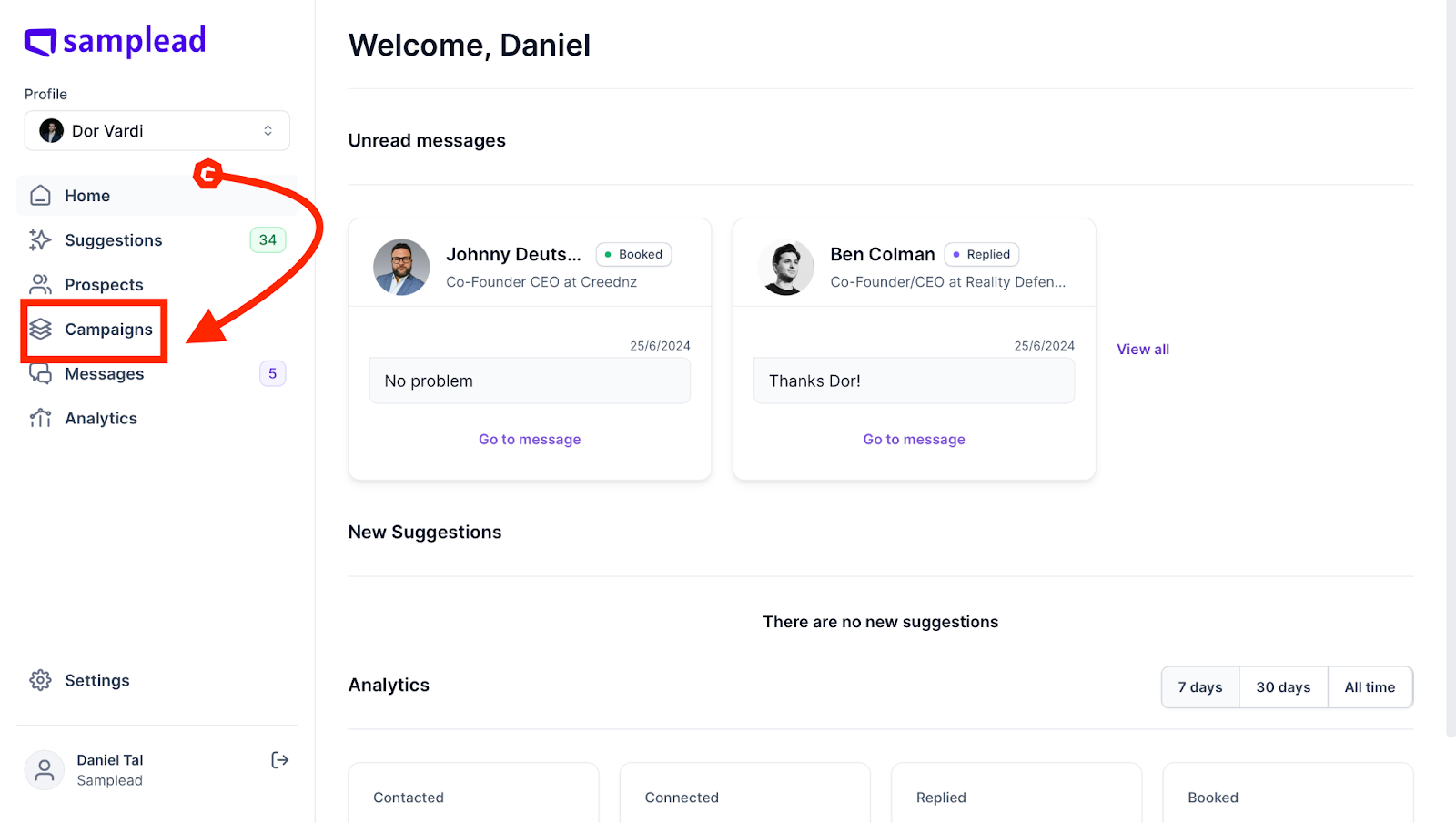
- From the home page, click ‘Campaigns’ on the left hand side of the screen.
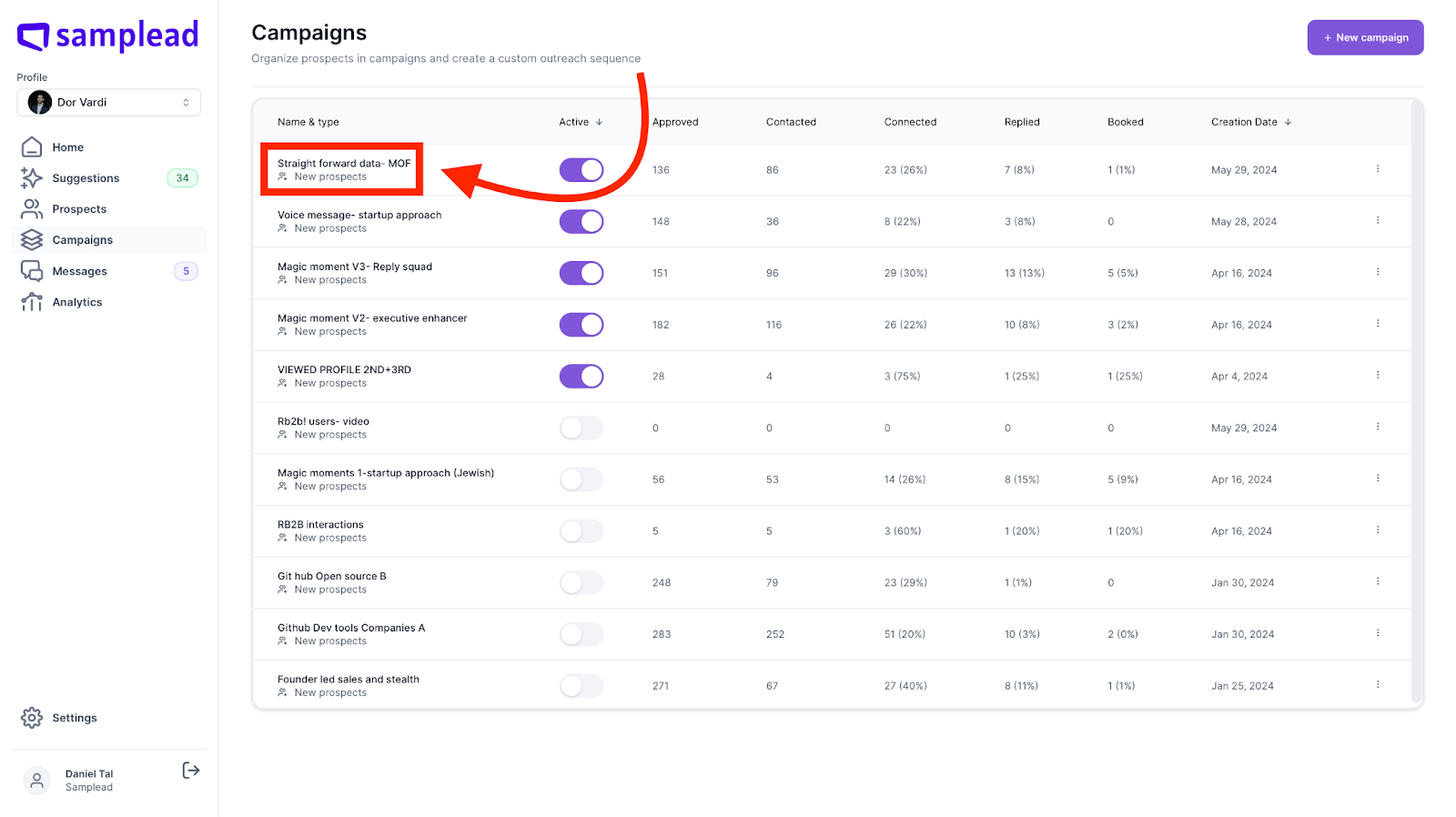
- Once you navigate to Campaigns, find the specific campaign you want to export from and click on it (e.g., Straight Forward Data - MOF).
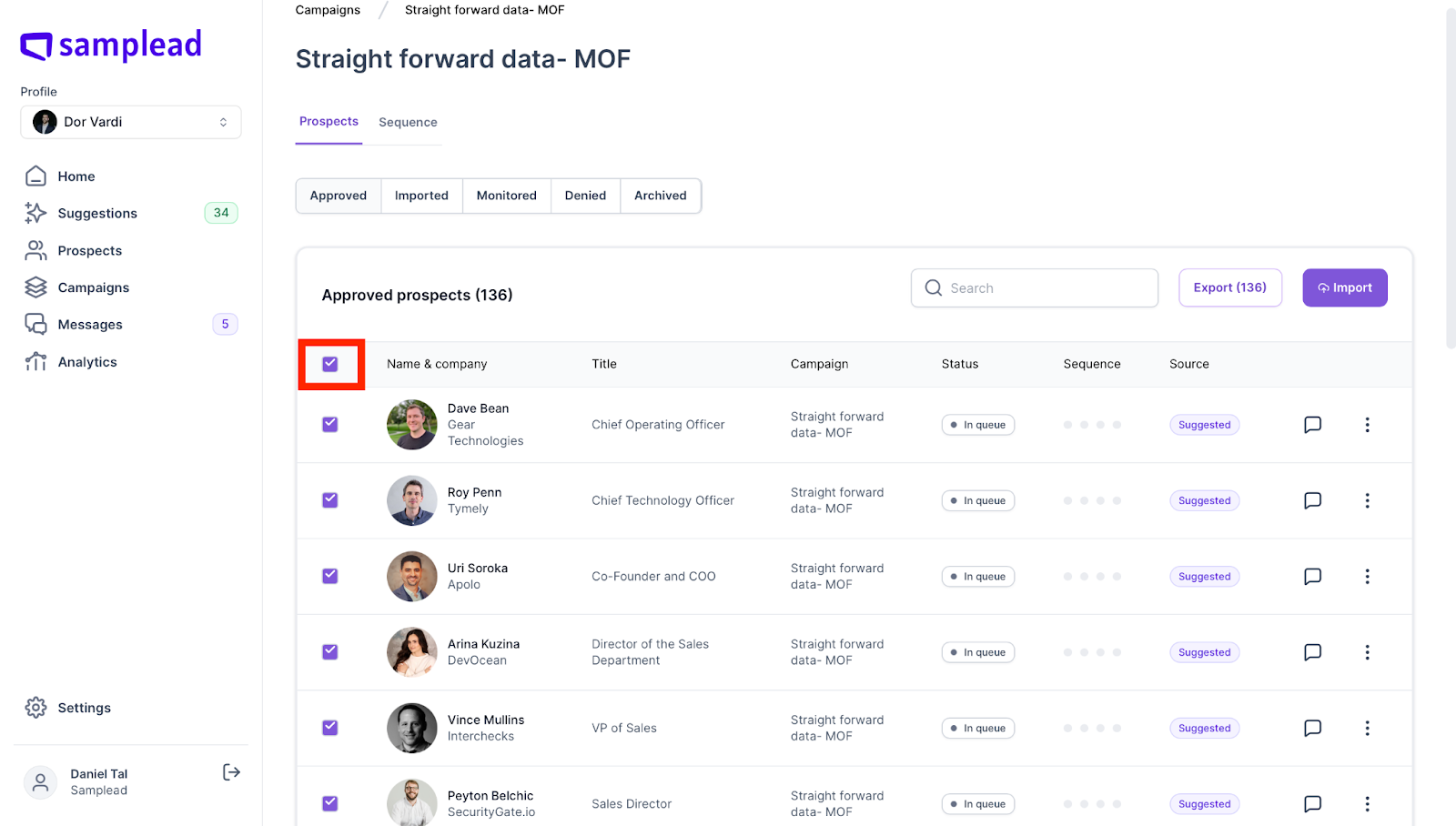
- Select the prospects you would like to export. You can toggle through Approved, Imported, Monitored, Denied, and Archived by clicking on them at the top.
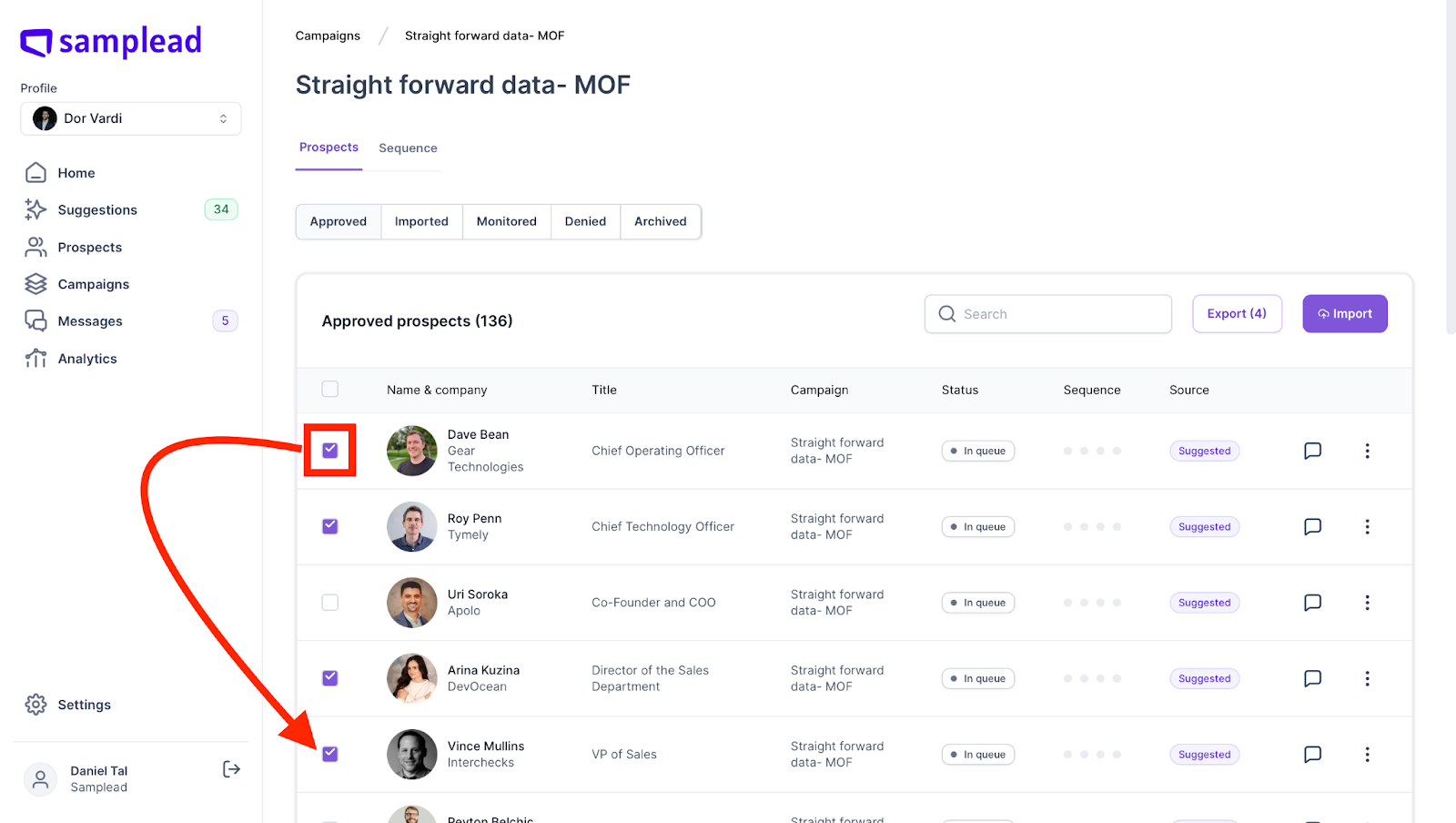
- To select all of the prospects, click on the square in the upper gray area.
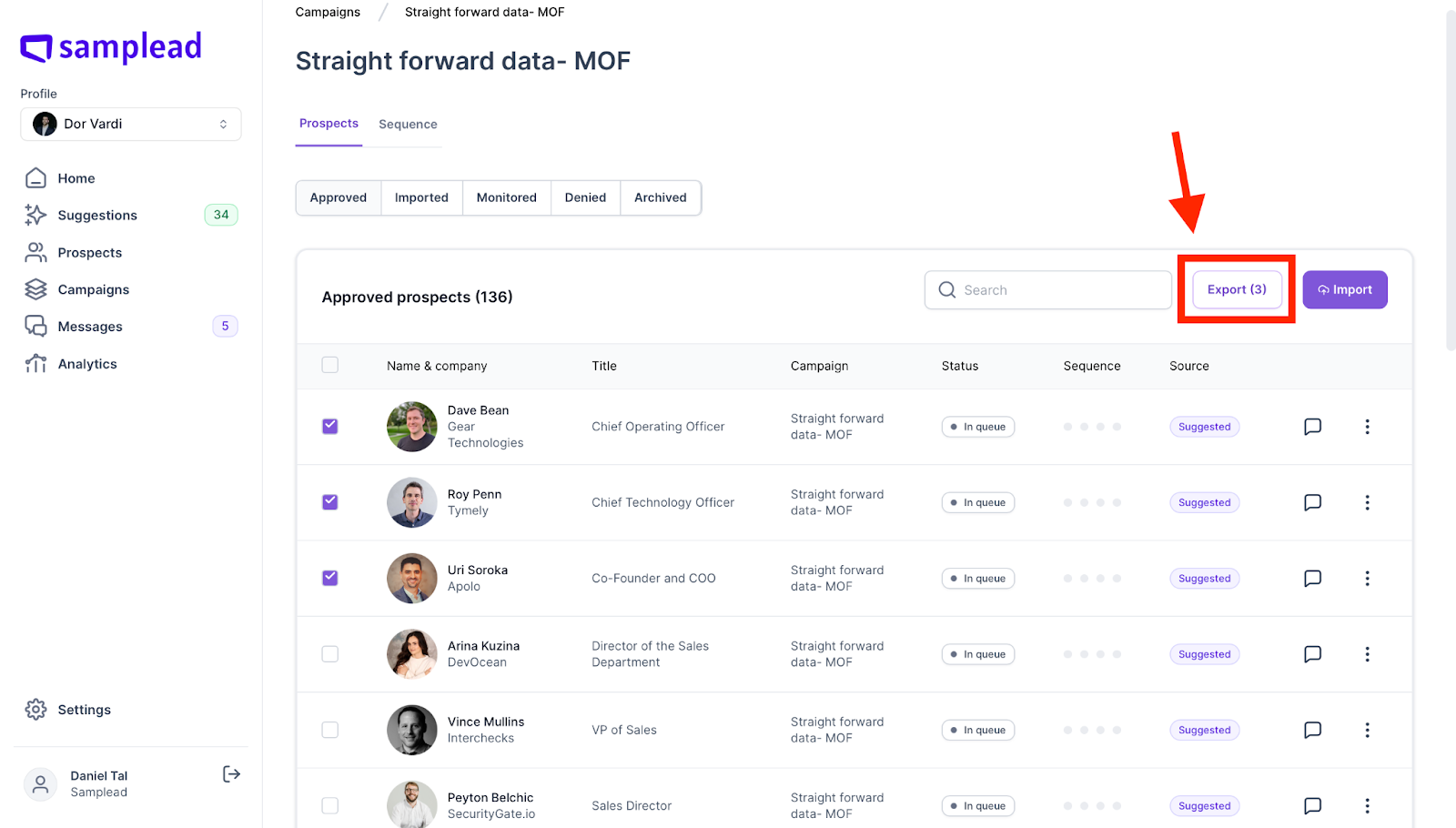
- Once you have selected the prospects, you are now ready to click on the export button at the top right of the page.
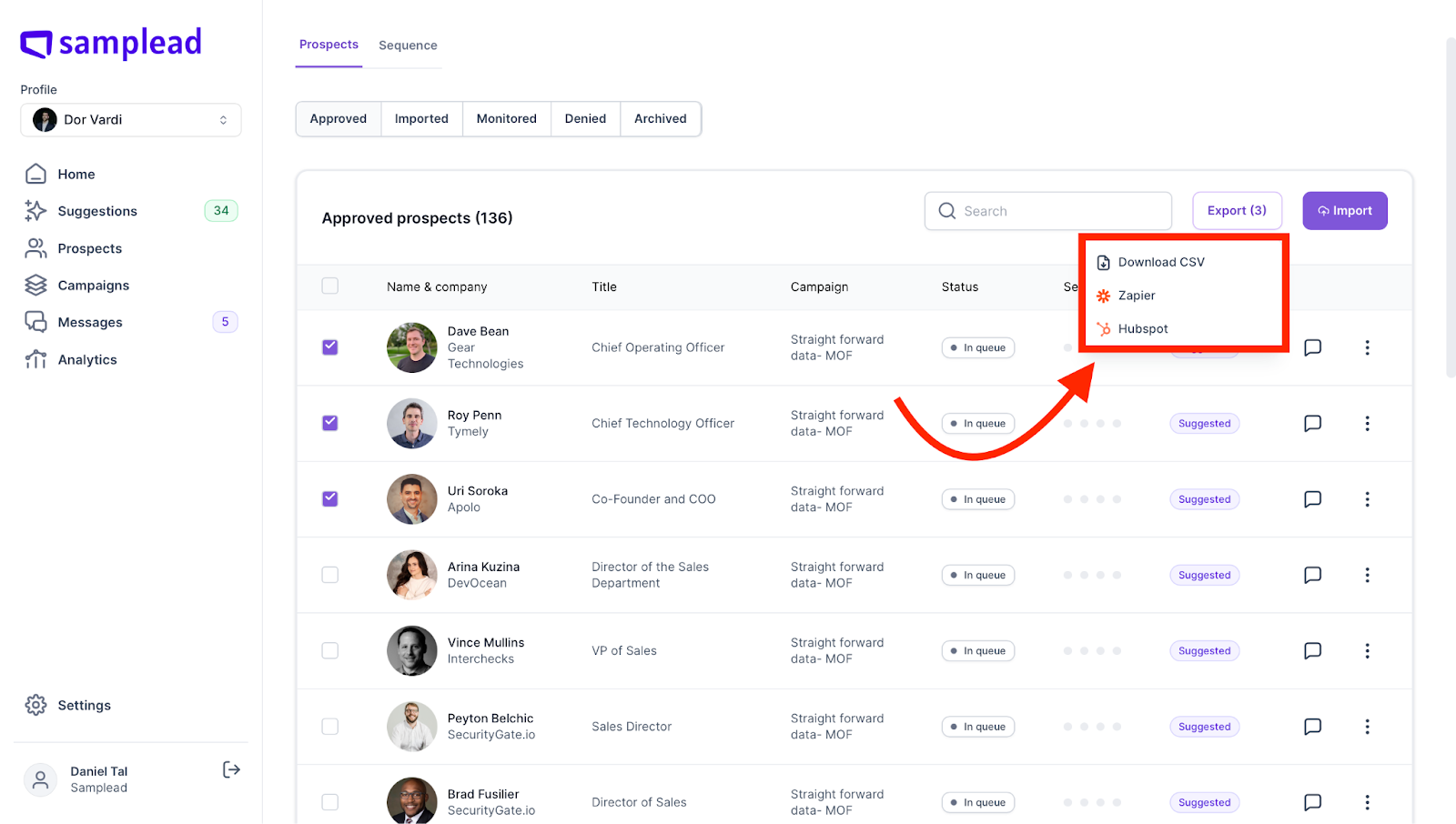
- Depending on your integrations you can choose to Export the prospects to Hubspot, Zapier, Salesforce, or as a CSV file.
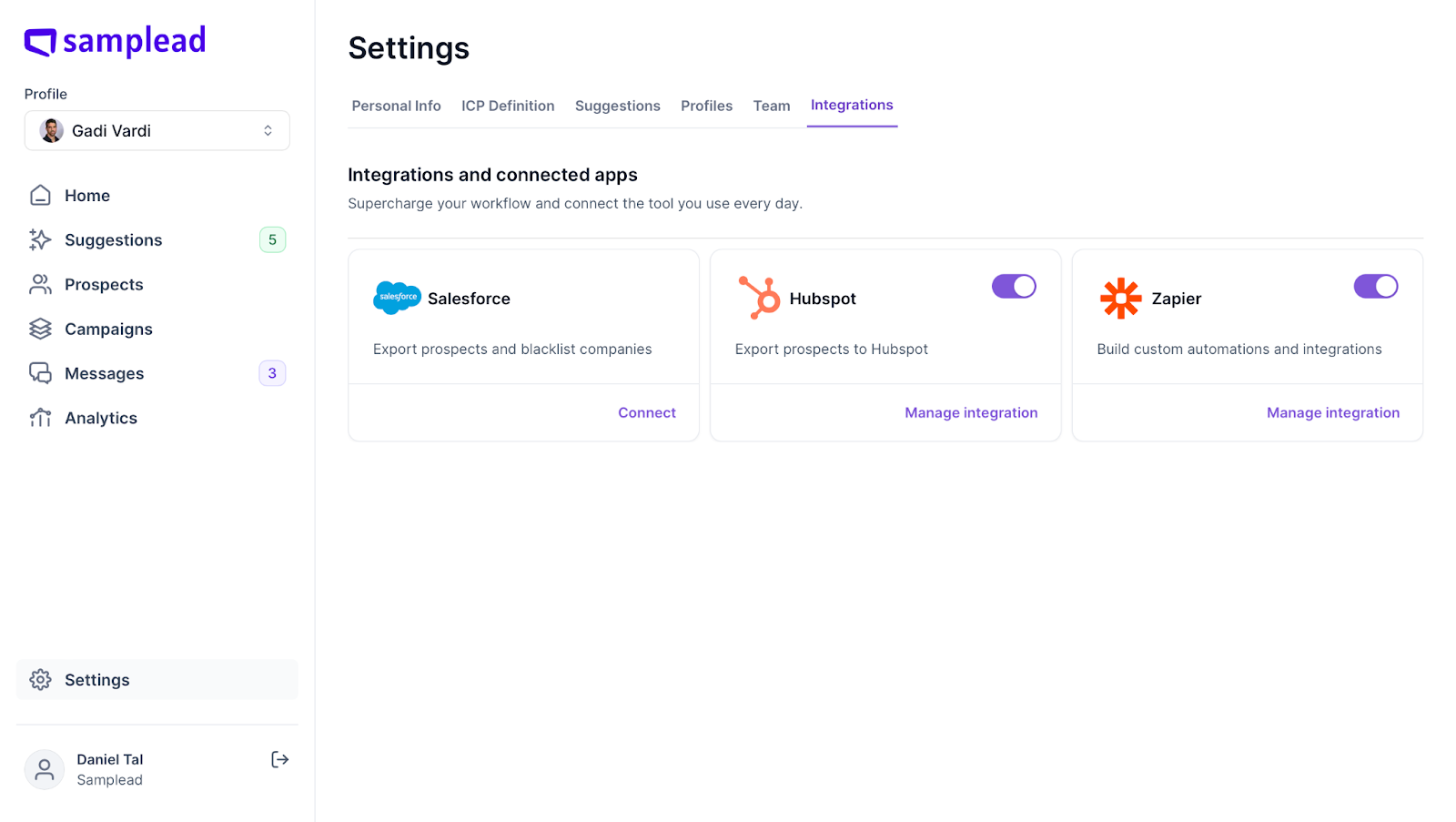
Add another page integrations in settings - to check if the integration to SF or HS has been set up.
- If you go to Settings, and then click Integrations. You can check to see if SalesForce and Hubspot are set up and ready for integration.