How to Make a CSV File Through Analytics
You can download a CSV file of your data through the Analytics page
- From the home page, click on ‘Analytics’ at the left hand side of the screen.

- Once here you will see a percentage for each status type in the funnel. Clicking on any section will update the data in the table. By default the table displays information for 'Requests sent.
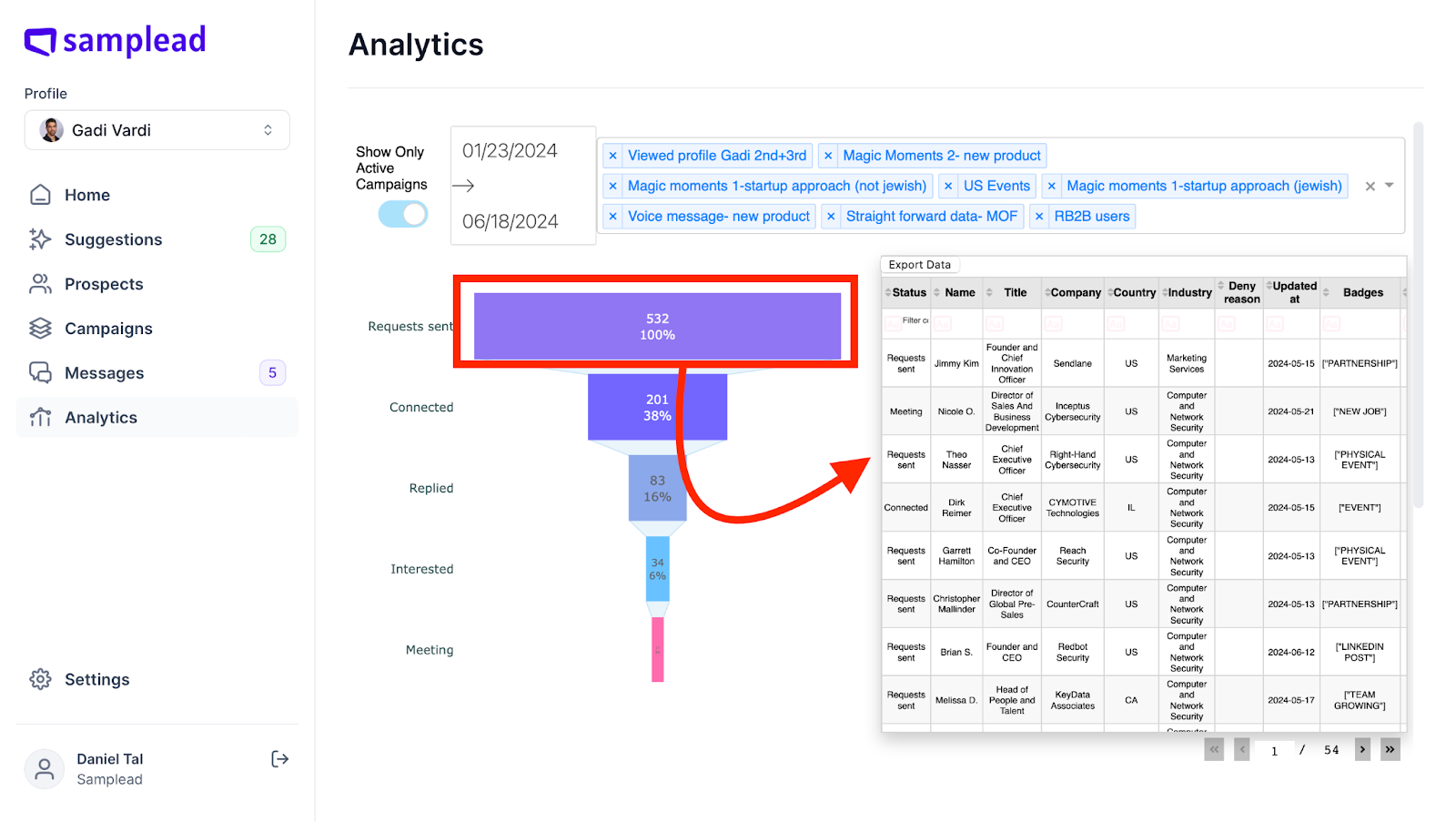
- When you click 'Export Data' at the top of the list you will get the data for that section and all sections below it. For example, if you click 'Replied,' you will receive data for everyone who replied, as well as those who are interested and those who have meetings.

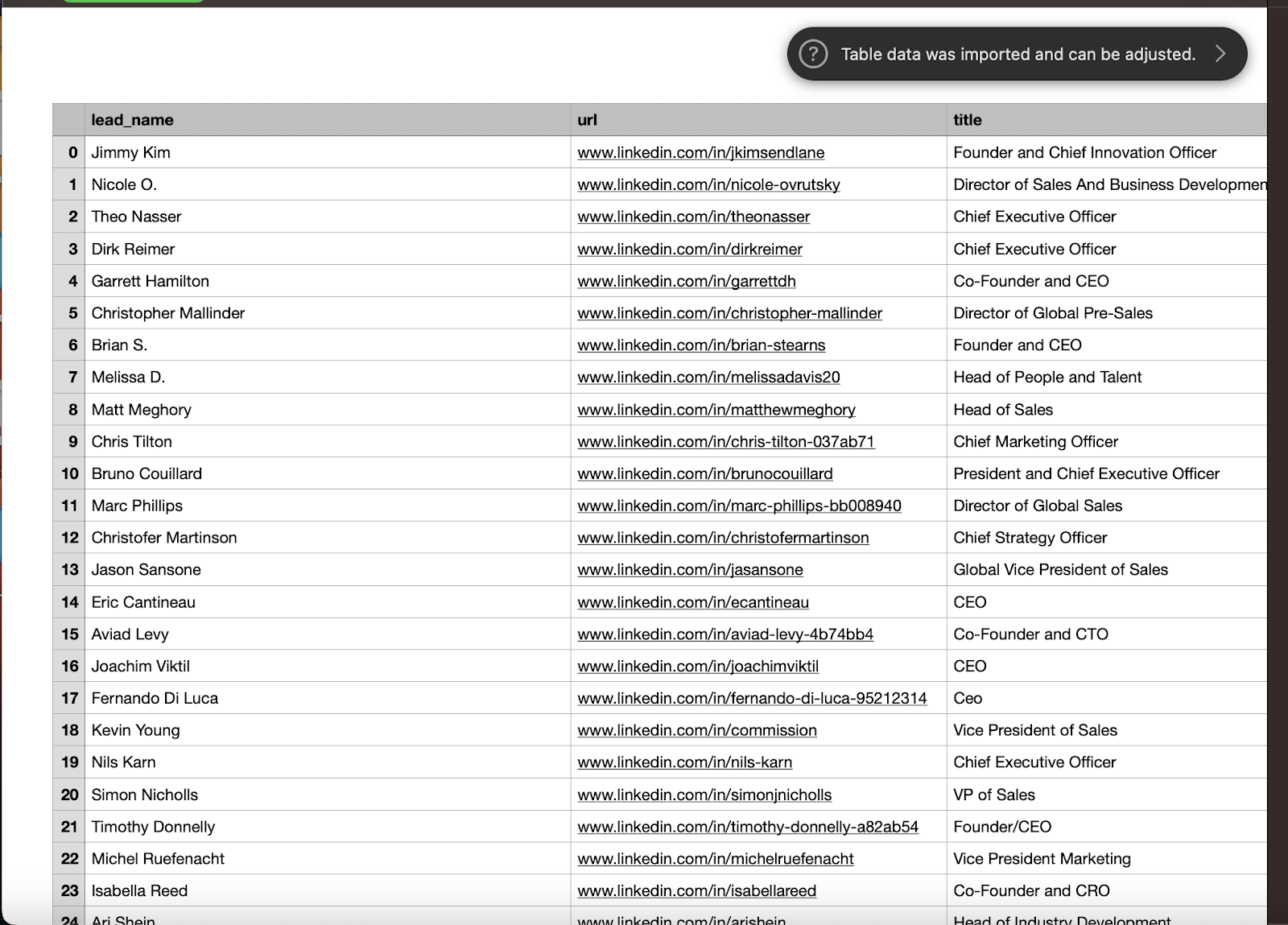
- Your file should look something like this