How To Use The Tags Feature
If you want to categorize your prospects further, you can add personalized tags. If you have prospects which require future attention you can create a Tag regarding what you need from the prospect. In this example we use the ‘Follow Up’ Tag.
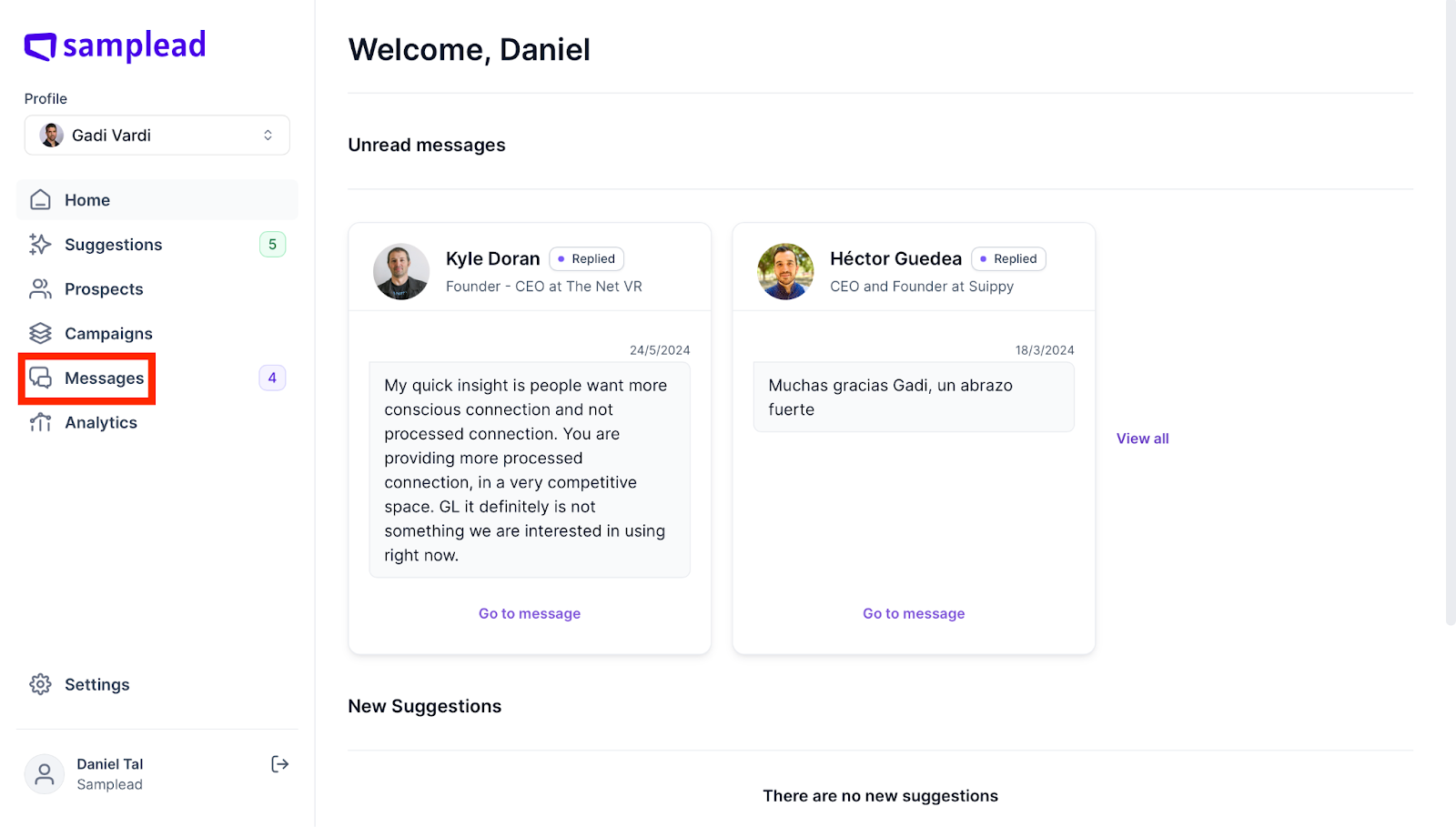
- From the Home page, click ‘Messages’ at the top right of the page
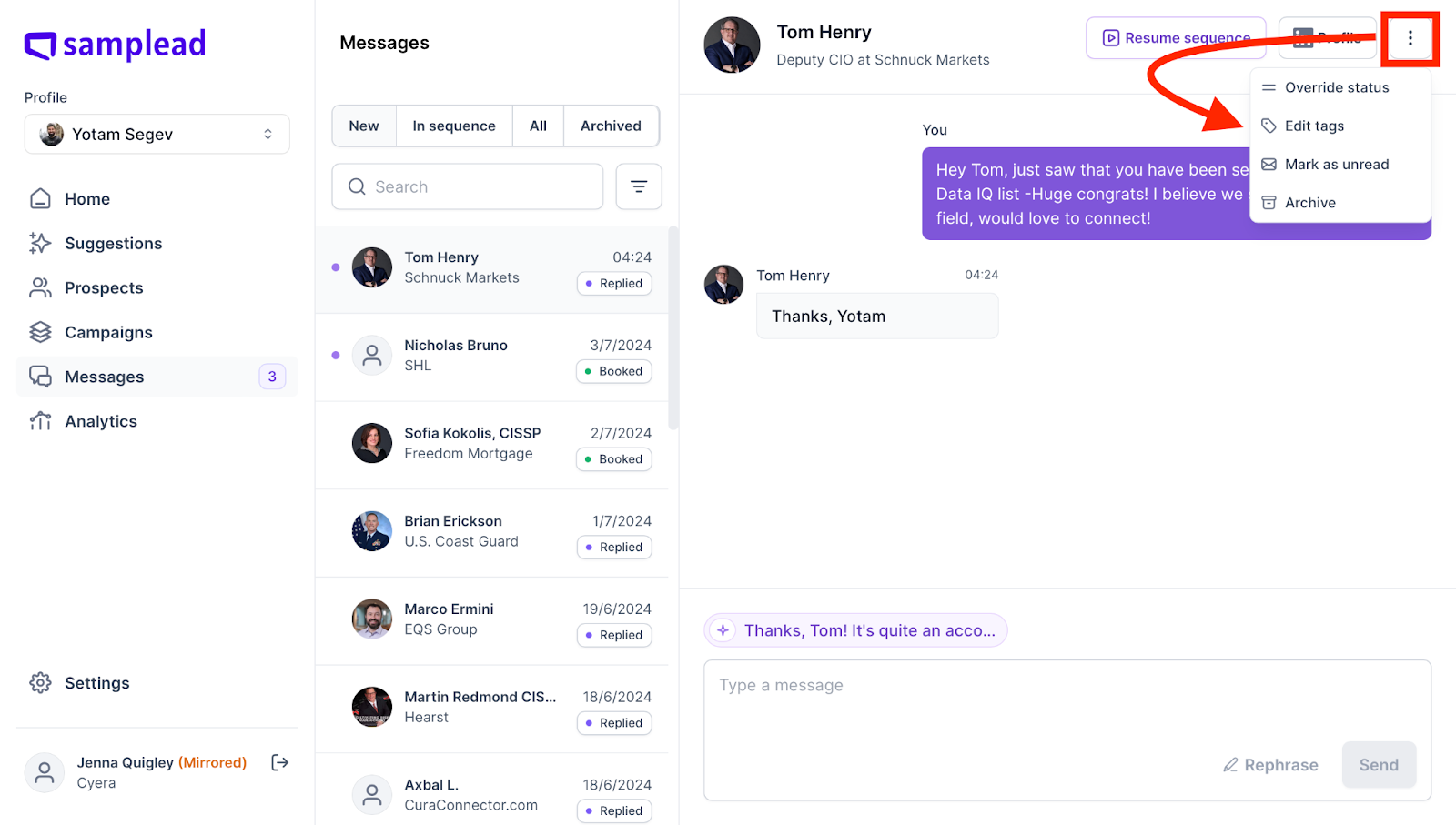
- Once in messages, find the prospect you want to add a tag to. Then click on the three dots at the top right and click Edit Tags.
- Choose the ‘Follow Up’ tag and then click ‘Add Tag’ (Follow Up tag categorizes the prospects you wish to reach out to again in the future so they are easy to find later on)

- You can also create your own tag and use it by typing it in the text box and clicking Add Tag. A prospect can have multiple tags assigned as well.
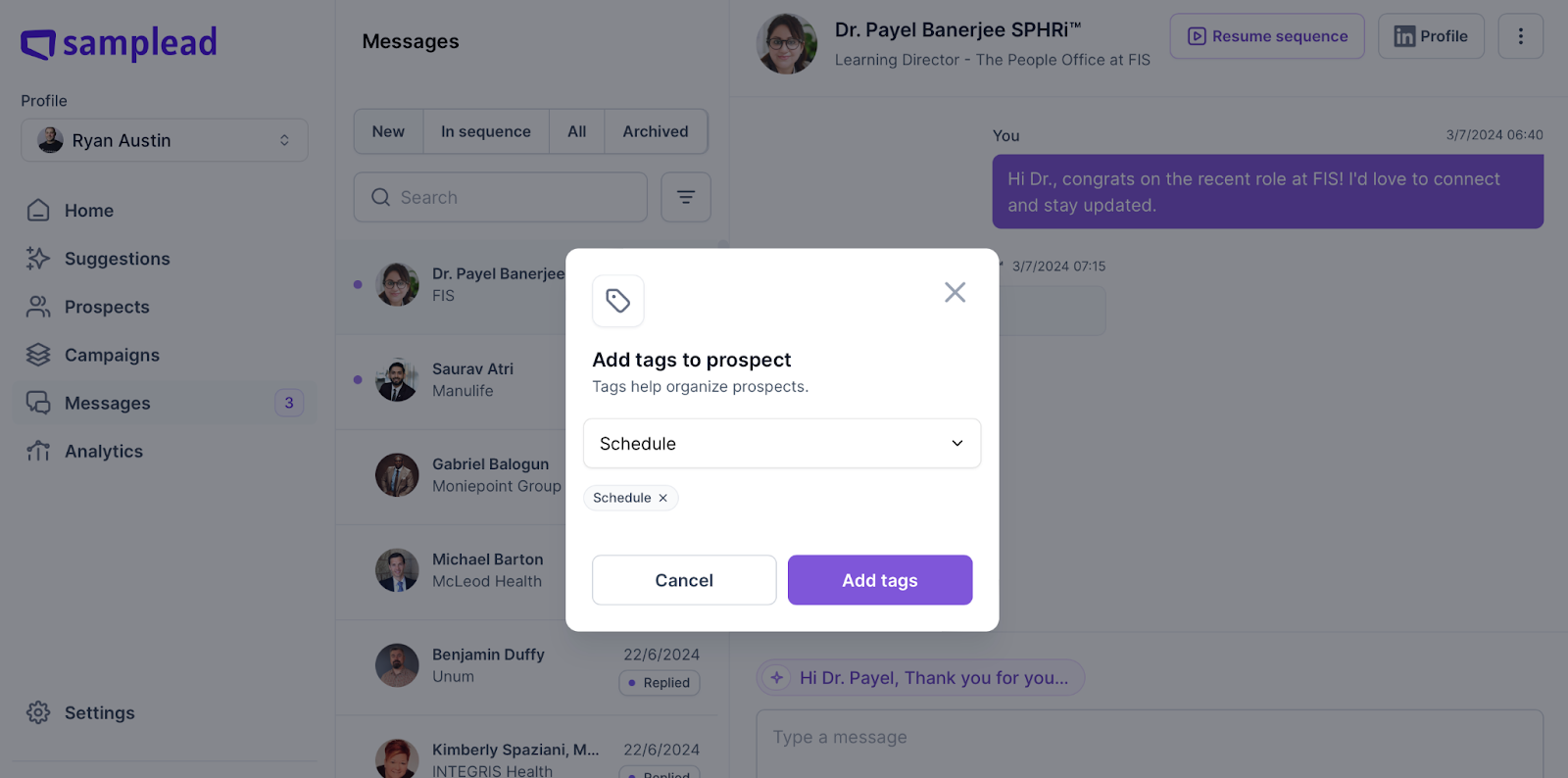
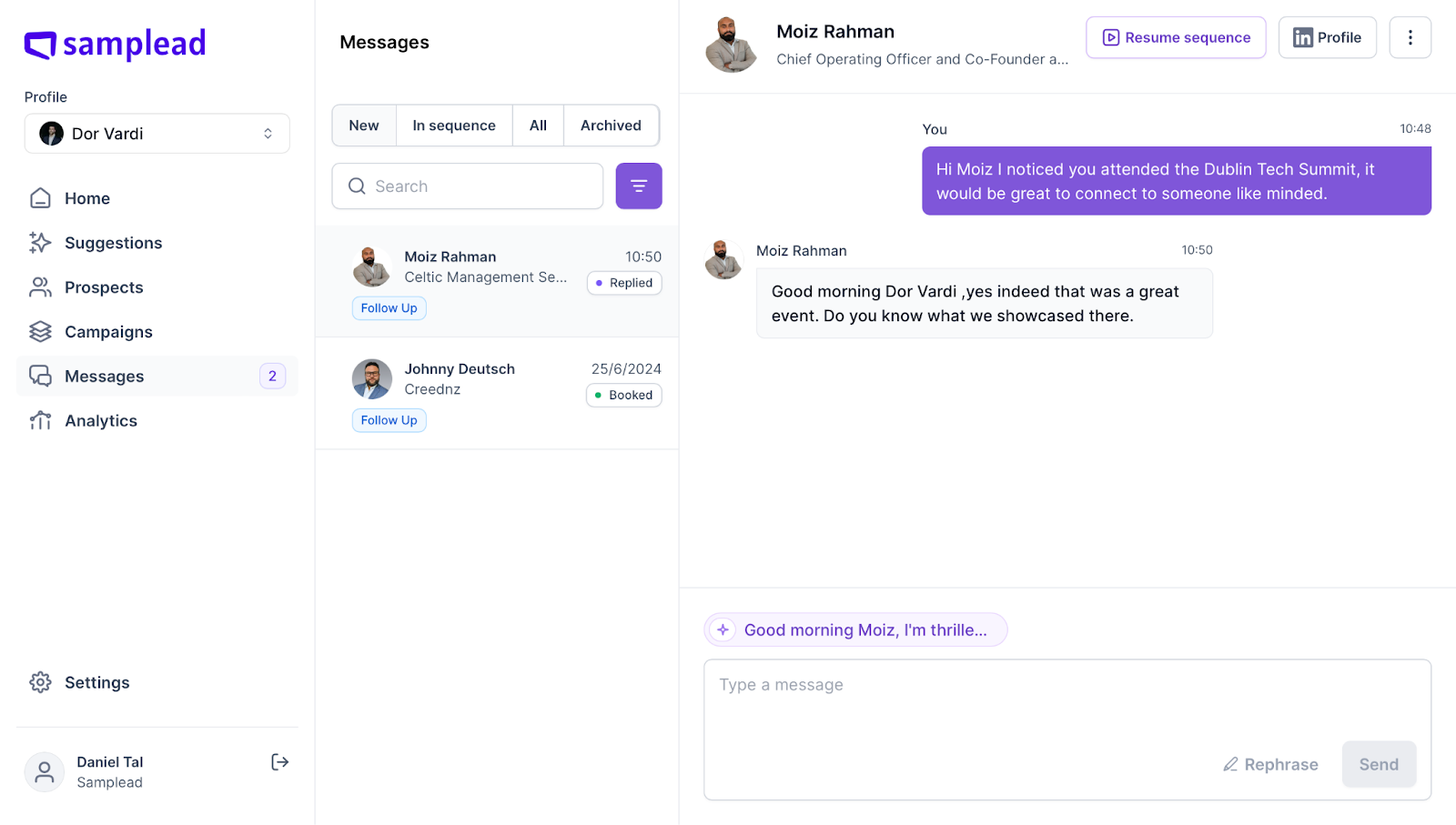
- Now you will see that the prospect has a little tag that reads ‘Follow Up’ adding them to the list.

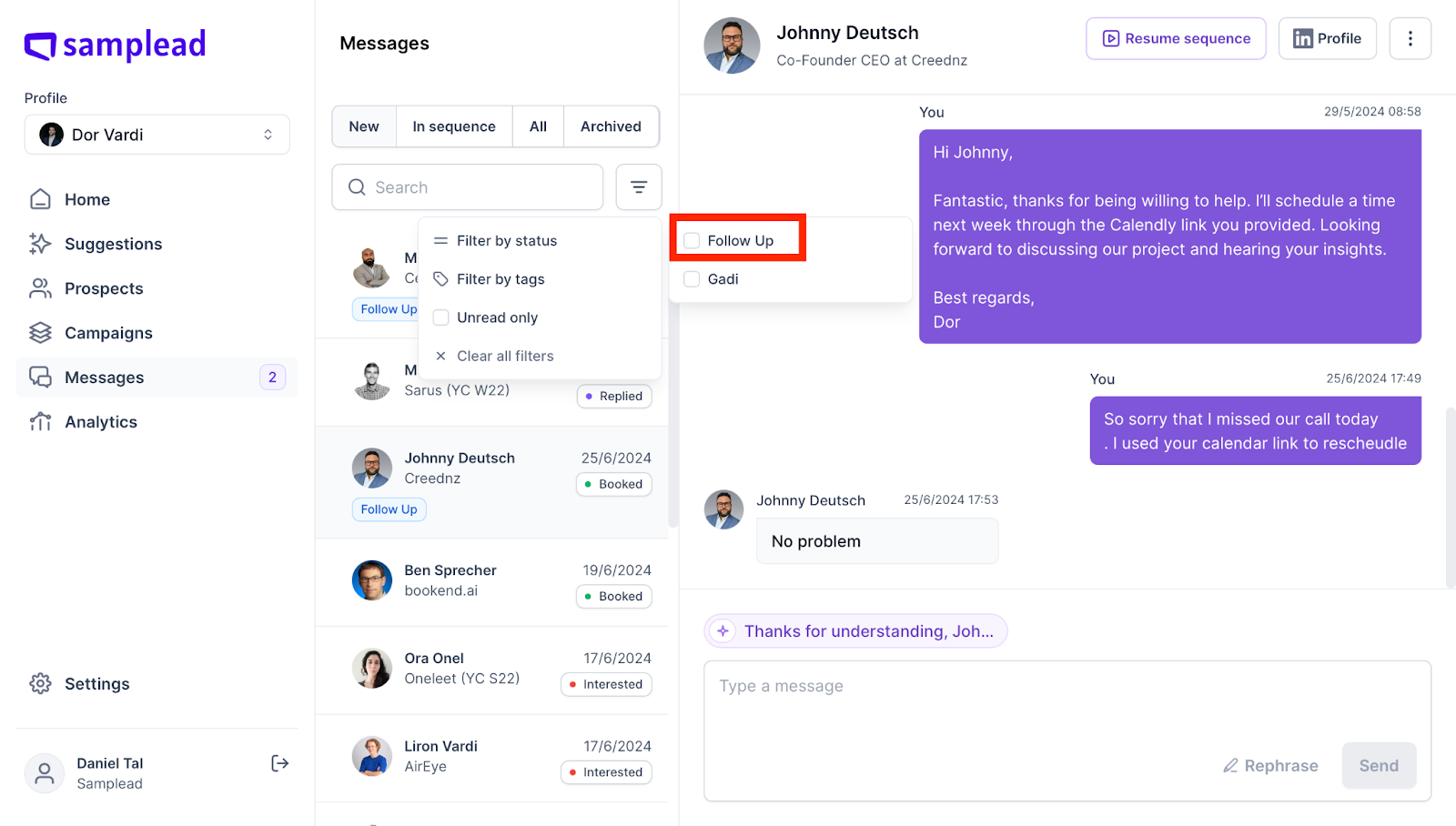
- Now when searching for prospects you can filter for ones with a “Follow up’ Tag. Click on the three lines to the right of the search bar.
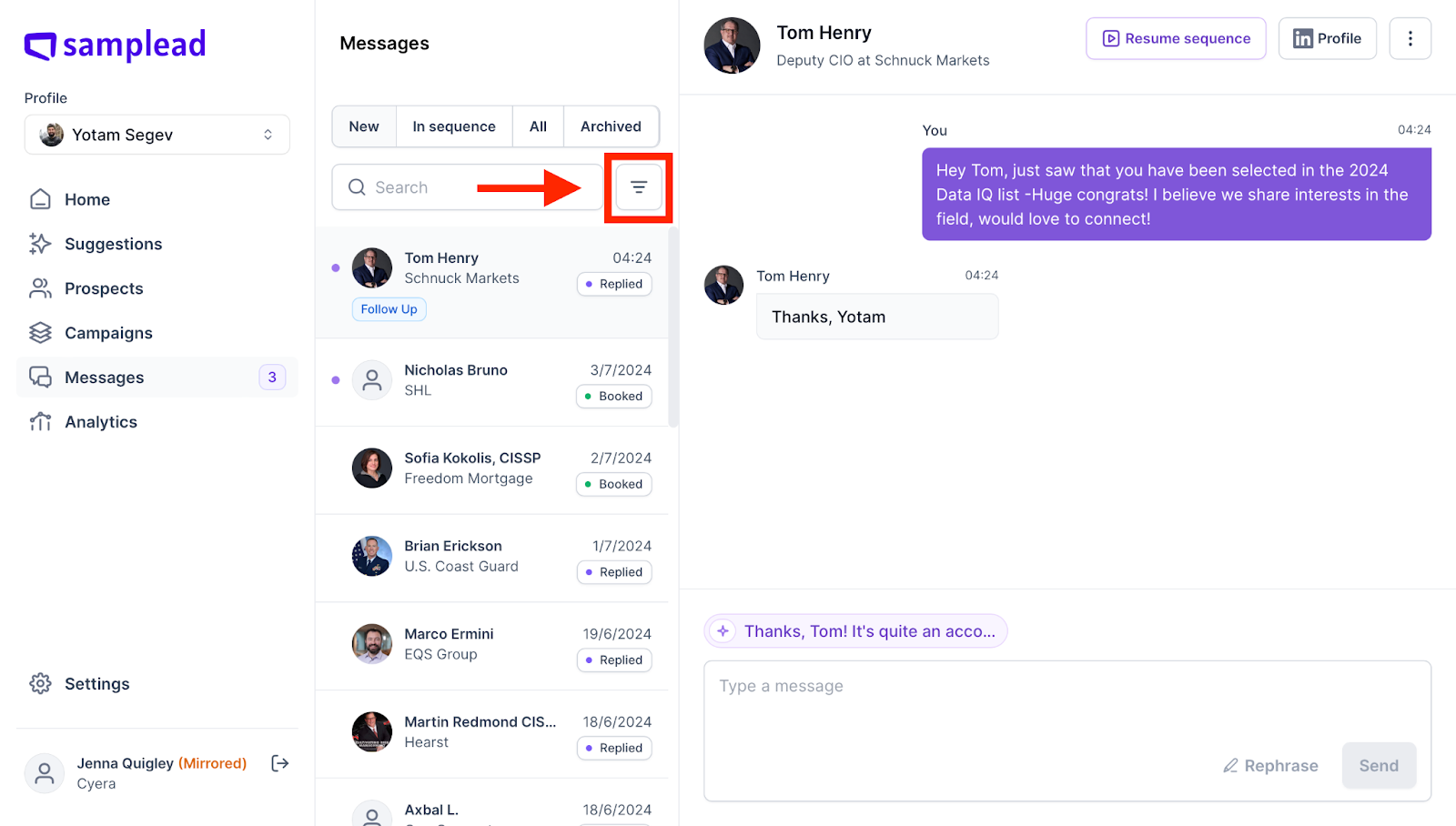
- Now click ‘Filter by Tags’

- Now choose ‘Follow up’ and all of the prospects you have tagged will appear.