How to integrate Spear to Hubspot
 May 12, 2026
 5 min read
Spear to Hubspot
Spear offers a native integration with HubSpot. This is a two-way integration, allowing you to push prospects from Spear into your CRM and set up categories for company exclusion.
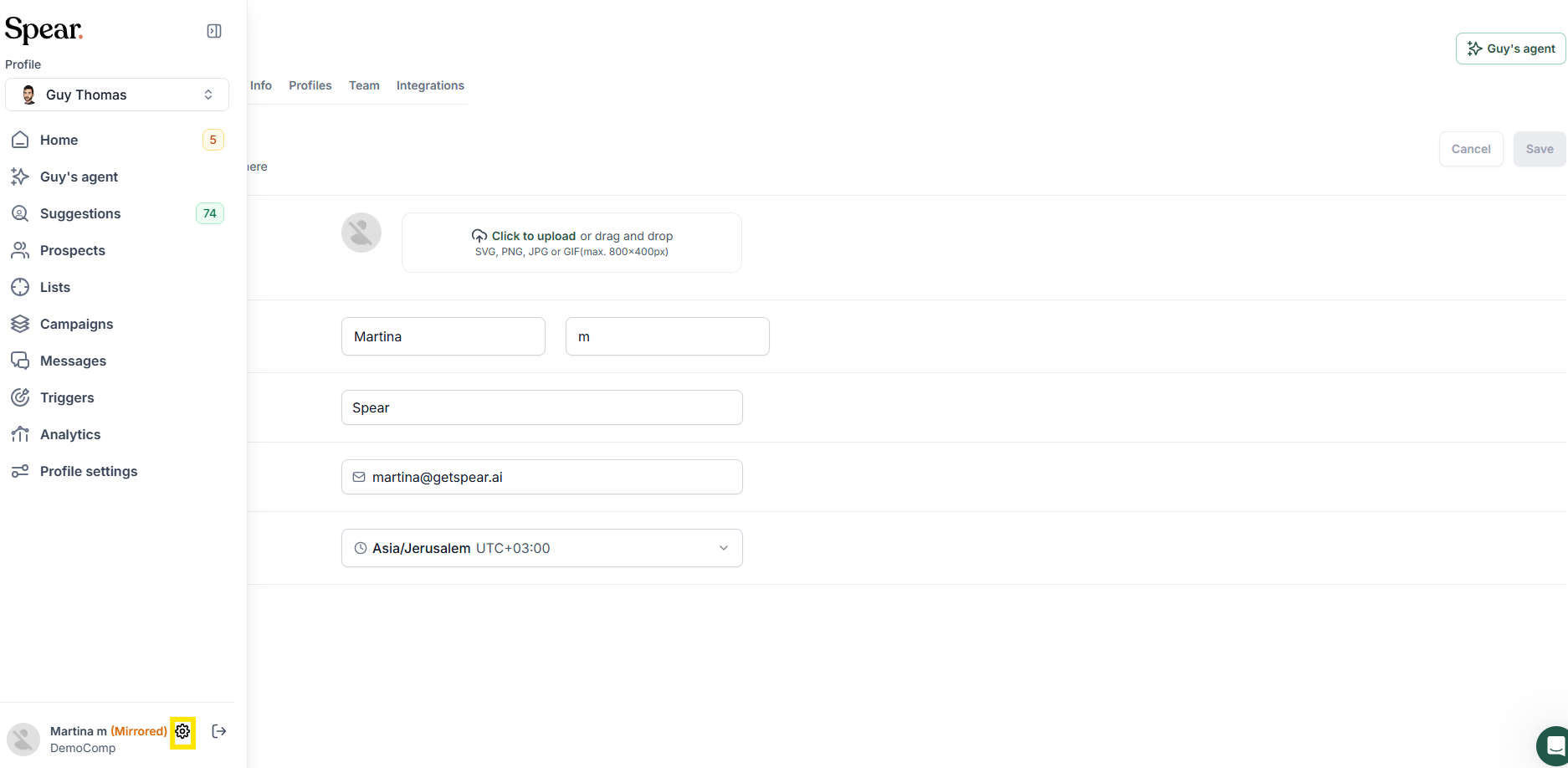
Step 1: In the bottom left corner, click the gear icon, Settings > Integrations > Connect to Hubspot
Step 2: Connect to HubSpot

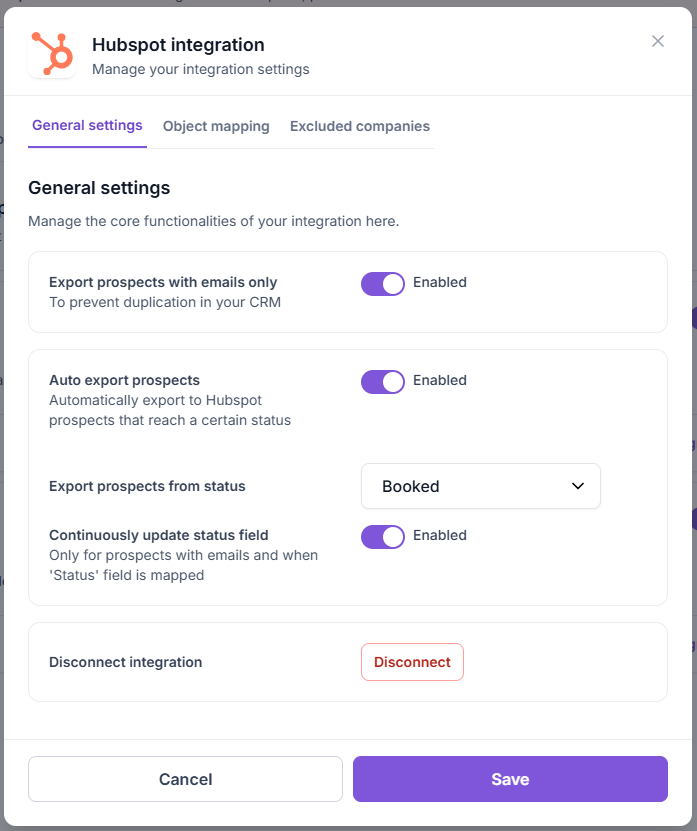
Step 3: Complete Integration setup
To activate Auto export to Hubspot:
- Enable Auto export prospects
- Select the prospect status from which exports should begin
We also recommend enabling:
- Continuously update the status field – to ensure prospect statuses in HubSpot stay in sync with Spear
- Export prospects with emails only – to help prevent duplicate records in HubSpot
If Auto Export is turned off, you can still export prospects manually via Approved Prospects > Export to Hubspot
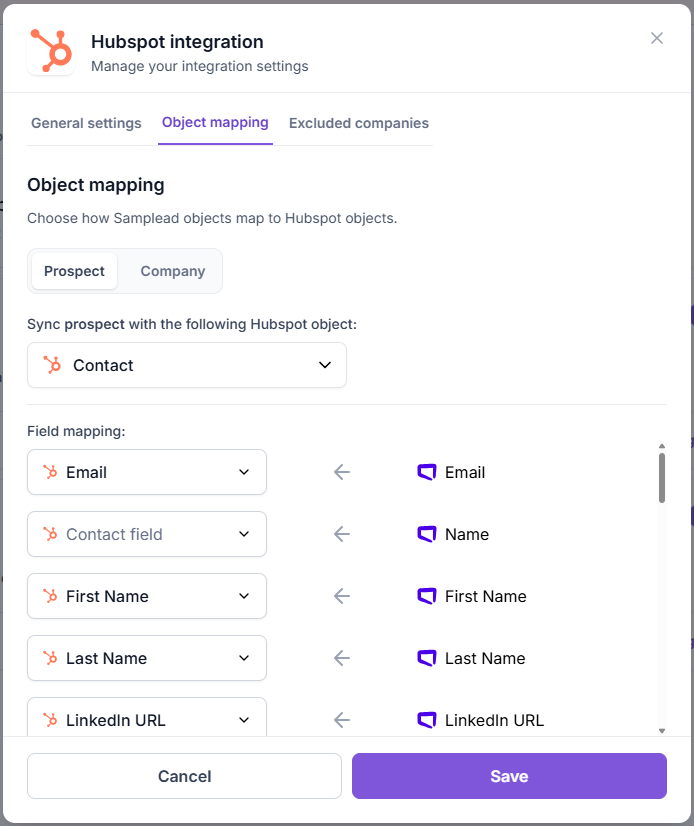
Step 4: Complete Object mapping
Choose which fields in HubSpot should be populated using the data points provided by Spear.
Real-Time Conversation Sync
Keep your CRM as a living record by automatically exporting full conversation transcripts.
- Locate the Conversation Field: In the Object mapping tab, find the row for Conversation.
- Map to HubSpot: Select the corresponding Contact field in HubSpot where you want the messages to appear.
- Automatic Updates: Once configured, every new message in the conversation will be pushed to this associated field in real-time.

Why you’ll love it:
- Total Data Integrity: Every “let’s set a time” and “sounds interesting” is recorded in your CRM in real-time.
- Team Alignment: Your entire sales team stays on the same page without ever leaving their CRM dashboard.
Pro-Tip: When setting this up in your integration page, look for the “Conversation field.” We recommend mapping this to a multi-line text property in your CRM to make sure the full transcript fits perfectly.
Recommended: Mapping both the Prospect and Company fields - to create both objects in HubSpot.

Optional: Custom Mapping — You can map static text by selecting '+Add Mapping' and defining the field. For example, you can add “Spear” so it appears with each exported prospect.
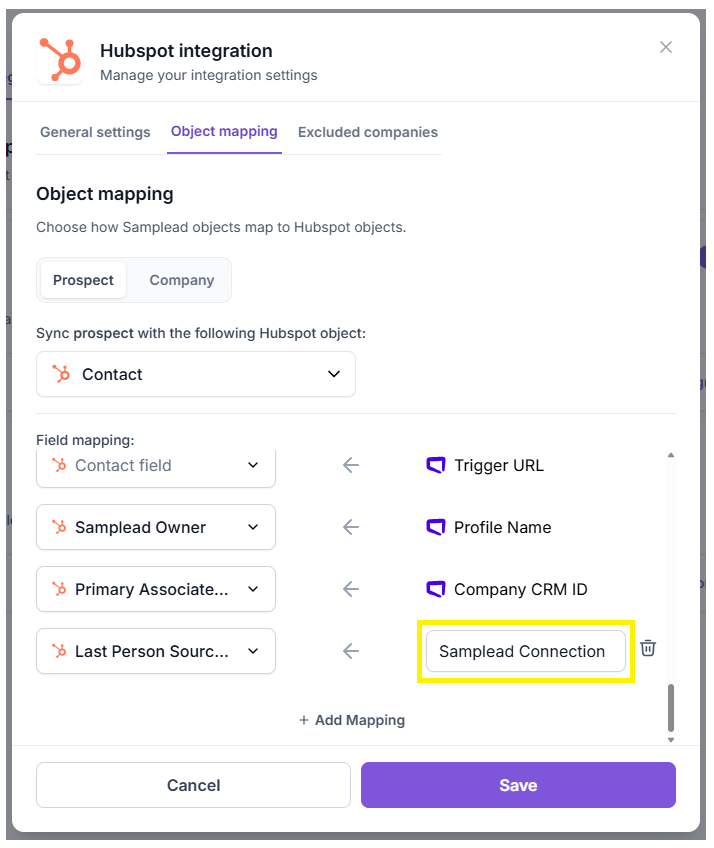
Note: If you wish to map a Spear field to HubSpot but don’t see the corresponding property in Field Mapping, you may need to create a custom field. Here’s a guide from HubSpot that explains how to do this - click here.
Step 5: Define Excluded Companies
You can define Excluded Companies through the Spear- Hubspot integration, ie, companies that Spear should not reach out to, for example, current customers, competitors, or companies in the sales funnel.
It is possible to upload Excluded Companies using a CSV file in Profile Settings > Excluded Companies. We recommend using the HubSpot integration, as it ensures companies are continuously updated.
To enable the integration:
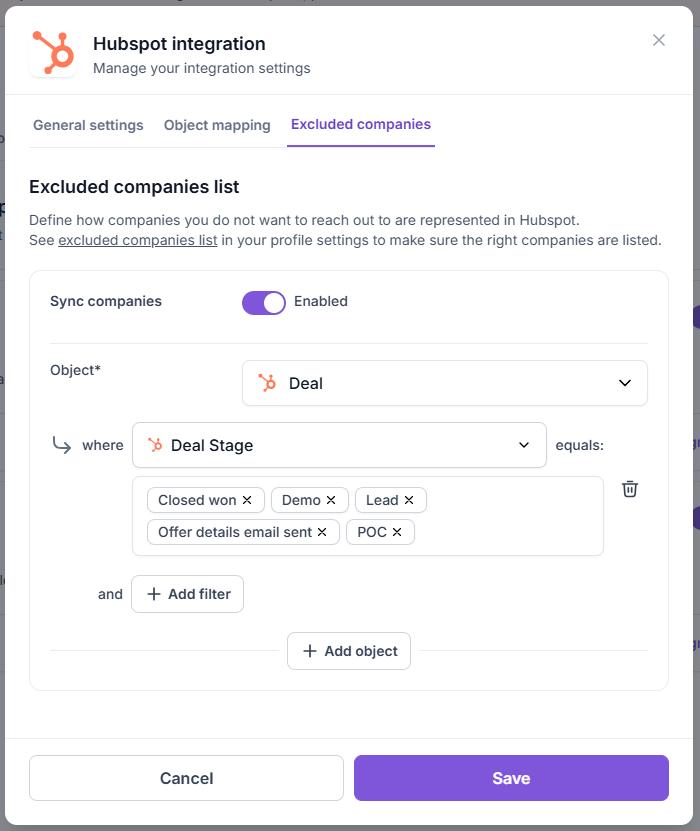
- Select the company object – Choose the object in HubSpot that represents a company (e.g, 'Deal' object).
- Set exclusion filters – Add filters to specify which companies should be excluded (e.g. exclude all active customers by setting Deal Stage = Closed won). You can add multiple filters.
- Add additional objects (optional) – If companies are represented by more than one object type in your Hubspot, click Add object to include them.
This is an example of how the Excluded Company List may be configured. The exact setup will vary depending on each customer’s Hubspot configuration.


.avif)