How to schedule a message
 May 12, 2026
 5 min read
The Value of Automated Timing
Scheduling messages lets you queue a response for the ideal moment, ensuring your outreach is seen when it has the highest impact. It’s especially helpful when the timing isn’t right to send now or when a prospect asks you to follow up later.
Follow the steps below to schedule your message for a specific date and time.
Step 1: Navigate to the 'Messages' tab.

Step 2: Select the prospect you want to message.

Step 3: Reply manually or use AI Reply to generate a suggested response based on the prospect’s message.
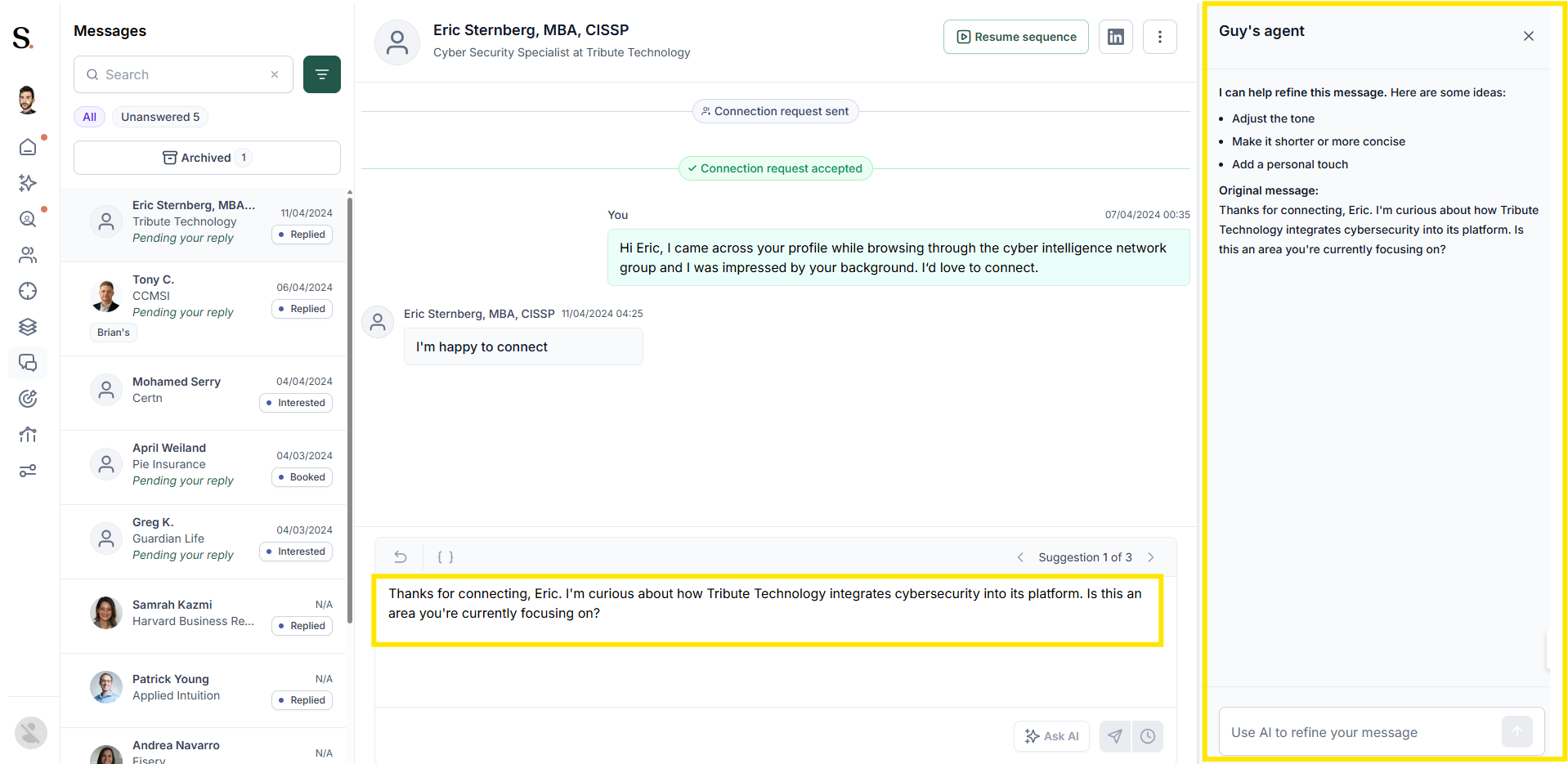
Step 4: Click the clock located next to the send button. Then, select 'Schedule message' to choose your desired date and time.

Step 5: Select the date in the left box, choose the time in the right box, and click 'Schedule message' to confirm.

Expected Result: Your message is now scheduled and will be sent automatically at the selected date and time.
Tips & Best Practices
- Respect Time Zones: Check the prospect's location before setting the time to ensure your message lands during their business hours, maximizing the chance of an immediate response.
- Reference the Delay: If you’re scheduling a message because the prospect asked you to follow up later, add quick context like “As discussed last month…”.
- Avoid Weekends: Aim to schedule messages for Tuesday, Wednesday, or Thursday mornings. These times typically see higher open rates compared to Mondays or Fridays.
Related Articles
This feature helps you stay consistent when prospects ask to reconnect later. To increase the chances of getting a response, make sure your professional presence supports those well-timed messages. Read our guide on how to optimize your LinkedIn profile to maximize your credibility and acceptance rates.


.avif)