How to Upload a Companies List and Assign It to a Campaign
 May 12, 2026
 5 min read
How to Upload a Company List and Assign It to a Campaign
Overview: The Companies List feature lets you upload a CSV of target accounts and route them directly into campaigns. The most common issue: completing the upload but missing the final assignment step — the list gets saved but never activates in any campaign.
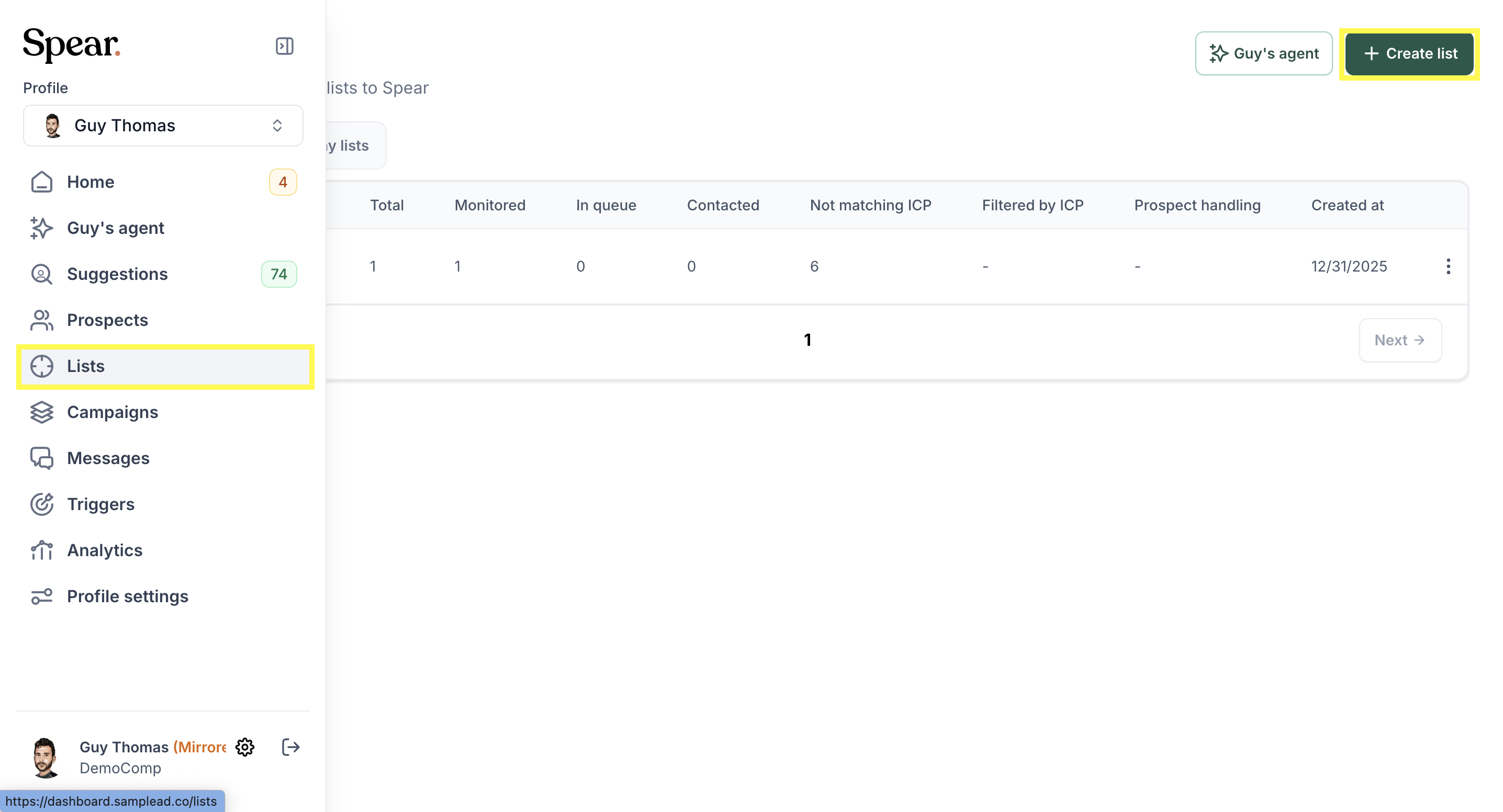
Step 1 — Go to the Lists page
Navigate to Lists in the left sidebar of your Spear dashboard.
Step 2 — Create a Companies List
- Click "Create list"
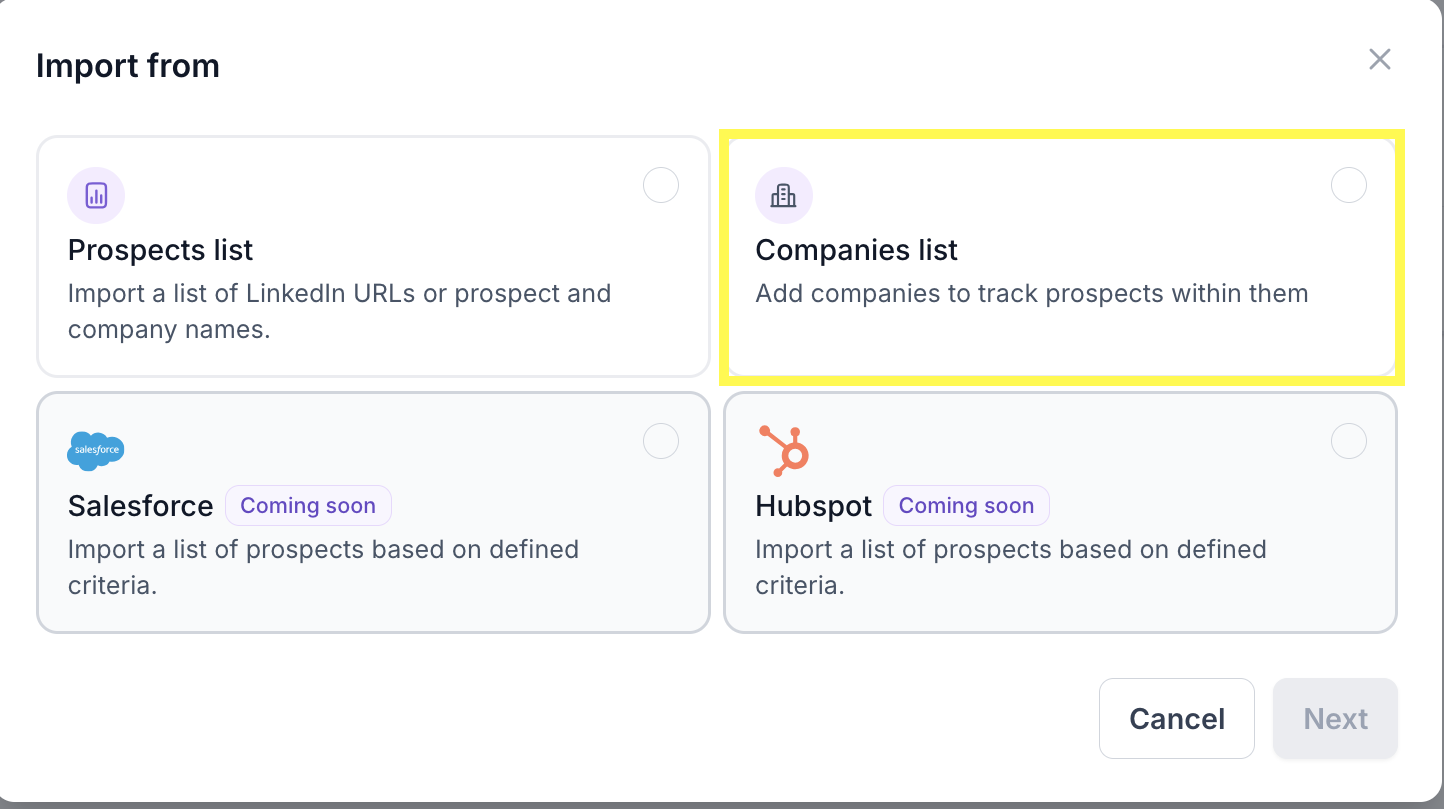
2. Select Companies List
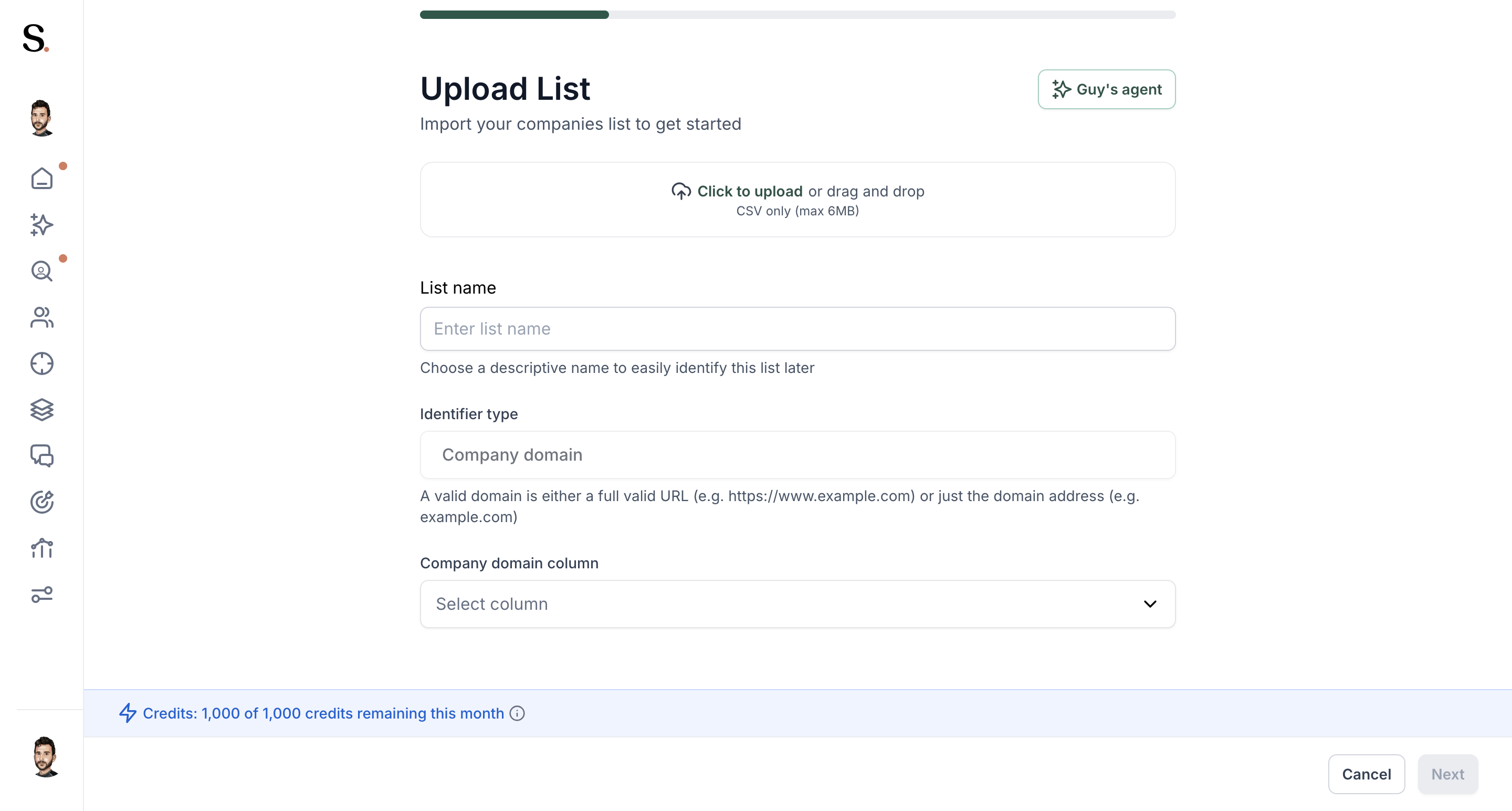
- Upload your CSV file — one company name or domain per row
Step 3 — Assign the list to a campaign ⚠️ This is the step most users miss.
- Open the Campaign you want to target
- Under company filtering, select "Selected Companies"
- Choose the list you just uploaded
Without this step, the list will be saved in the profile but will not be active in any campaign.
Step 4 — Choose your filter mode
When assigning the list to a campaign, you'll be asked to choose between two modes:
- Regular company domain filter — your list is added alongside any existing company domain filters already configured in the campaign
- Override company domain filter — your list replaces all other company domain filters in that campaign. Only companies from your uploaded list will be targeted
Notes
- Once uploaded, a list stays saved in your profile and can be reused across campaigns at any time
- If you see "no lists found" inside a campaign → go to Lists first and confirm the upload was fully completed
- You can filter prospects by their origin list in the Prospects page


.avif)