AI Message Editing & Smart Reply Suggestions
 May 12, 2026
 5 min read
AI-powered messaging enables you to edit, refine, and respond to messages more quickly, directly within the platform.
You can improve your outreach without leaving Spear, while keeping full prospect and trigger context at all times.
What is AI Message Editing?
AI Message Editing allows you to refine, rewrite, or adjust your messages directly inside Spear. It's available in:
- The Messages editor
- The Suggestions page
How to get started
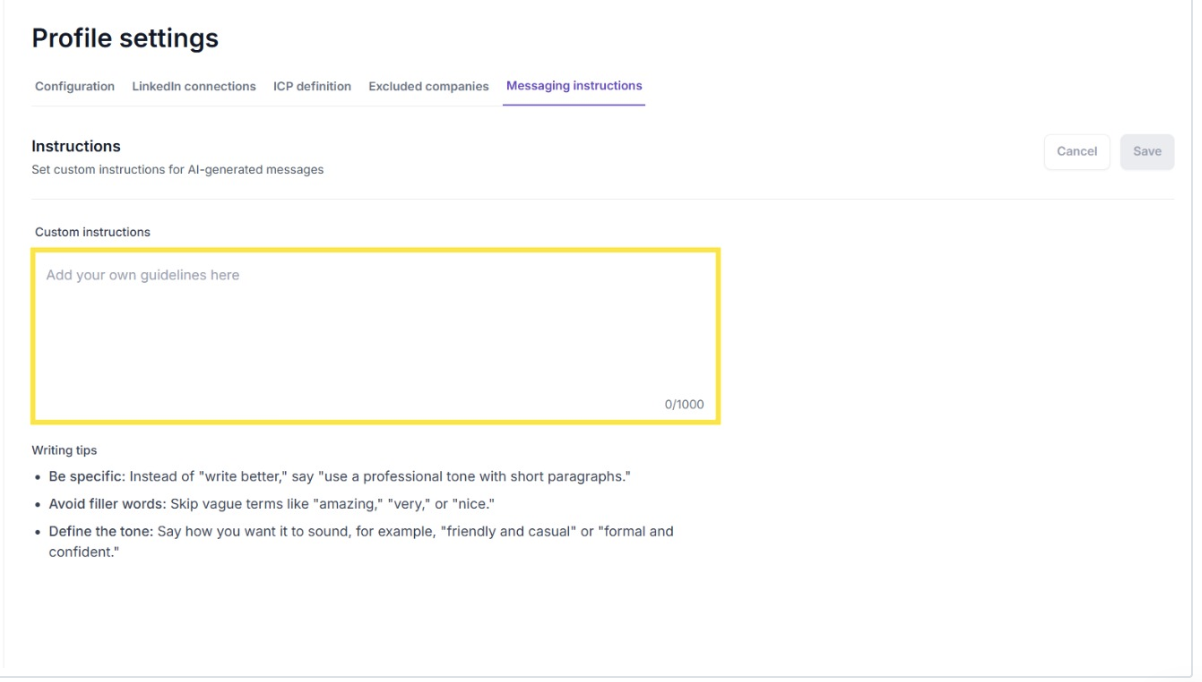
- Set your AI tone of voice by defining custom instructions in Profile Settings
- Open any message in the Messages editor or Suggestions page
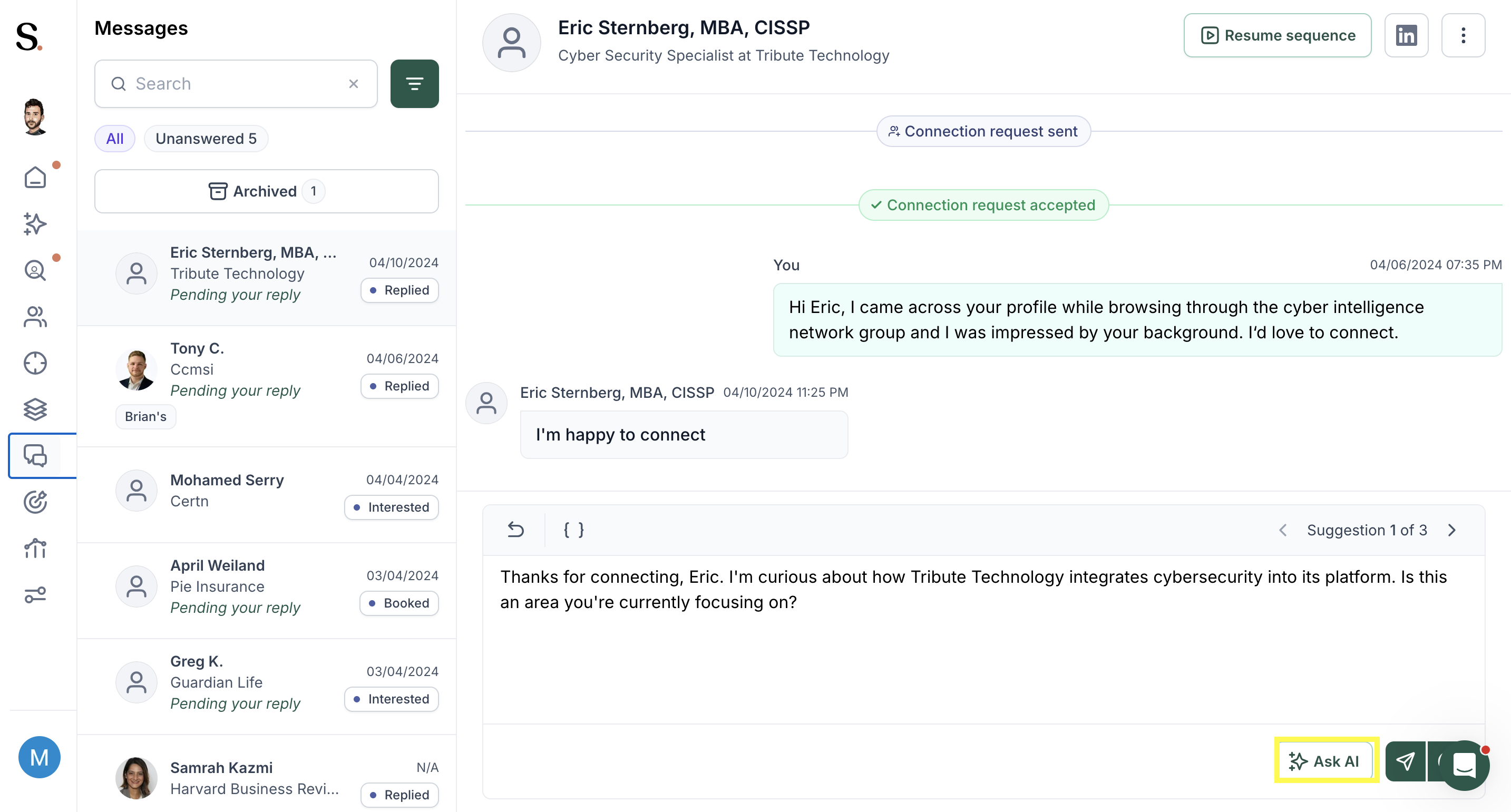
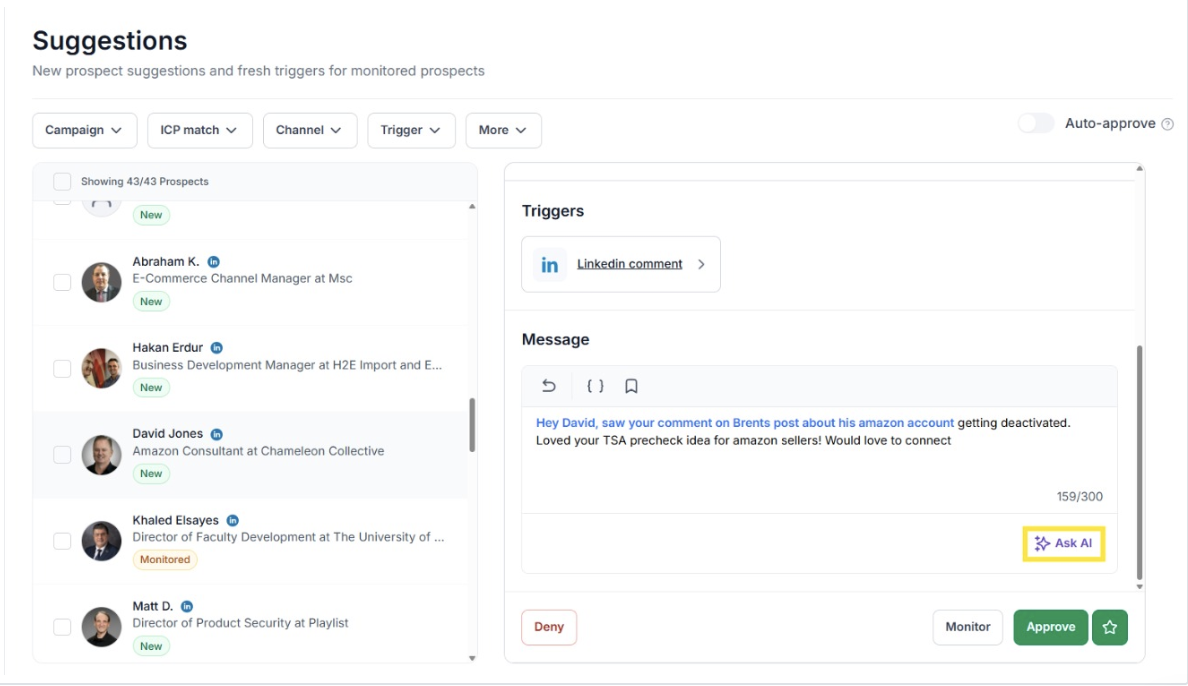
- Click Ask AI to refine or draft your message in context
Set Your AI Tone of Voice
- Select Profile Settings

2. Select

Messaging instructions
3. You can set your AI tone of voice by defining custom instructions
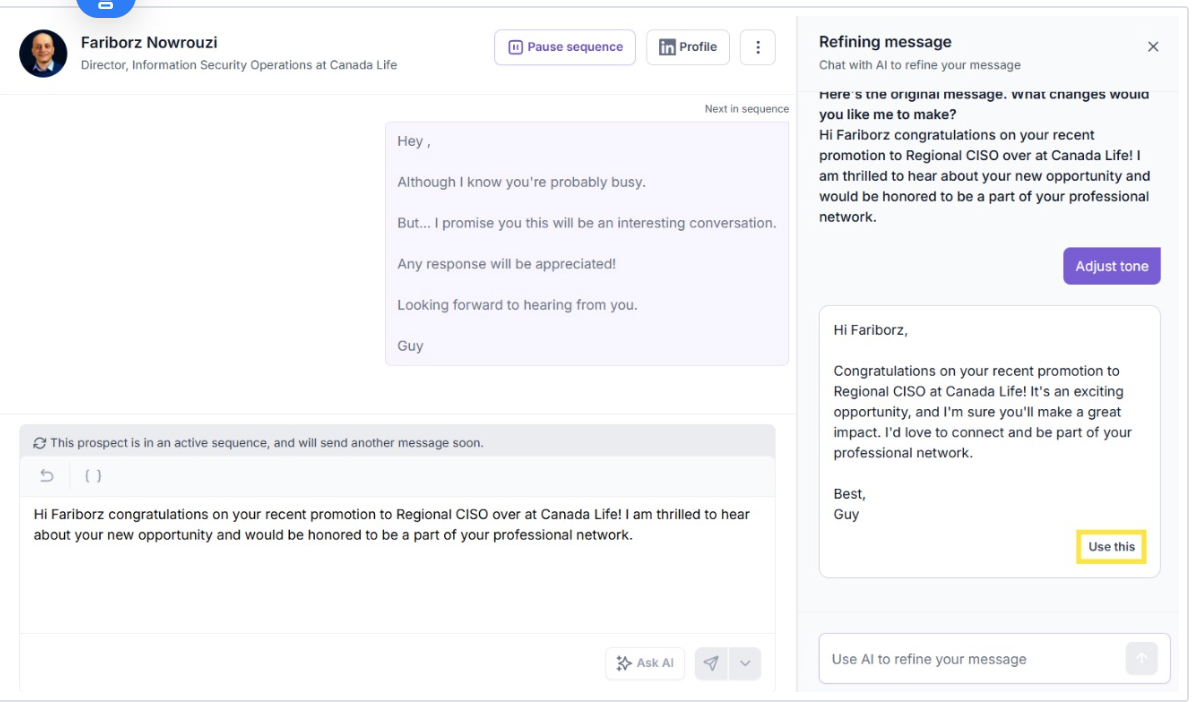
Use AI Message Editing in the Messages Editor
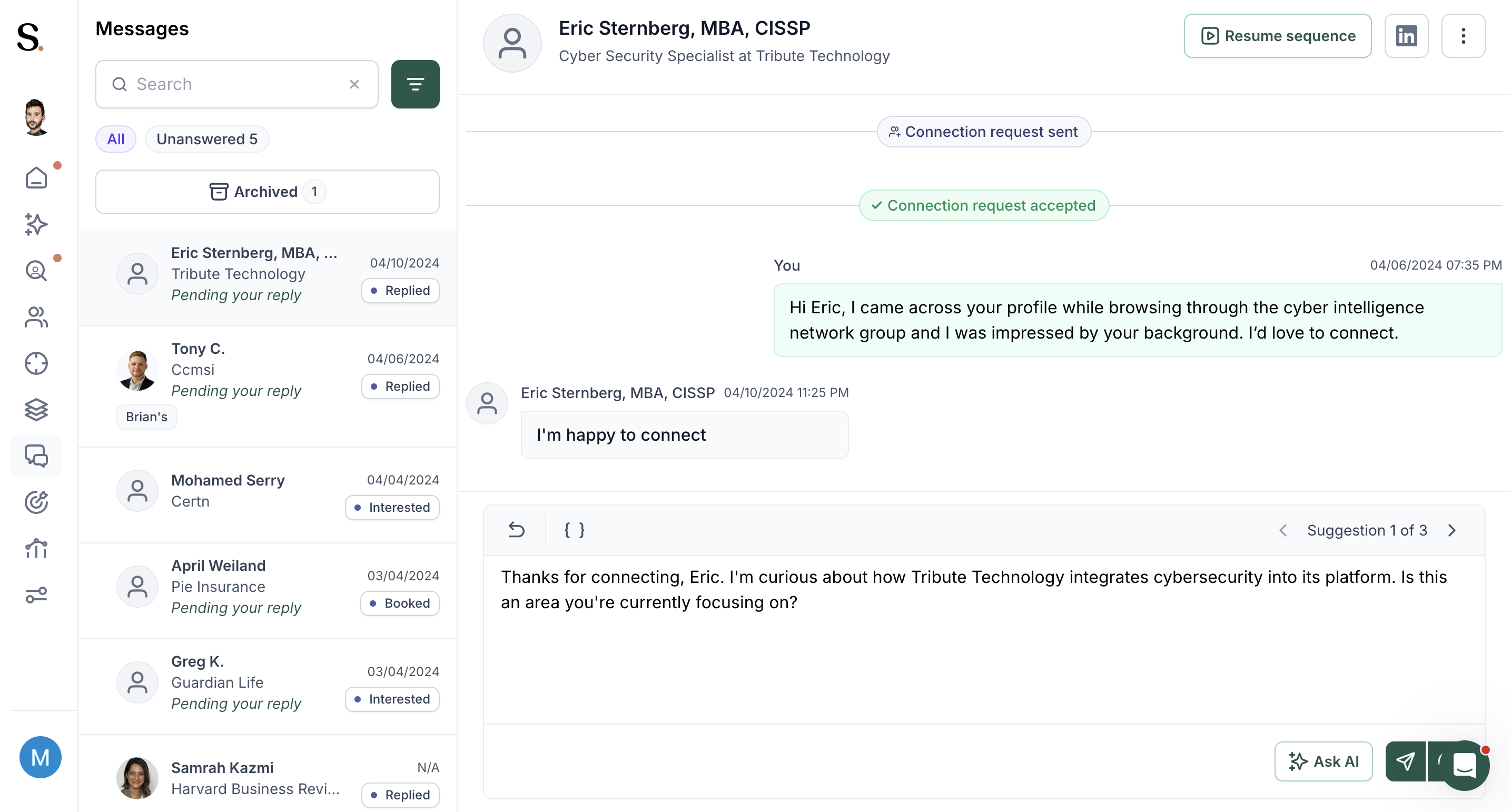
1. Open the Messages editor

2. Review the original message
3. Click "Ask AI"
4. Adjust tone or structure

5. Review AI-generated suggestions
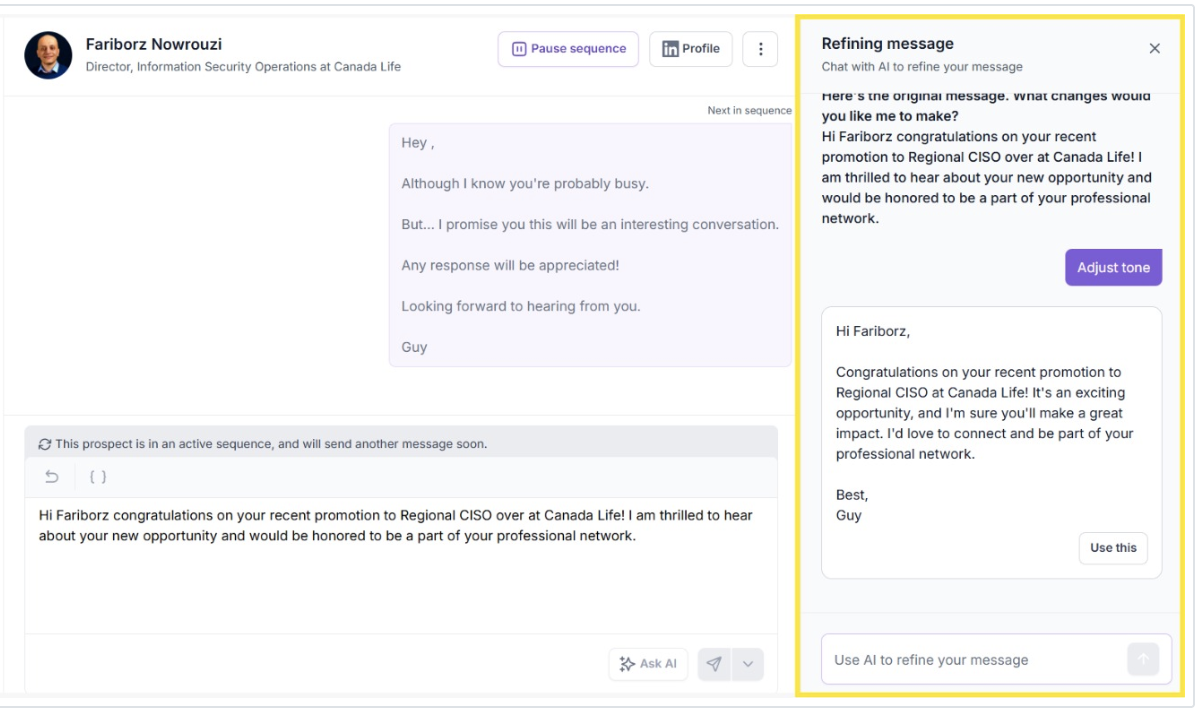
6. Apply the suggestion
Use AI Message Editing in the Suggestions Page
1. Open the Suggestions Tab
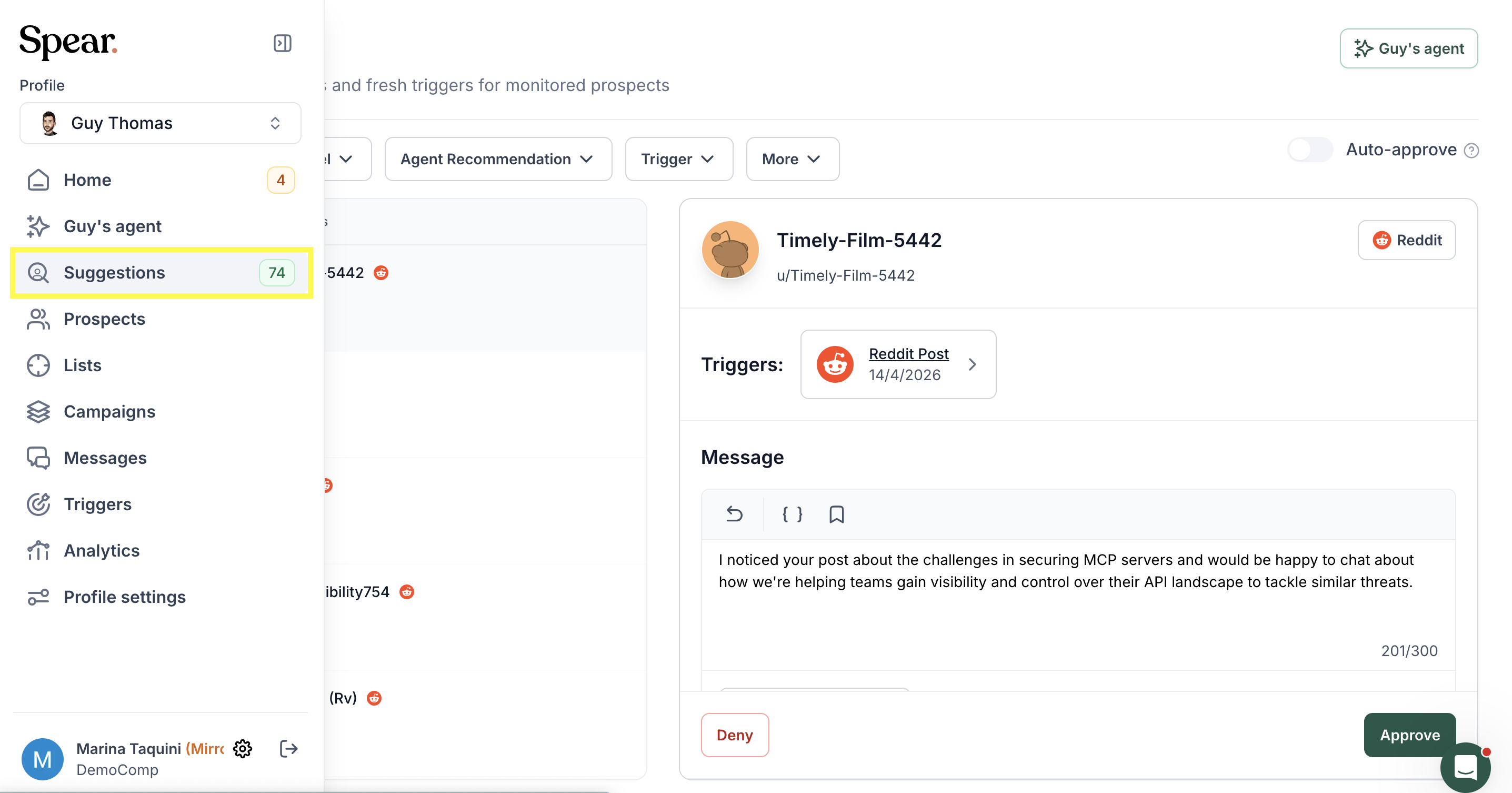
2. Click on “Ask AI”
3. Review the original message
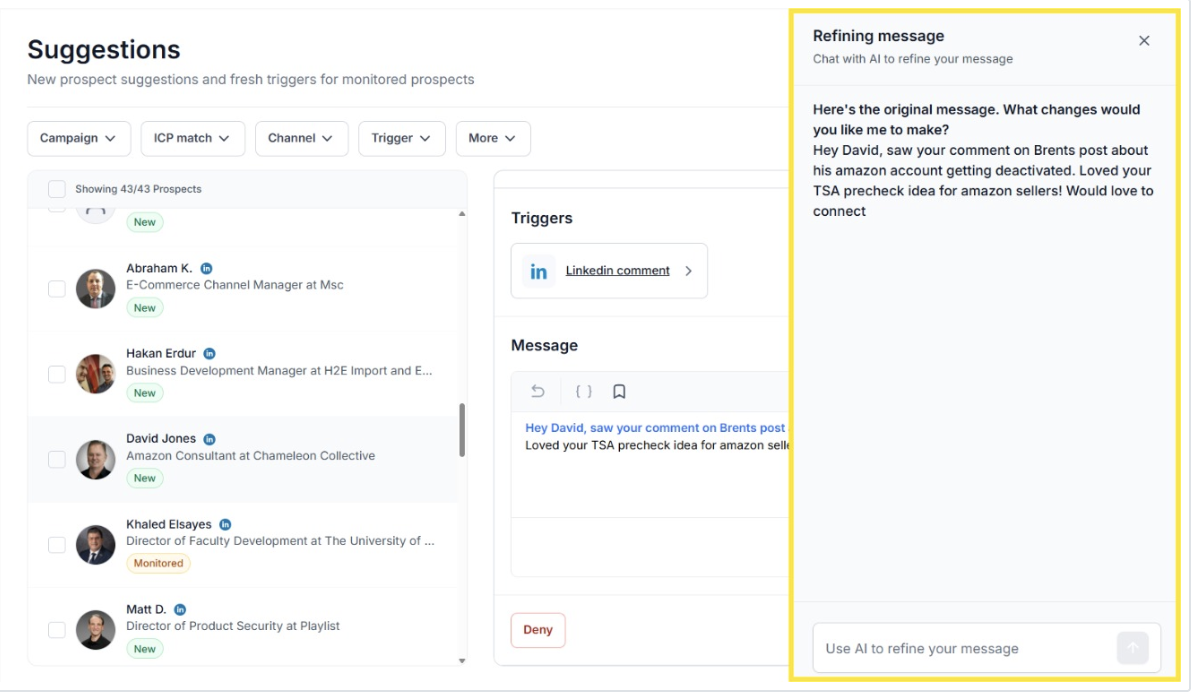
4. Choose how to refine the message

5. Apply the suggested version
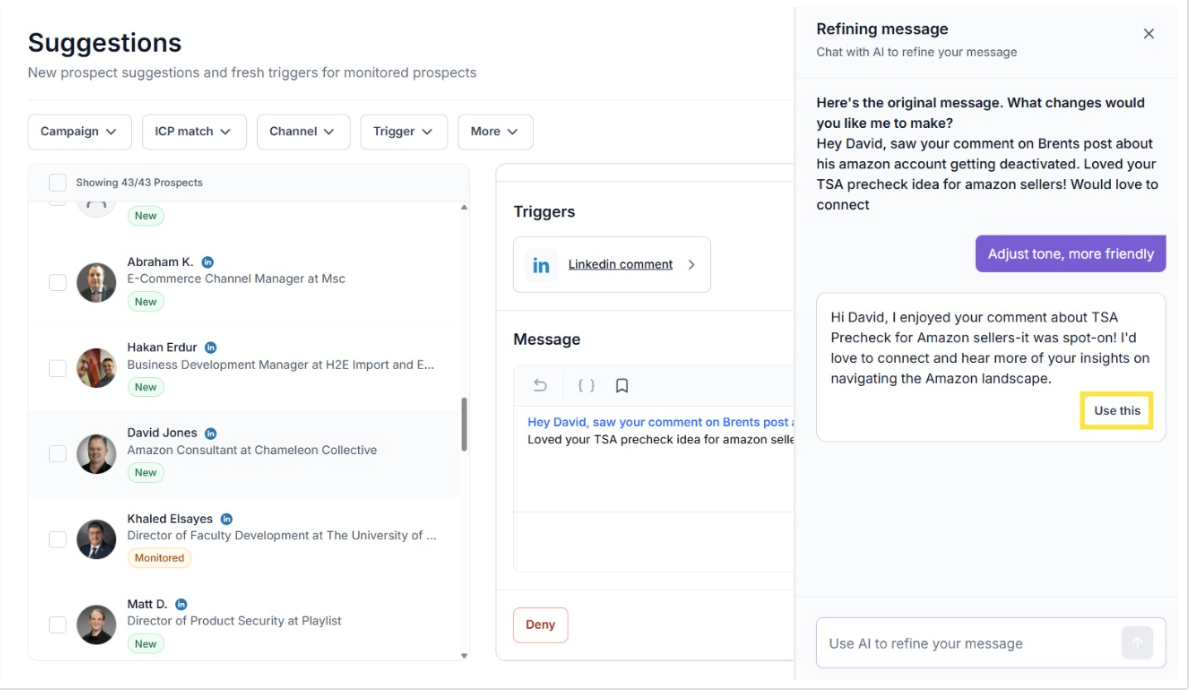
How AI Message Editing helps you
With AI Message Editing, you can:
- Edit and iterate on messages where outreach happens
- Adjust tone, length, or CTA without starting over
- Keep references to prospect data and triggers
- Stay in one workflow from draft to submission
This makes writing and optimizing messages faster and easier.
Smart Reply Suggestions (Messages tab)
Spear provides AI-generated suggested replies when responding to messages.
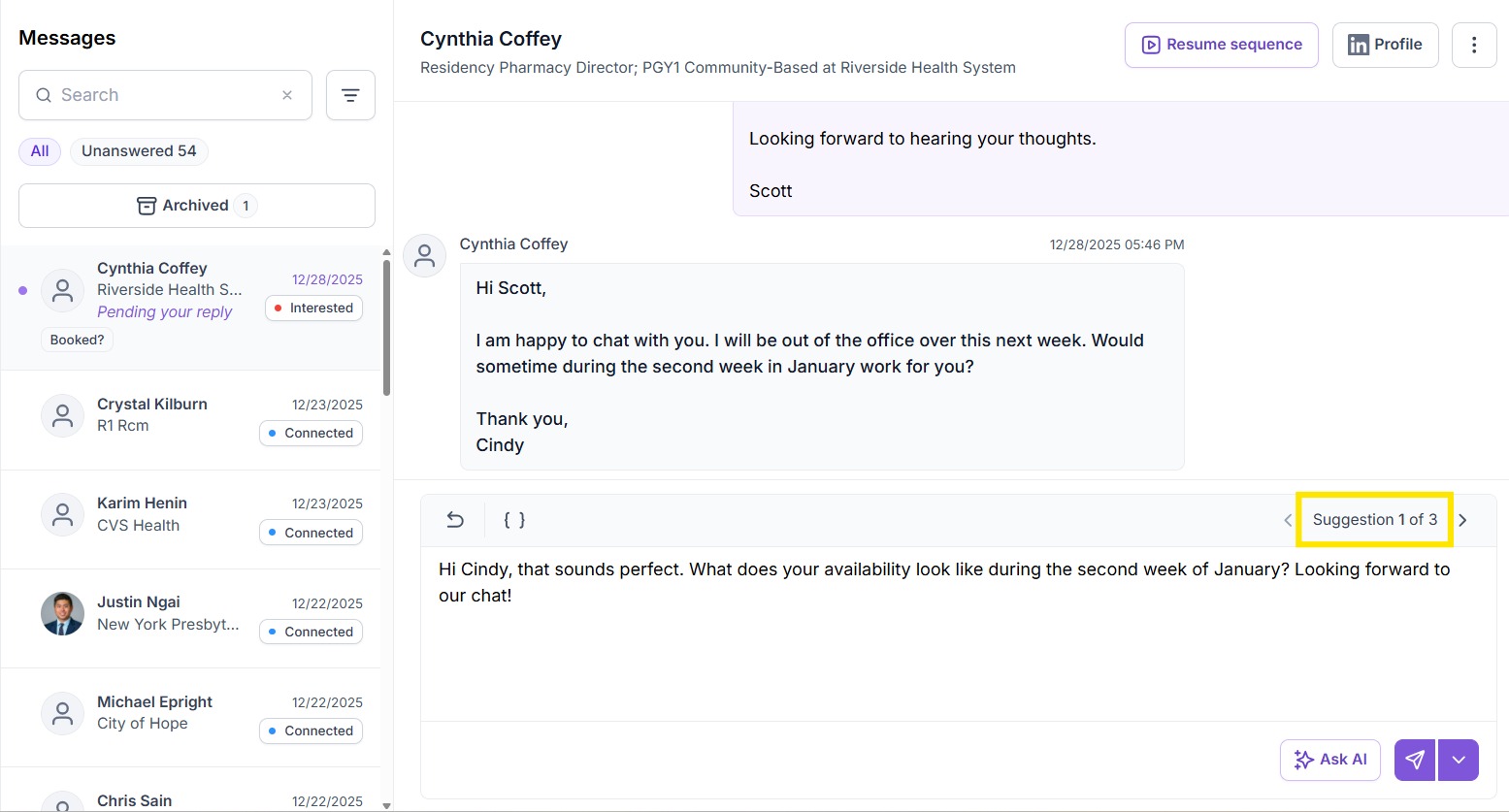
Instead of a single suggestion, you’ll see three reply options to choose from, helping you move conversations forward more effectively.
Types of suggested replies
There are two types of reply suggestions:
- Push for a meeting
- Continue the conversation
Spear automatically determines which type of reply is more appropriate based on the conversation context.
How it works
- If a meeting is relevant:
- You’ll see 1 “Push for a meeting” option
- And 2 “Continue conversation” options
- If a meeting is not relevant:
- You’ll see 3 “Continue conversation” options
The suggestions are ordered based on relevance and performance.
First, Select the M

essages Tab
- Suggestion 1: "Push for a meeting." - shown when a prospect shows strong interest or engagement.
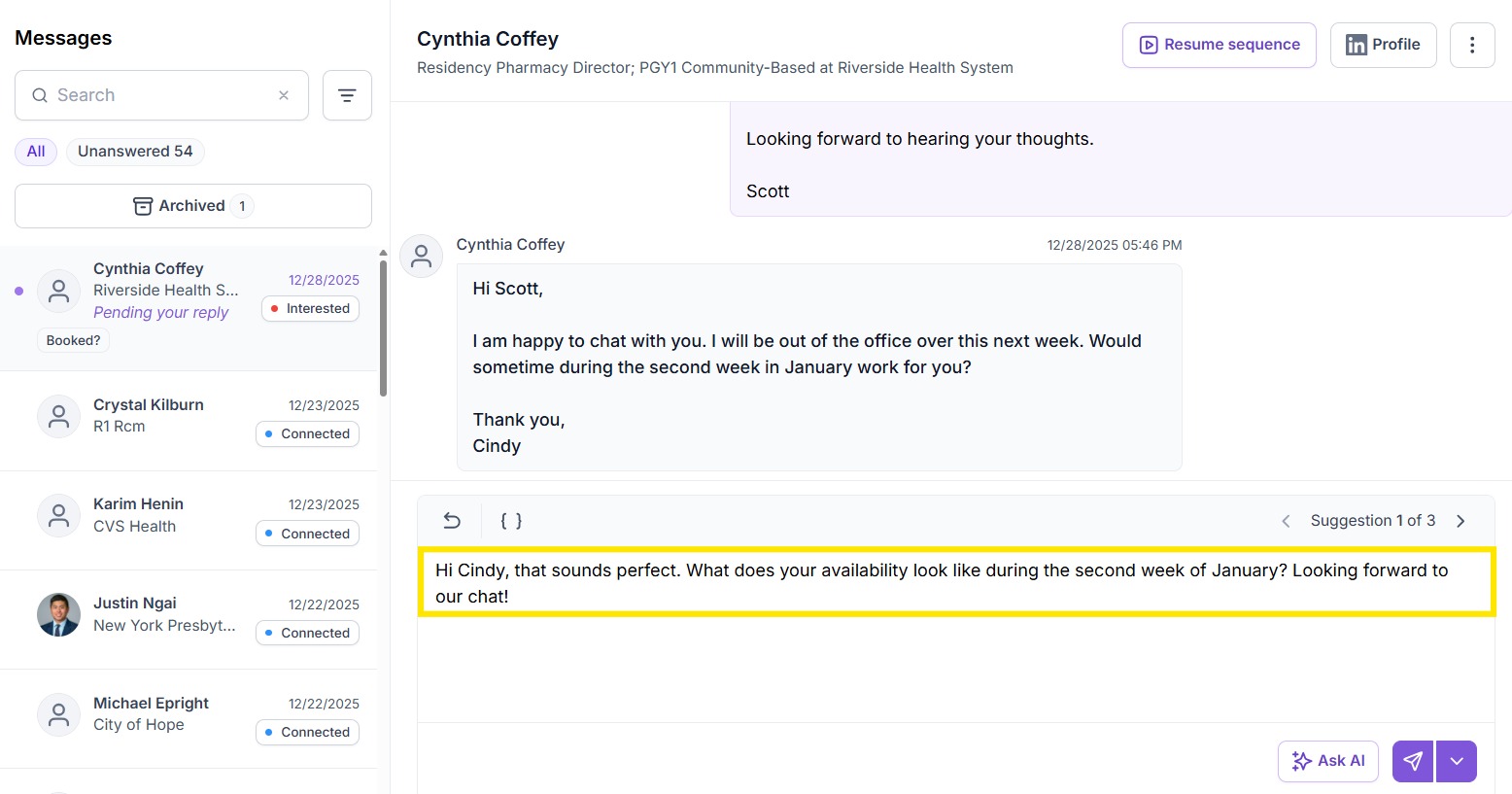
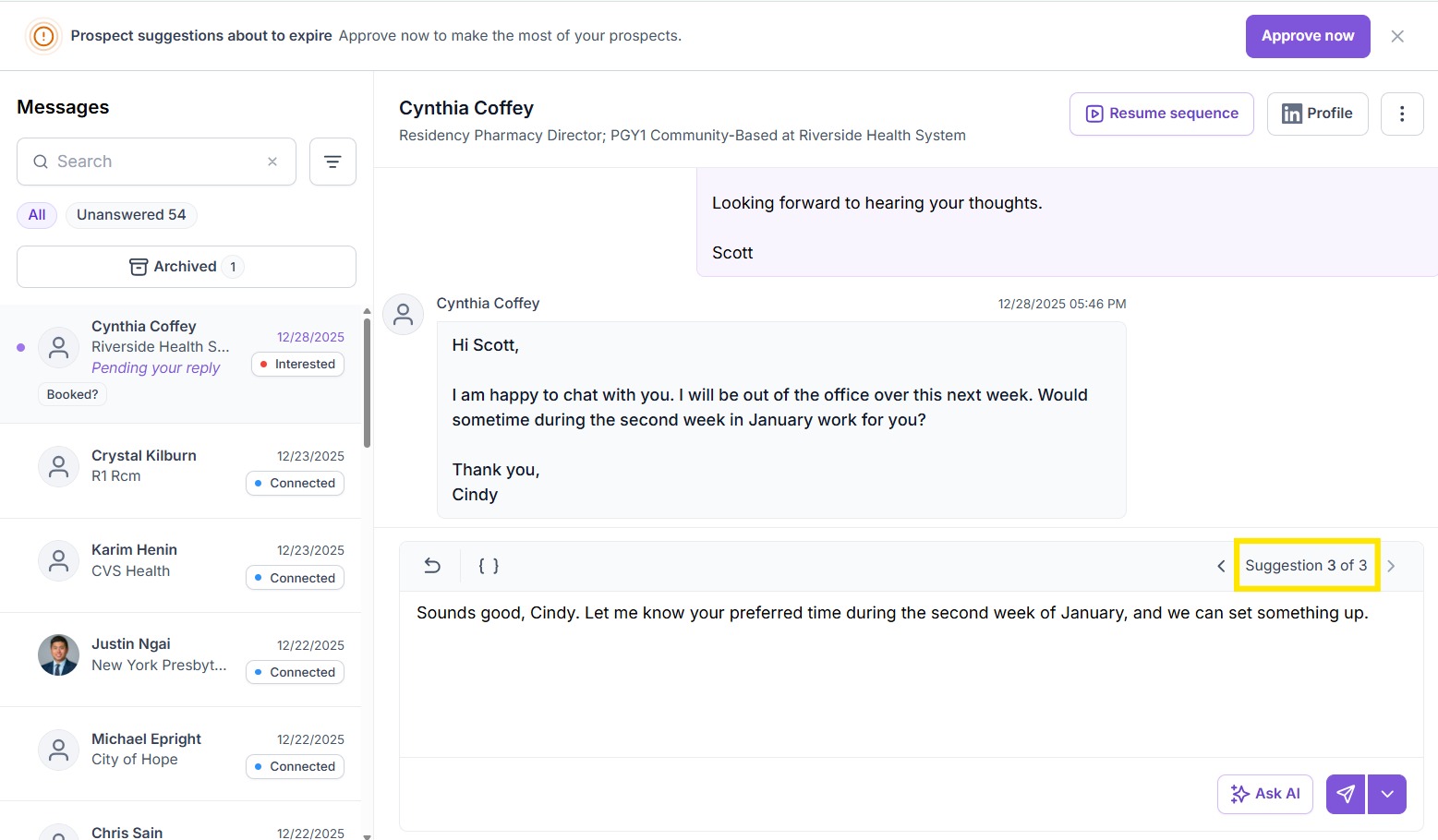
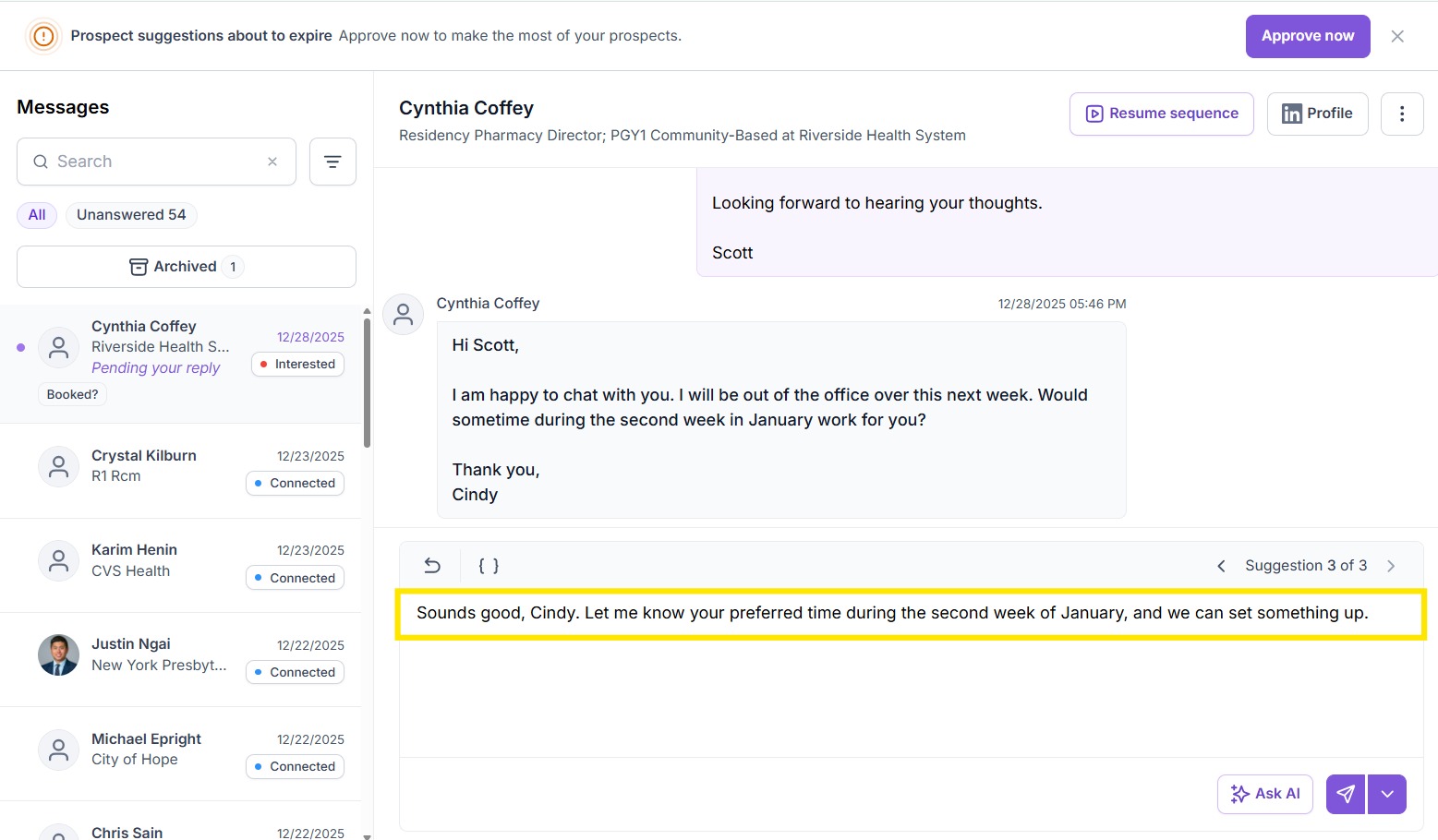
- Suggestion 2: "Continue conversation" - shown when a meeting may be relevant.
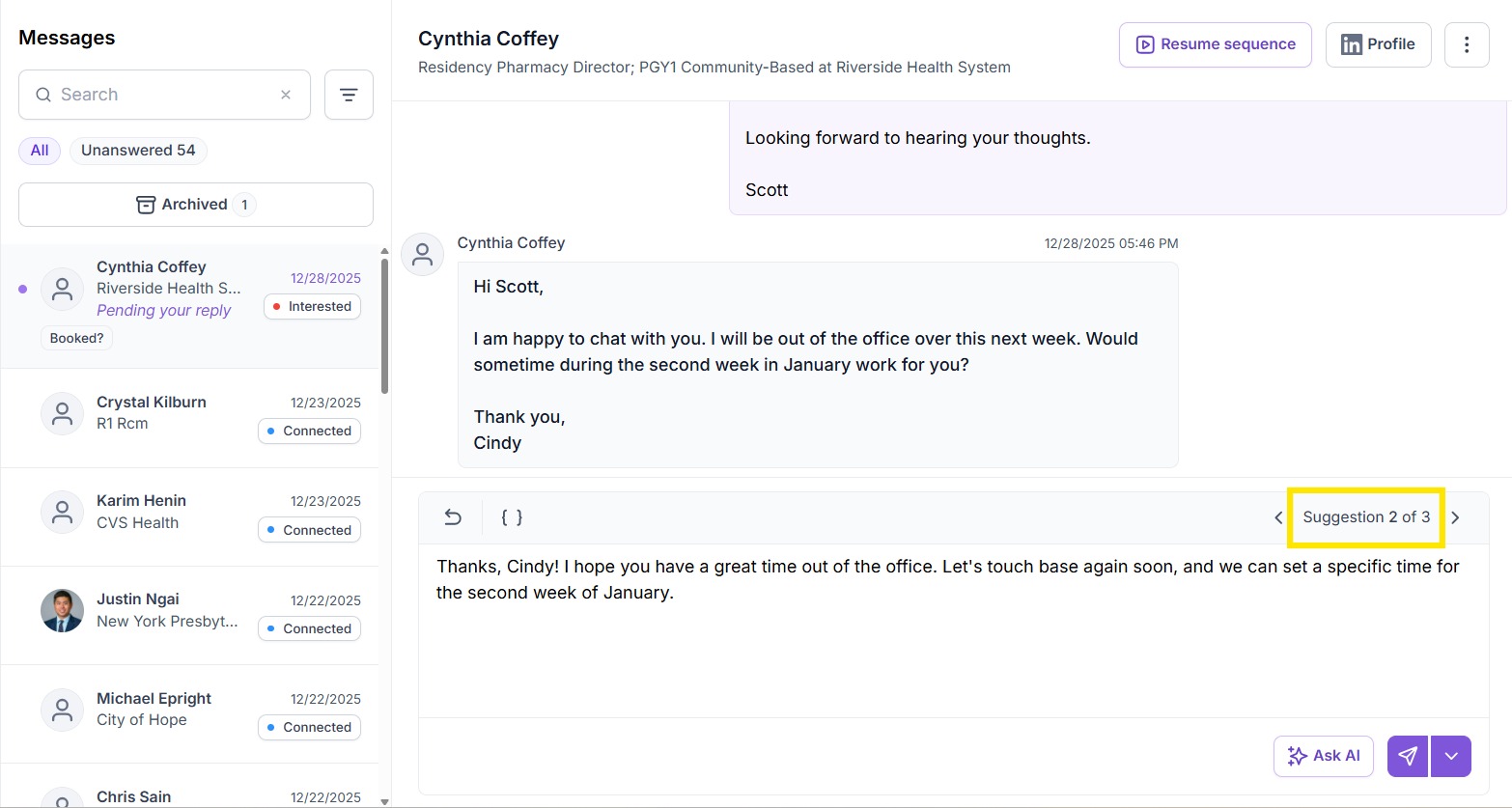
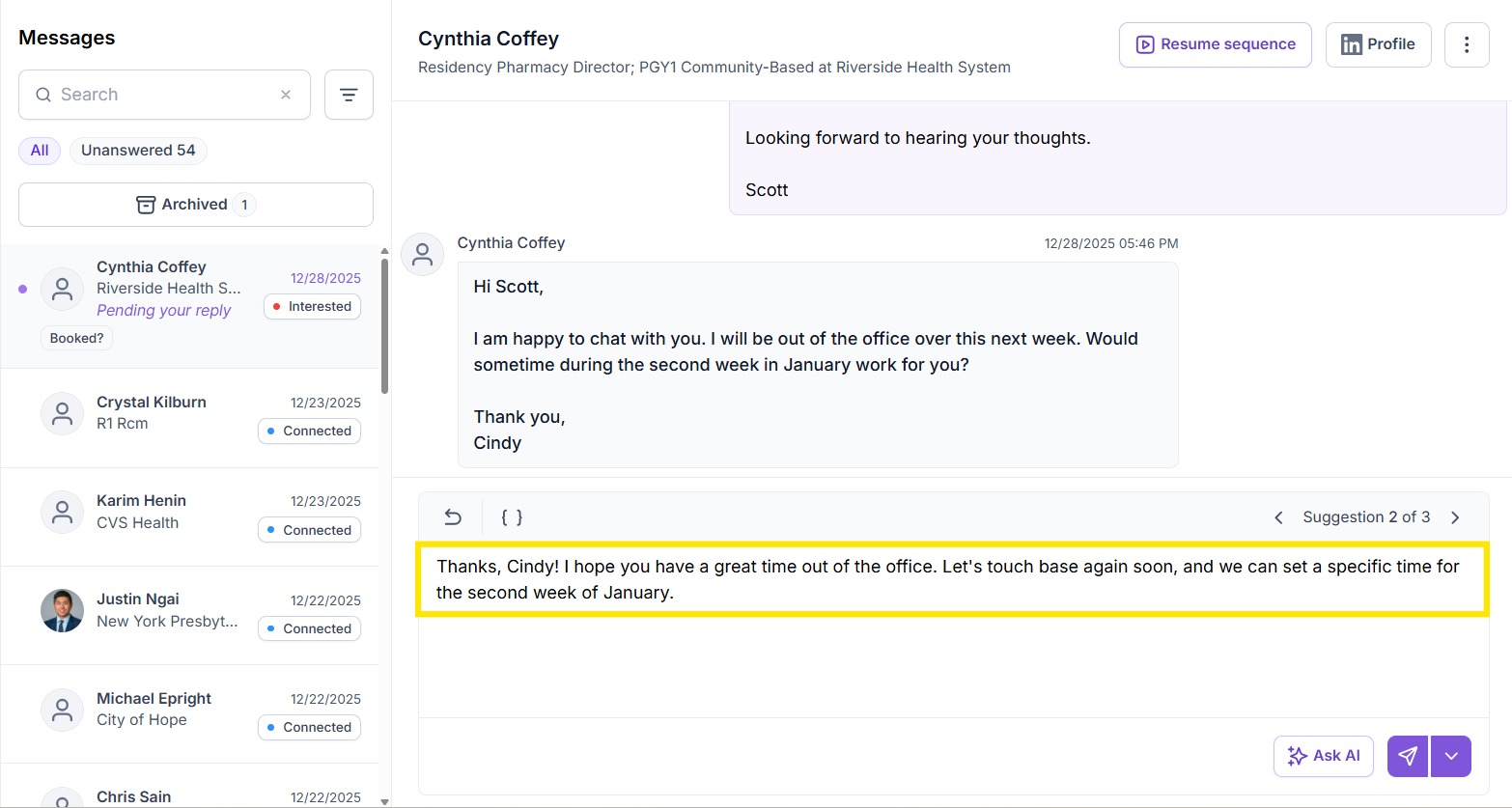
3. Suggestion 3: "Continue conversation" - shown when a meeting is not relevant.
Improving suggestions over time
When you send a message that matches one of the suggested replies:
- Spear records which type of suggestion was used
- This helps improve future recommendations and ranking
Key takeaway
- Edit and refine messages directly inside Spear with AI Message Editing
- Choose from smart, context-aware reply suggestions
- Let Spear guide when it makes sense to push for a meeting
- Stay in control while speeding up your messaging workflow
AI messaging is designed to help you work faster — you decide what to send.


.avif)