How to add a team member
 May 12, 2026
 5 min read
How to add a team member to your team
Adding a team member allows additional users from the same organization to access Spear, collaborate on campaigns, and share outreach profiles. This action can be done from the Dashboard under General Settings.
Step-by-step
1st: In the Dashboard, open General Settings.
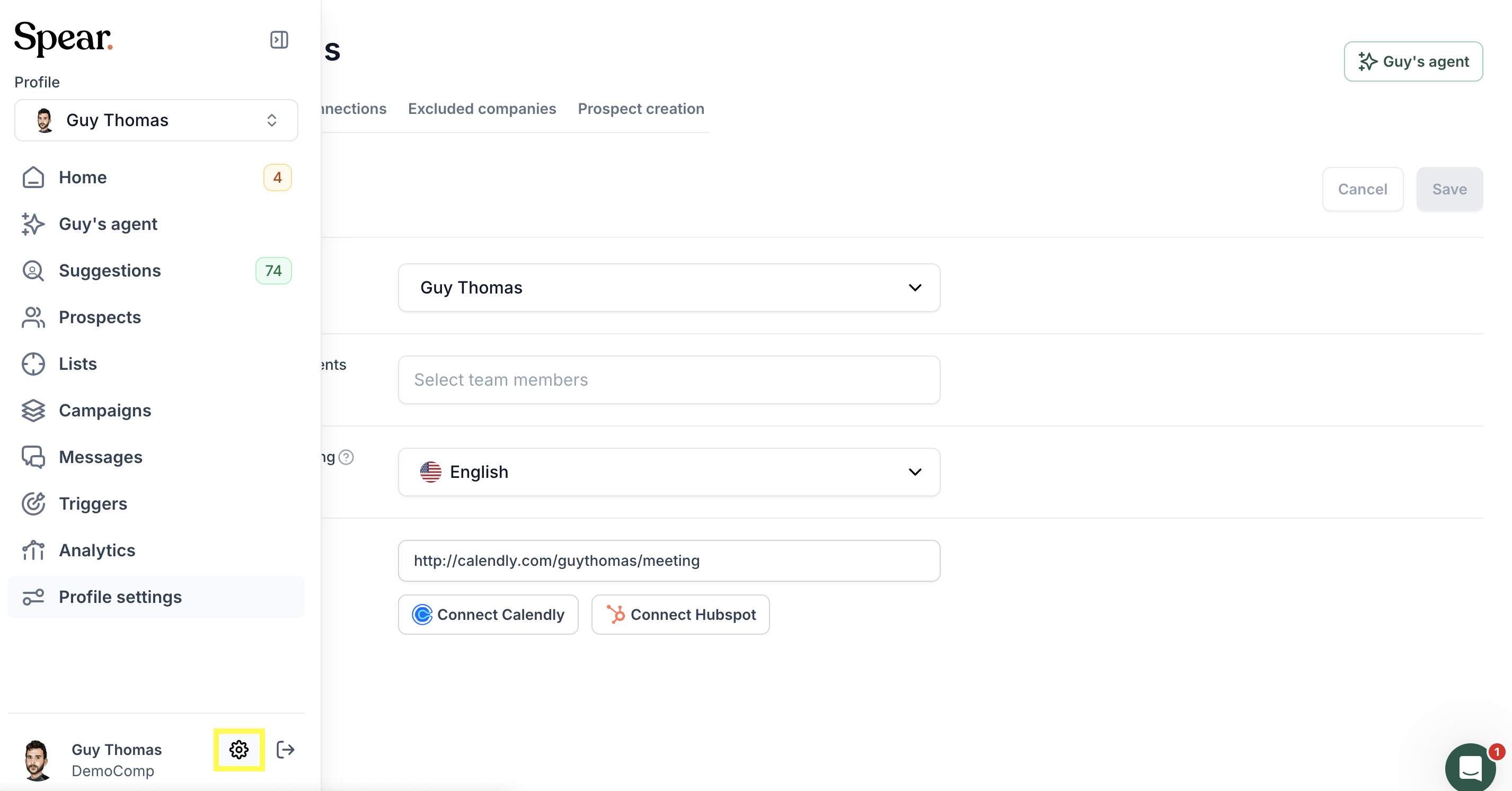
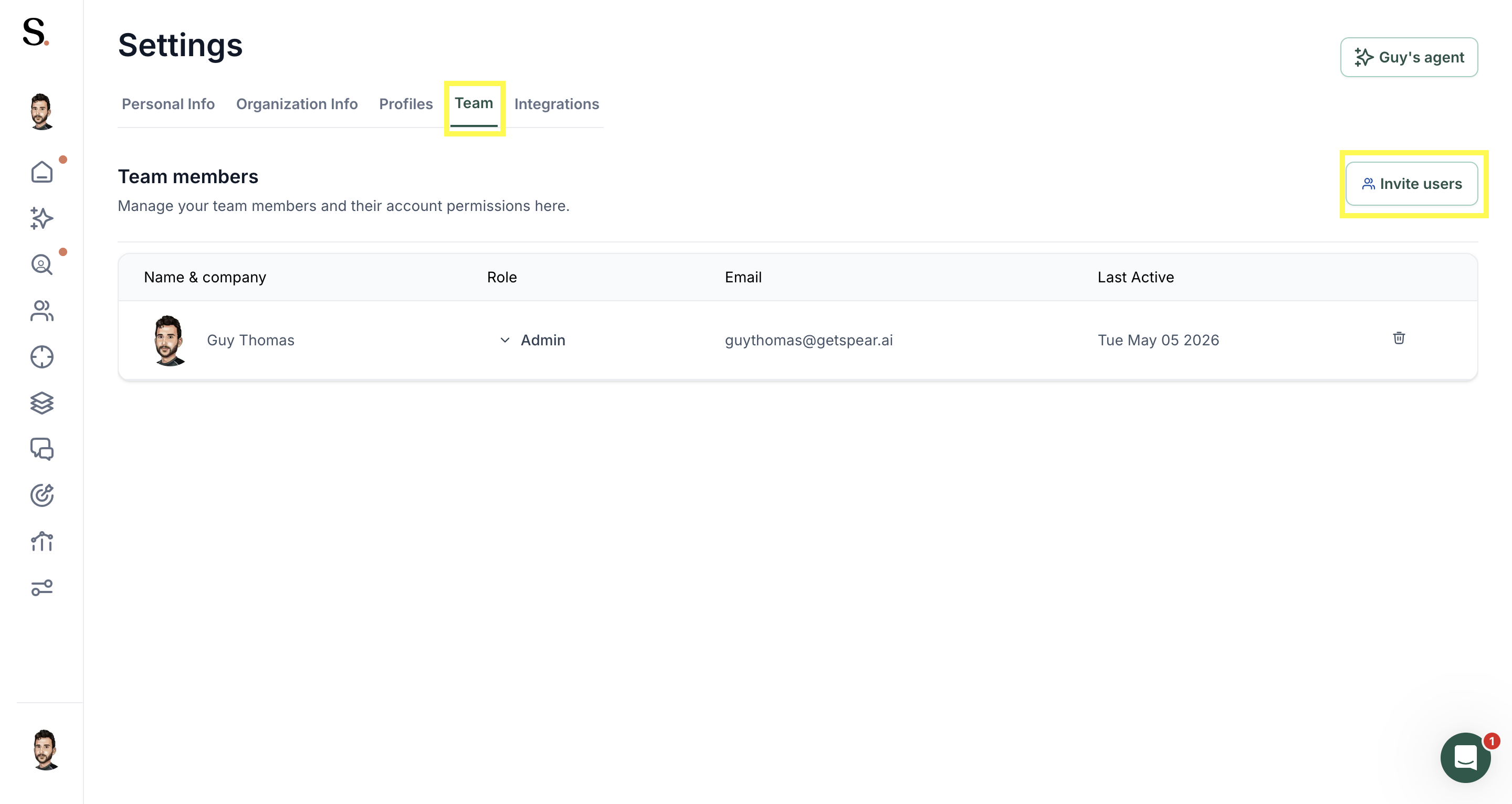
2nd: Select Teams to view all users currently associated with the organization.
3rd: Click on "Invite users"
4th:
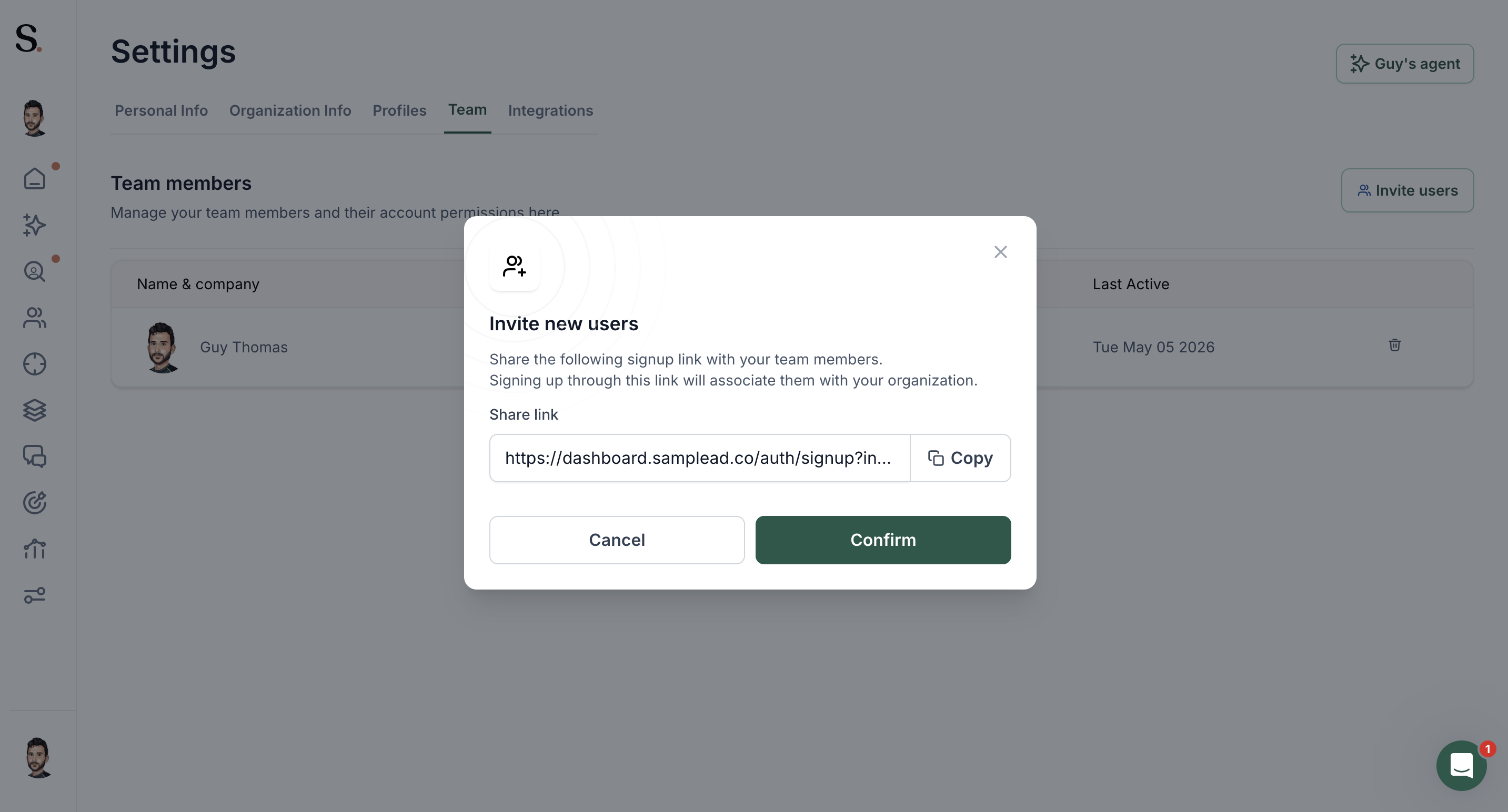
Copy the signup link displayed on the screen and share it with the team members.
“Share the following signup link with team members.”
Signing up through this link associates new users with the organization automatically. Each invited member can create an individual account, and Spear will connect it to the shared workspace.
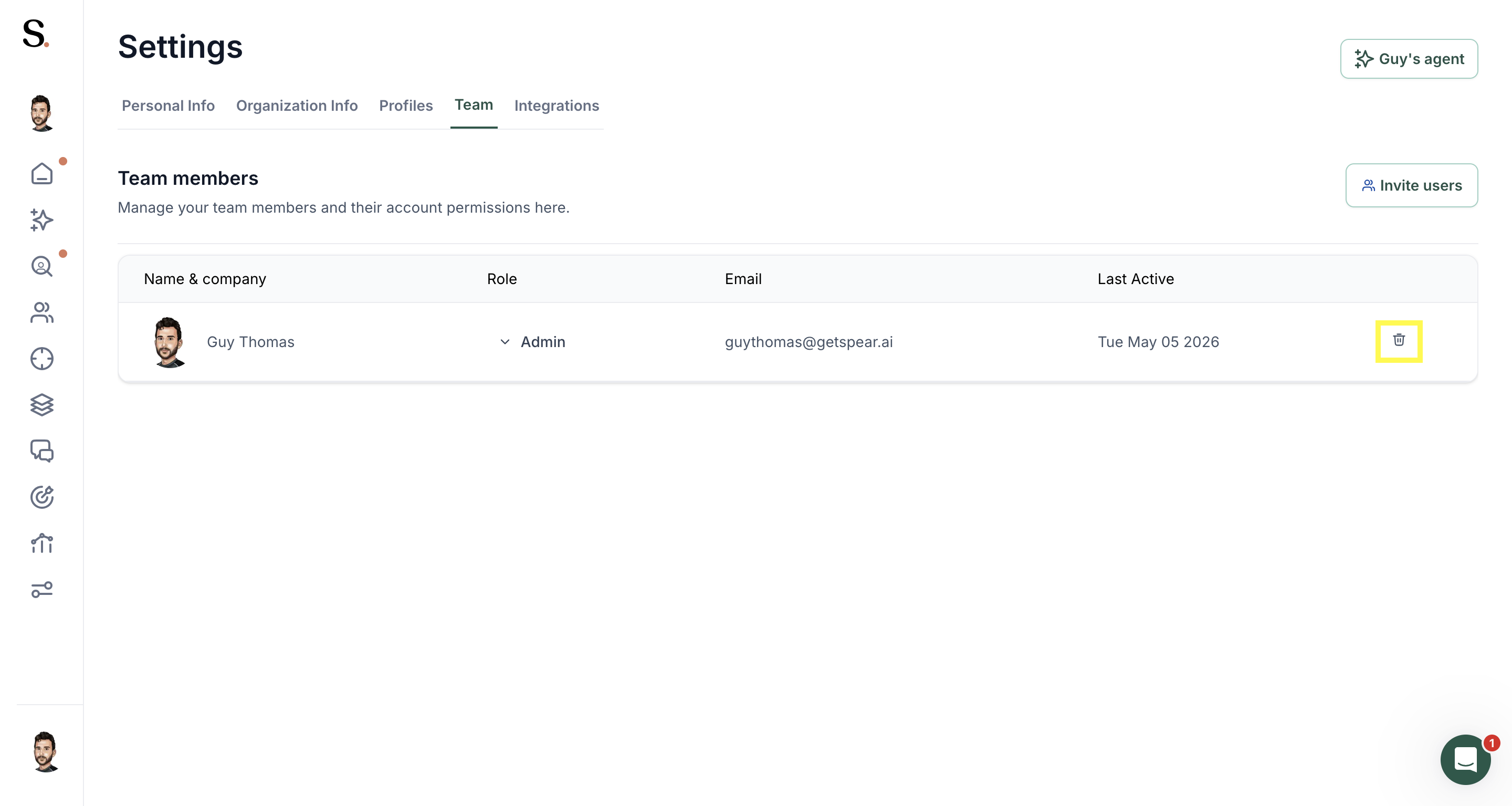
Removing a team member If a team member needs to be removed, this can be done from the same Teams section. Select the trash bin icon next to the user's name and remove the account from the organization's workspace.
Conclusion
Working within the same workspace ensures that all team members collaborate using the same campaigns, profiles, and data. This improves coordination, reduces duplicated efforts, and keeps outreach activities aligned across the organization.


.avif)