How to exclude companies & upload your company exclusion list
 May 12, 2026
 5 min read
Why Exclusions Matter
Excluding companies is essential for maintaining highly targeted and professional outreach. It ensures that your campaigns never contact current clients or critical accounts.
- An active profile connected to Spear
- Have a finalized exclusion list ready for upload or manual input.
There are several ways to exclude Companies.
Option 1: Manual Exclusion
Step 1: Go to your Profile settings
1. Navigate to the Profile Settings page in your Spear dashboard.
Step 2: Access the 'Excluded companies' setting.
1. Click the 'Excluded companies' button.
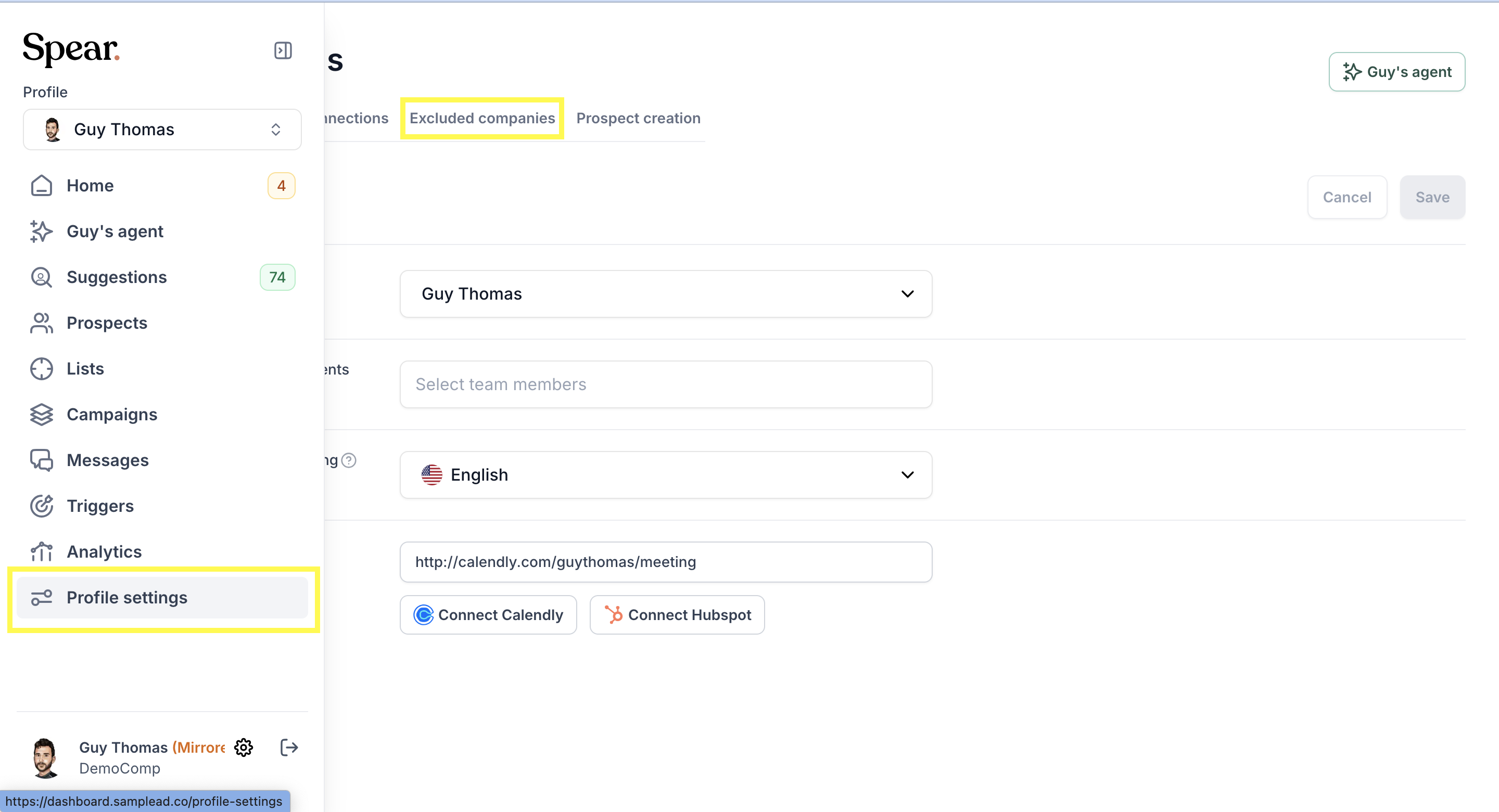
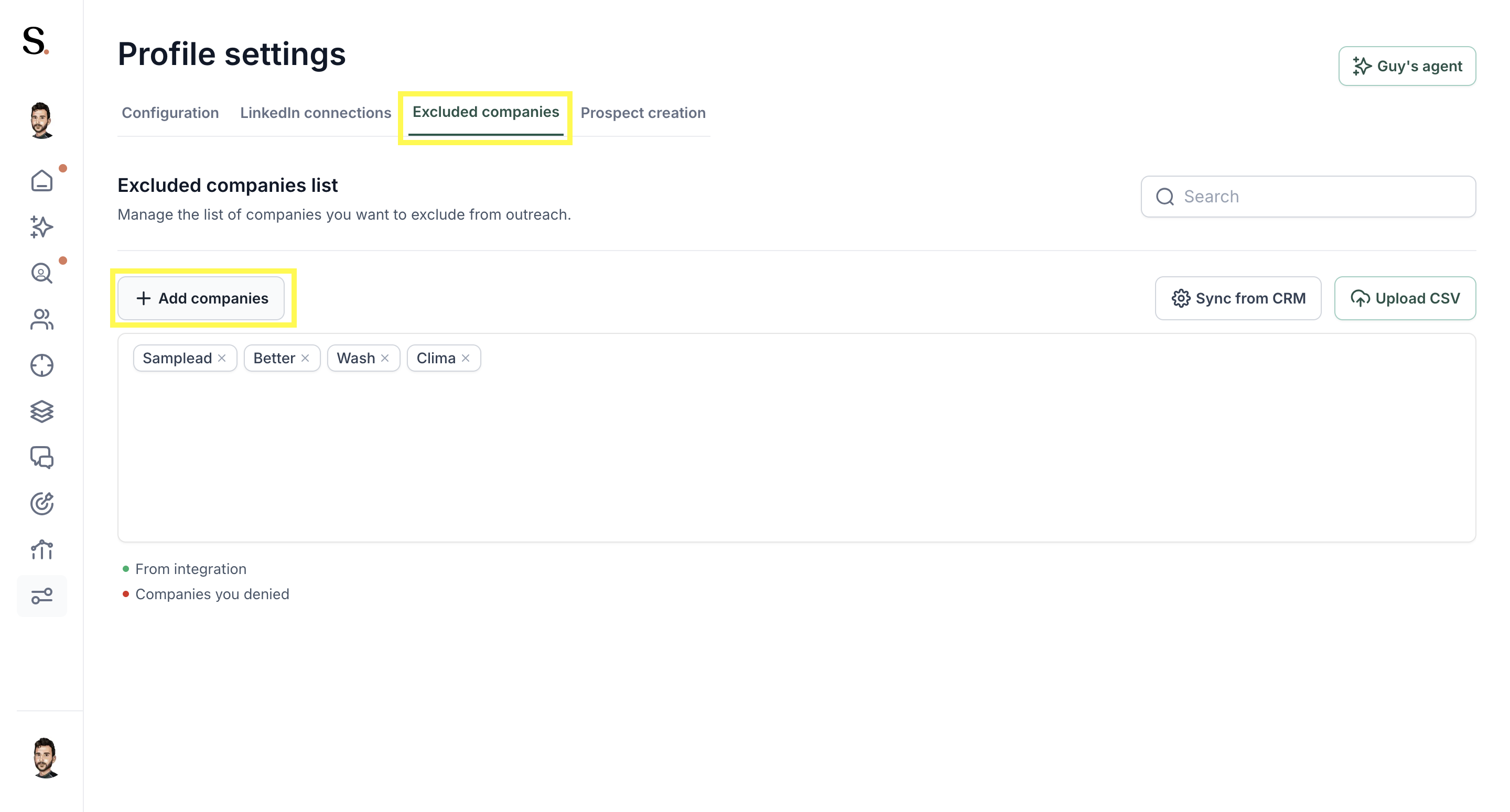
Step 3: Exclude the company.
1. Click the 'Add companies' button.
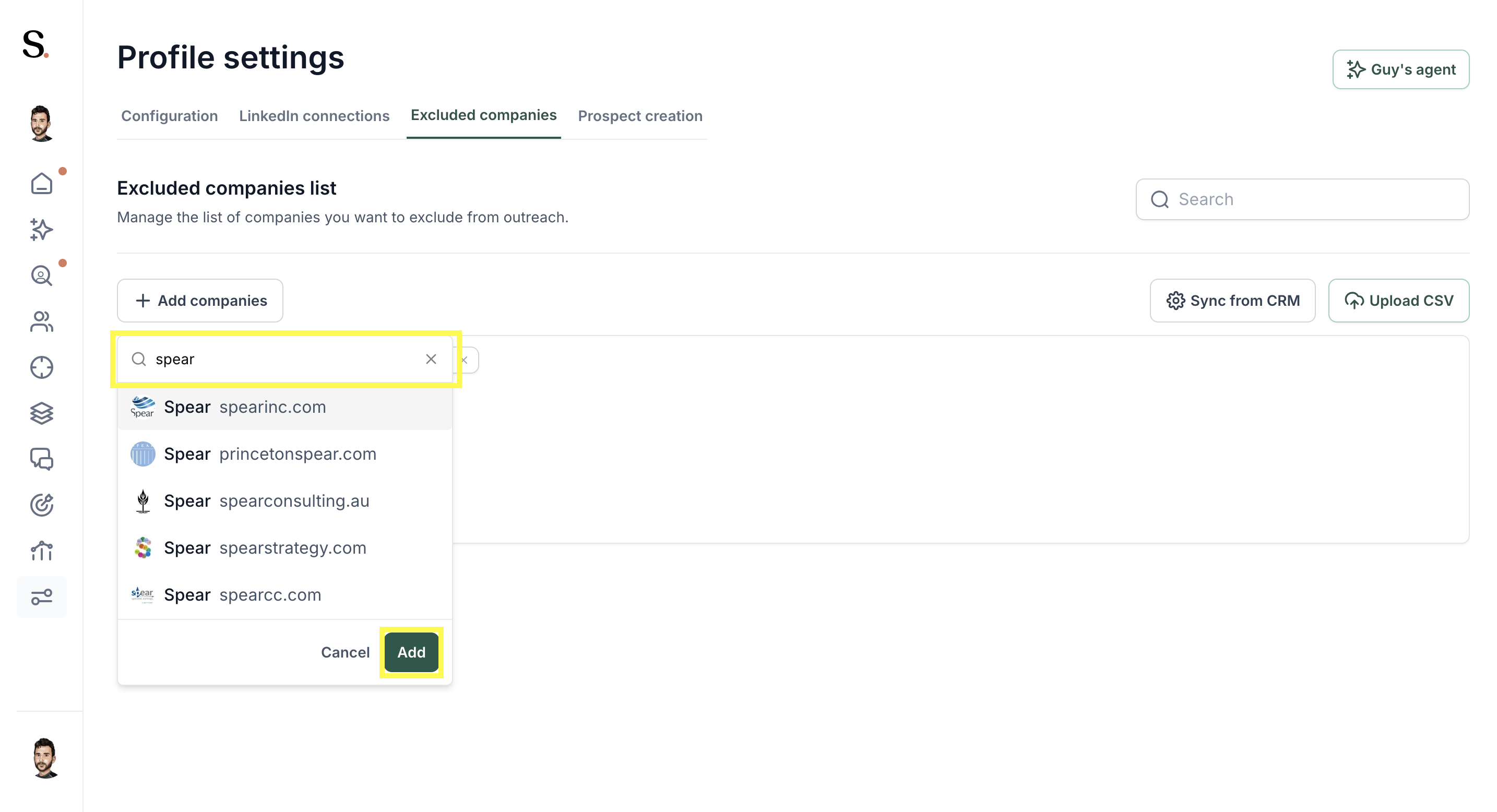
- Write the name of the company you want to exclude in the dropdown list.
- Select the domain of the company and click the 'Add' button.
Option 2: List Exclusion
If you want to exclude a large list of companies, you can upload a CSV file containing the company names and domains.
1. Click the 'Upload CSV' button.
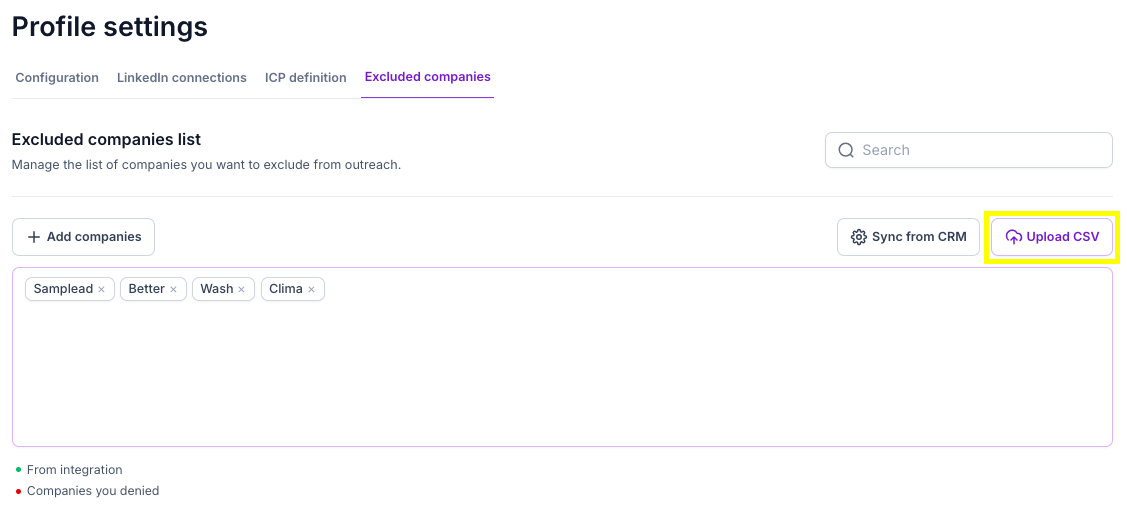
2. Click inside the box to search for the CSV in your files.
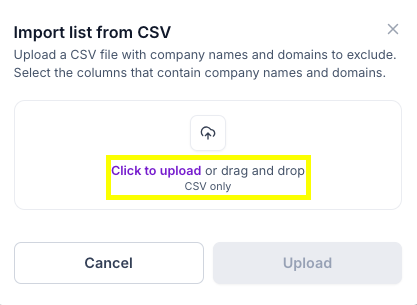
3. Select the company name column and the domain column. Then, click 'Upload'.

- When a company is excluded (manually or via CRM), all monitored prospects from that company are automatically denied.
- Existing monitored prospects belonging to an excluded company are also denied as a one-time action when this feature is launched.
- This applies only to companies with defined domains. Companies without an assigned domain are not effectively excluded.
Option 3: HubSpot Exclusion
You can also sync the list of Excluded companies from HubSpot.
1. Click the 'Sync from CRM' button.

2. Click the 'Manage Integration' button.

3. Click the 'Excluded companies' button.
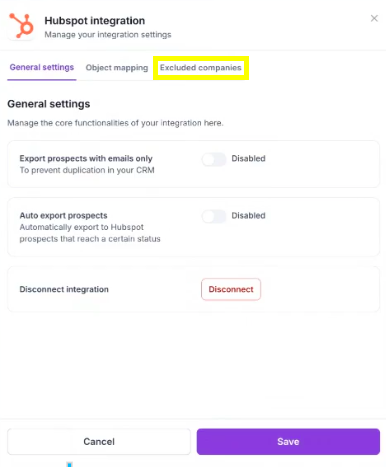
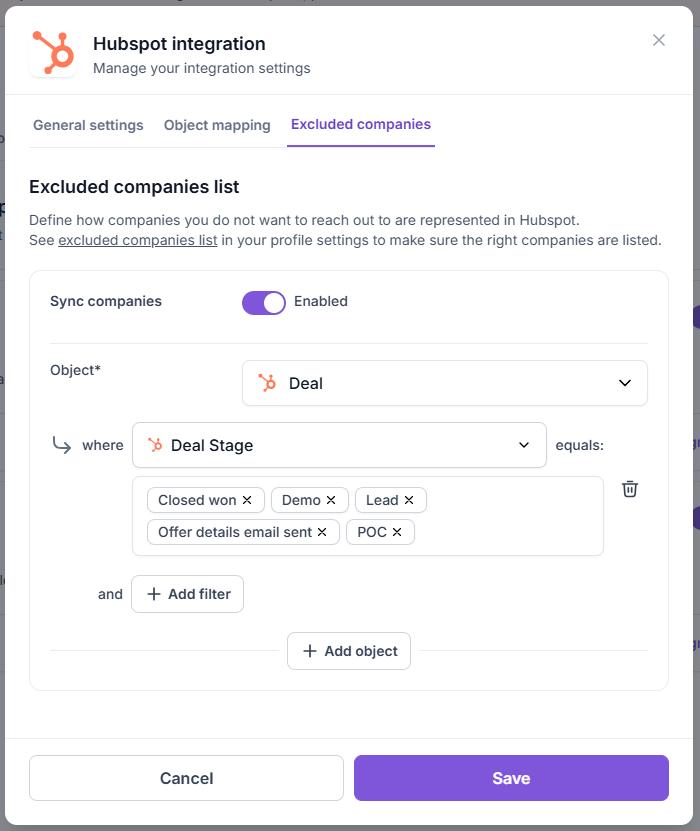
4. Activate the 'Sync companies' toggle.

5. Enable the integration:
- Select the company object – Choose the object in HubSpot that represents a company (e.g, 'Deal' object).
- Set exclusion filters – Add filters to specify which companies should be excluded (e.g., exclude all active customers by setting Deal Stage = Closed won). You can add multiple filters.
- Add additional objects (optional) – If companies are represented by more than one object type in your HubSpot, click Add object to include them.
Tips & Best Practices
- Prioritize Manual Exclusion: Use manual addition for critical companies or your top accounts to ensure immediate, error-free exclusion.
- Evaluate CRM Integration: Consider configuring the HubSpot integration (found under Integrations) to automatically exclude companies based on their "Deal Stage" in your CRM.
- Review Periodically: Regularly check the exclusion list to remove companies that are no longer in an active deal process, making them available for future campaigns.


.avif)