How to move prospects in suggestions to a different campaign or profile
 May 12, 2026
 5 min read
Prospects are pre-allocated to campaigns depending on ICP definition per campaign - if several campaigns have the same ICP, the system randomly allocates them to a campaign.
Before prospects are approved, they can be manually moved to a different campaign.
How to Move Prospects in Suggestions to a Different Campaign
For this example we can see in "Suggestions" prospect Jason S. is in 'Guy's Magic Moments' campaign. We want to move him to 'Active Fence'.
Step 1: Open the Suggestions tab.
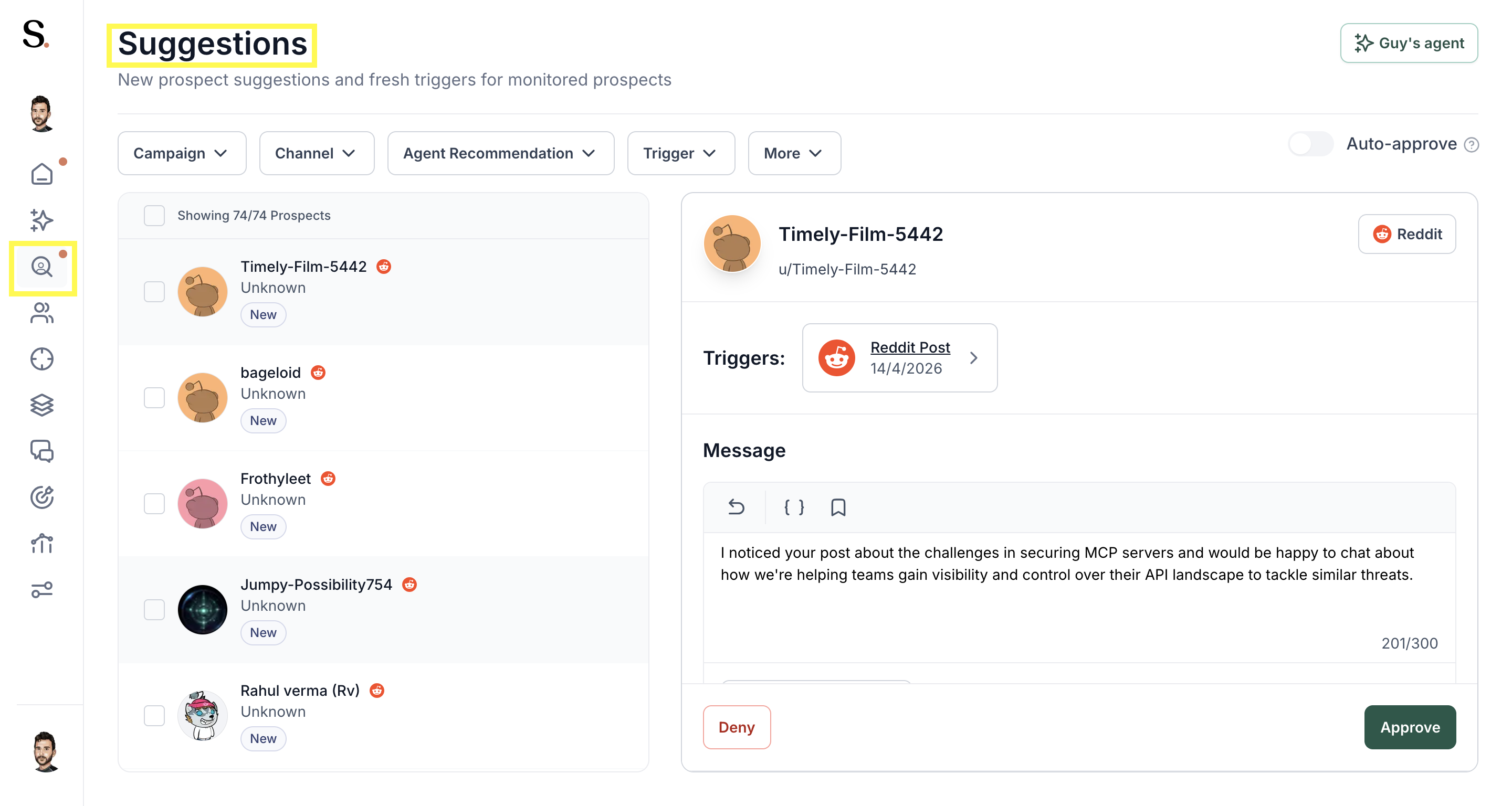
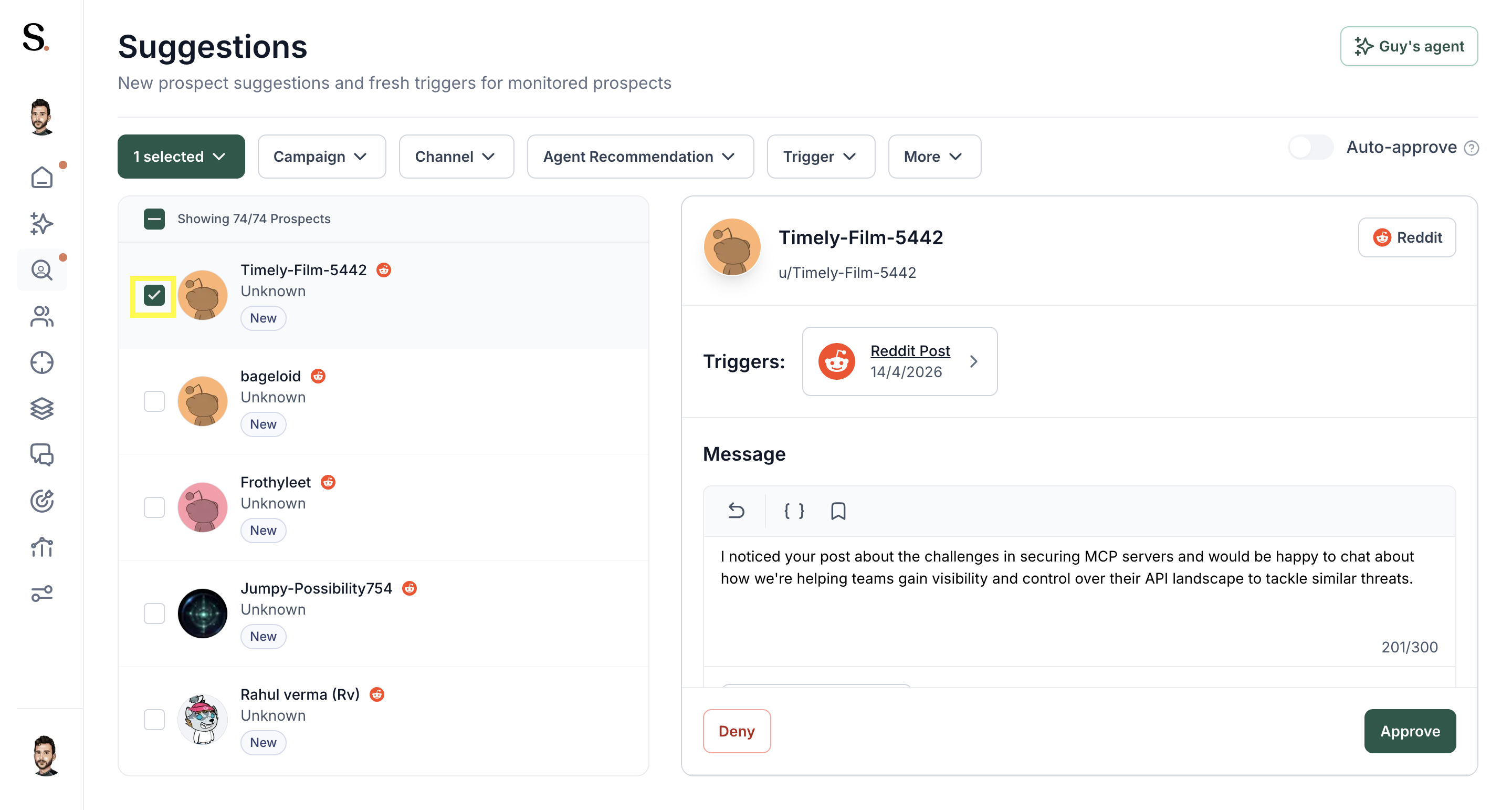
Step 2: Click on the check box to the left of the prospect/s you wish to move to a different campaign.
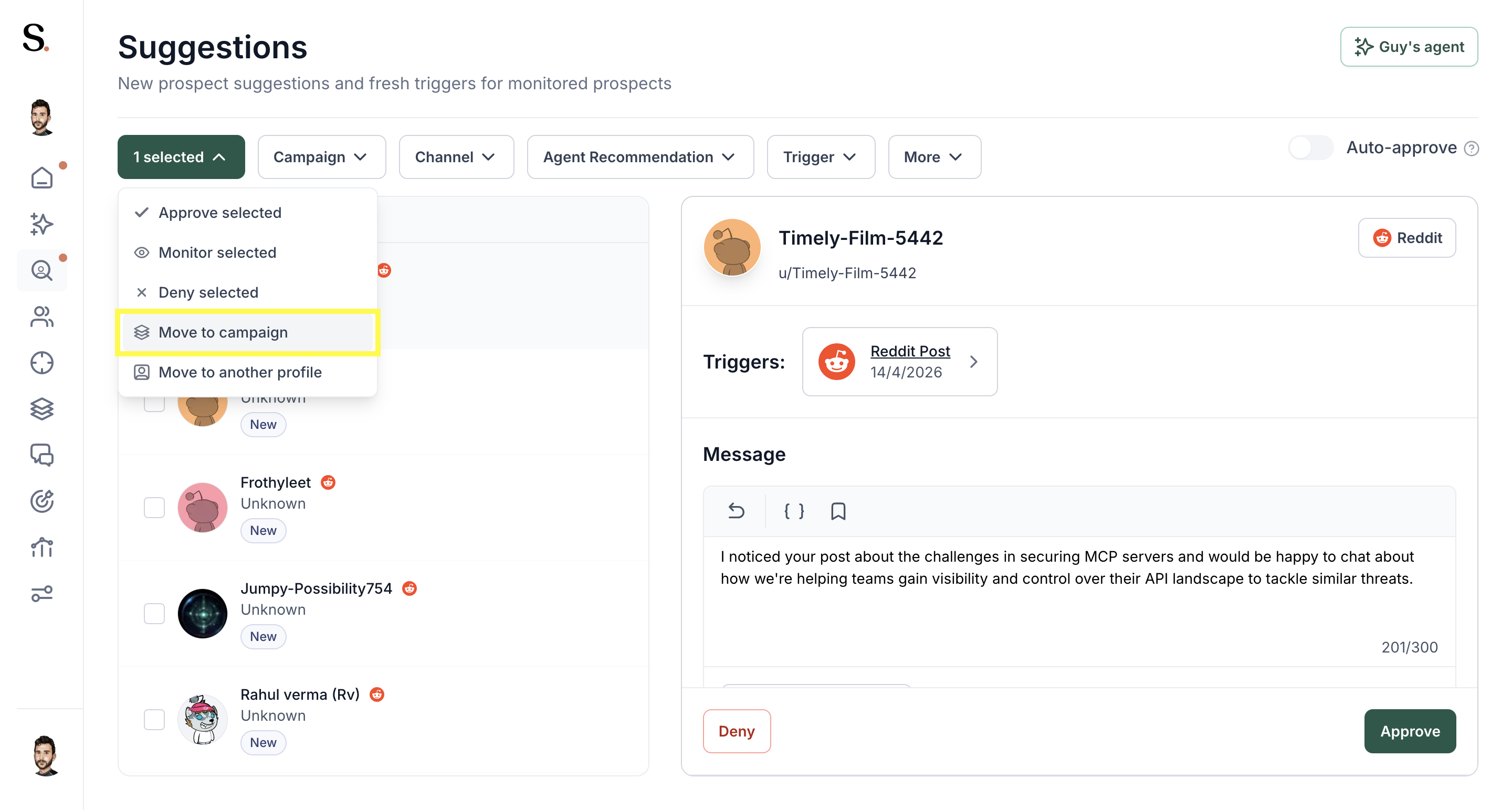
Step 3: Click the "Move to campaign" option.
Step 4: A pop-up will appear, choose the campaign you want to move the prospects to.
Step 5: Press confirm.

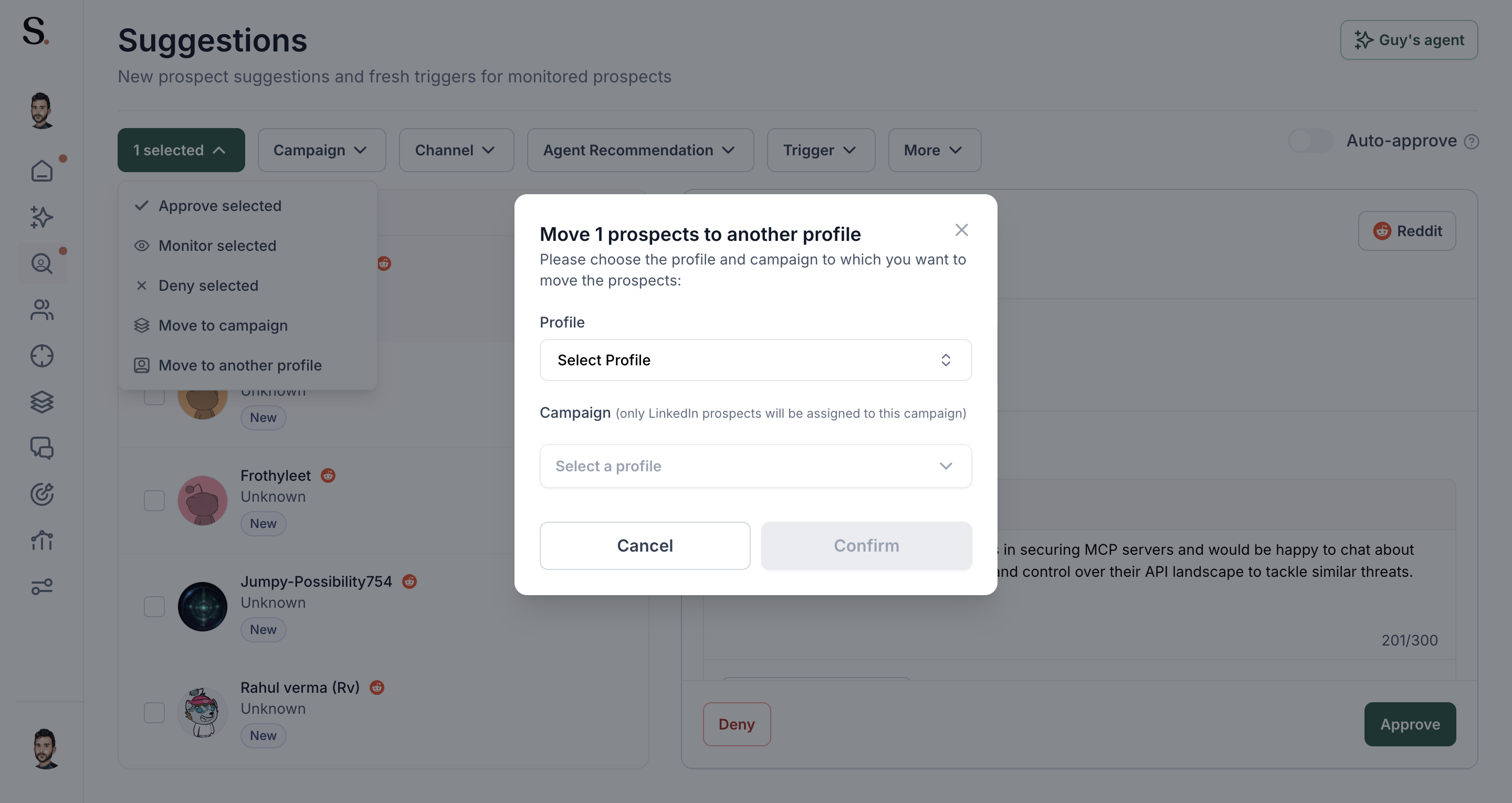
How to move prospects in suggestions to a different profile
Reassigning a prospect to a different profile provides the client with strategic flexibility and optimized outreach. This ensures the prospect is always approached by the most relevant profile, maximizing the conversion rate based on expertise or match.
Step 1: Open the 'Suggestions' tab.
Step 2: Click on the check box to the left of the prospect/s you wish to move to a different profile.
Step 3: Click the "Move to another profile" option.
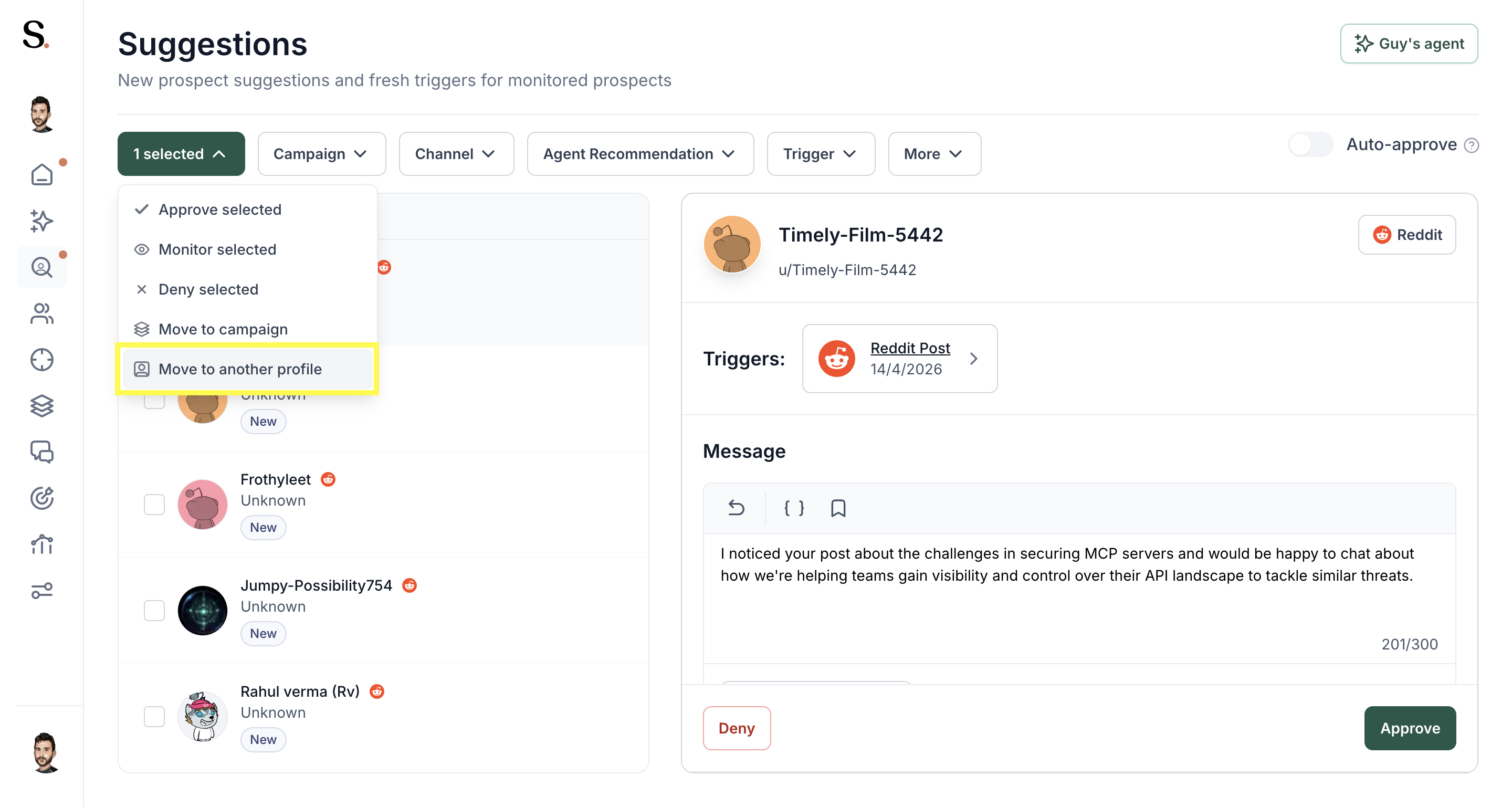
Step 4: A pop-up will appear, choose the profile and campaign you want to move the prospect to.
Step 5: Press confirm.


.avif)