I want to import a list from Sales Nav (With Phantom Buster)
 May 12, 2026
 5 min read
This article explains how to export a list of leads from Sales Navigator using PhantomBuster, a third-party automation tool, so the data can be used in spreadsheets or external tools.
Prerequisites:
Before starting, make sure the following requirements are met:
- Access to a Sales Navigator account
- An active PhantomBuster account
- The PhantomBuster browser extension is installed
- A Sales Navigator people search has already been created
Important: The export runs using the Sales Navigator session currently logged into the browser.
Step-by-step instructions
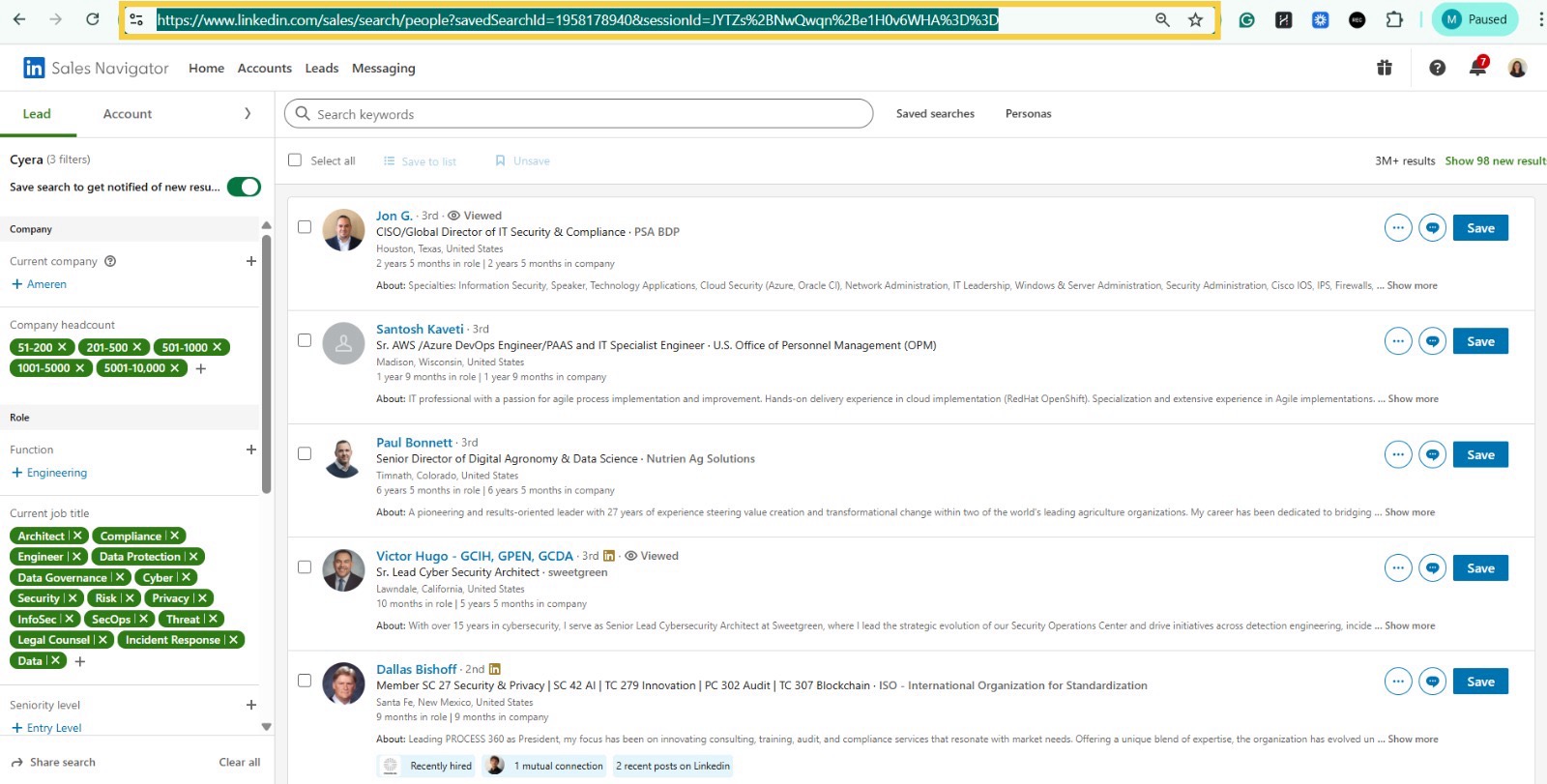
1. Create your Sales Navigator search
- Go to Sales Navigator
- Run a People search using your filters (company size, role, seniority, location, etc.)
- Once the results load, copy the URL directly from the browser address bar
Tip: Sales Navigator limits people searches to 2,500 results. If you need more, split the search into multiple URLs.
2. Select the correct Phantom
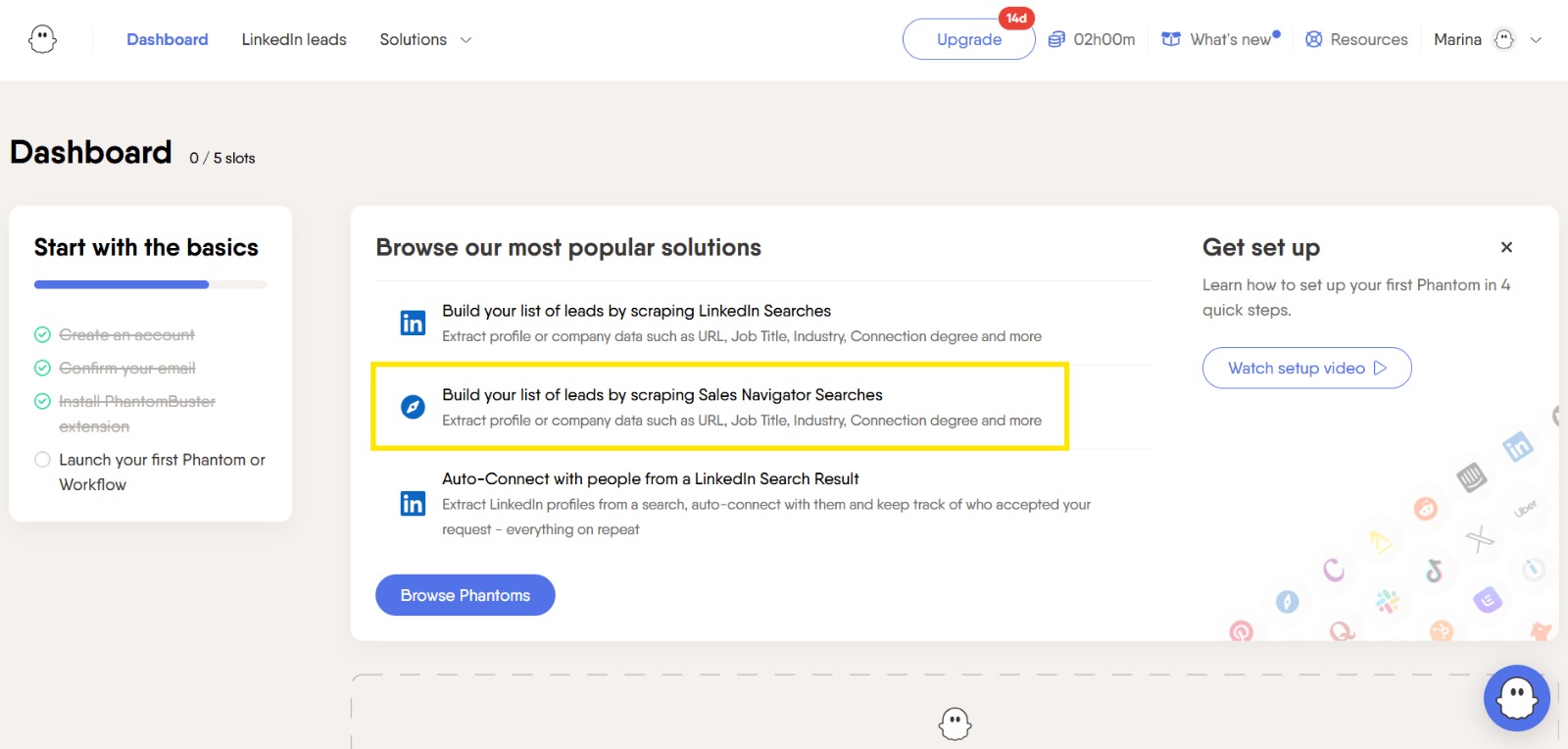
In PhantomBuster:
- Go to Browse Phantoms
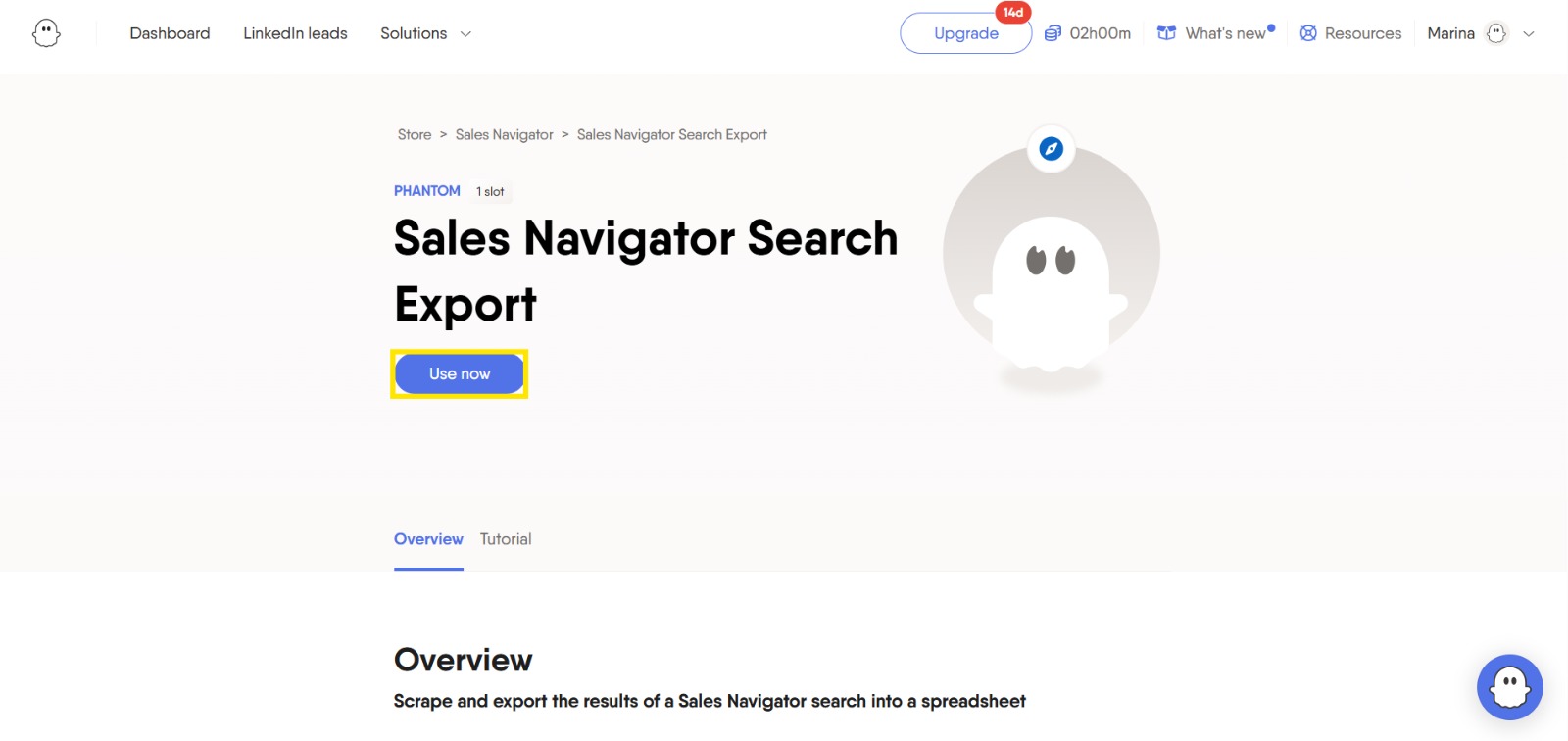
- Select Sales Navigator Search Export
- Click Use now
This Phantom is specifically designed to extract people searches from Sales Navigator, which avoids URL validation errors.
3. Paste the Sales Navigator search URL
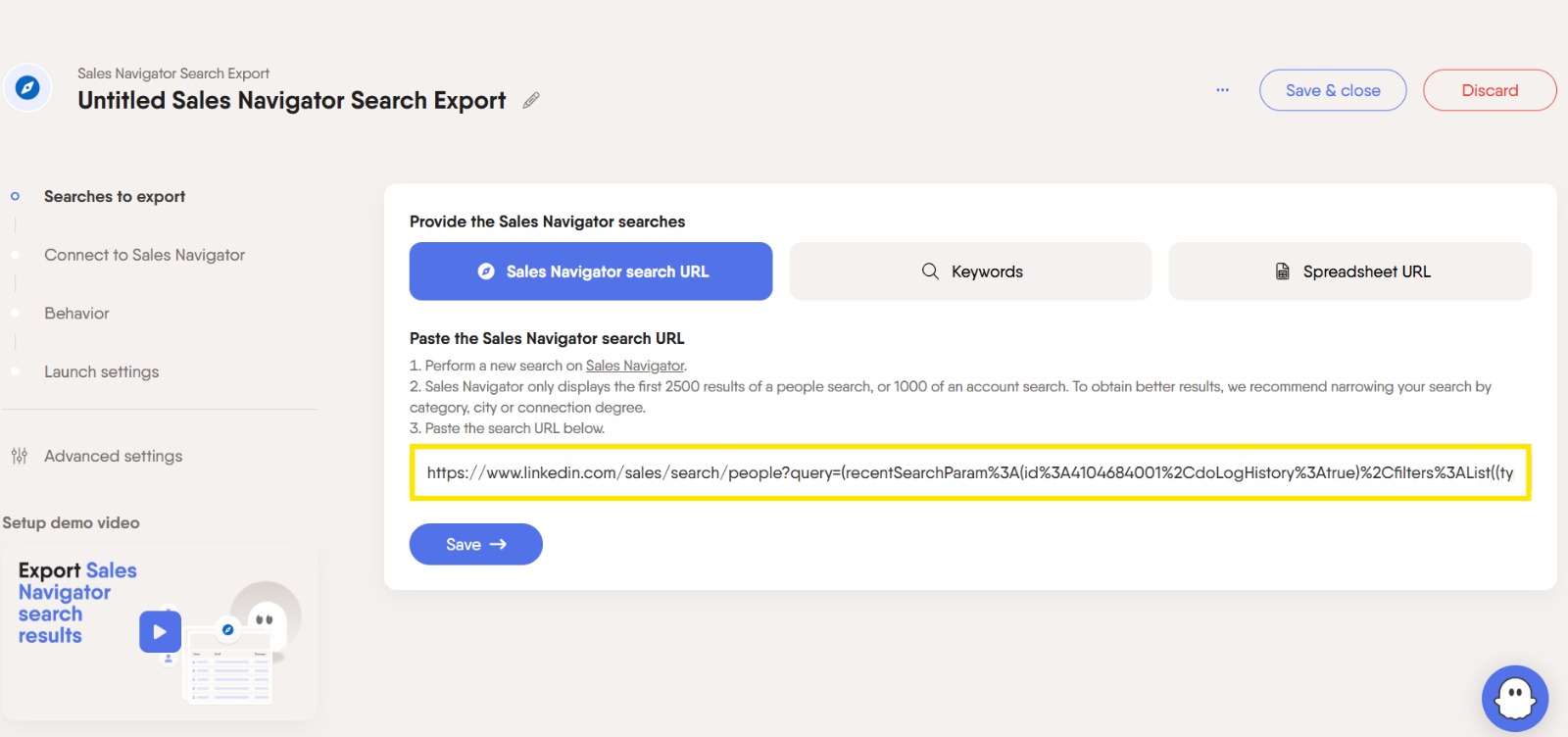
- In the Sales Navigator search URL field, paste the URL you copied directly from the browser
- Click Save to validate the search
If the URL is valid, PhantomBuster will move you to the next step.
If you see an error, double-check that:
- The URL comes from a People search
- You copied it directly from the address bar
- You are logged into Sales Navigator in the same browser
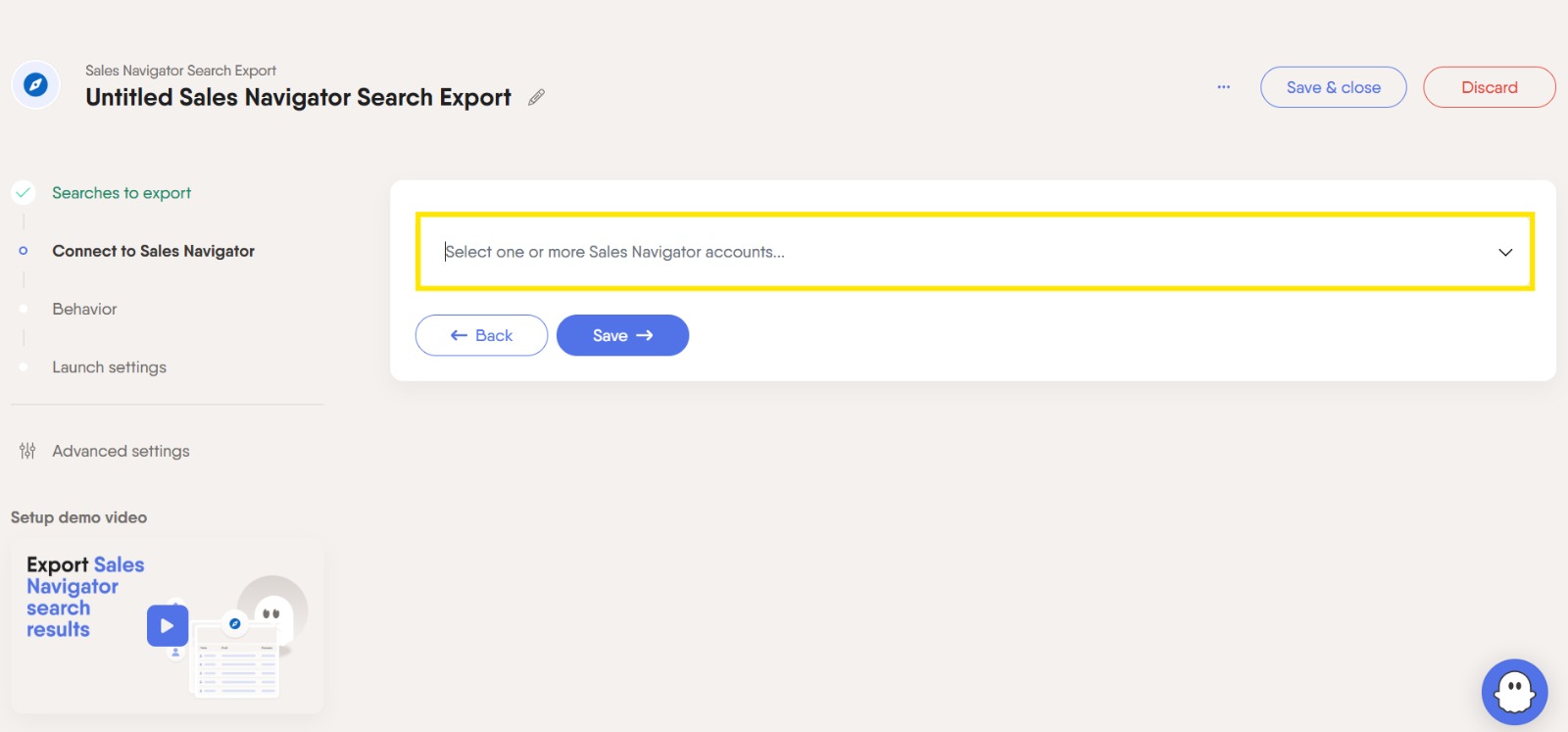
4. Connect your Sales Navigator account
PhantomBuster will ask you to select a Sales Navigator account.
- Choose the account currently logged in via the browser extension.
- This can be a shared or paid account, as long as you have browser access.
Once selected, continue to the next step.
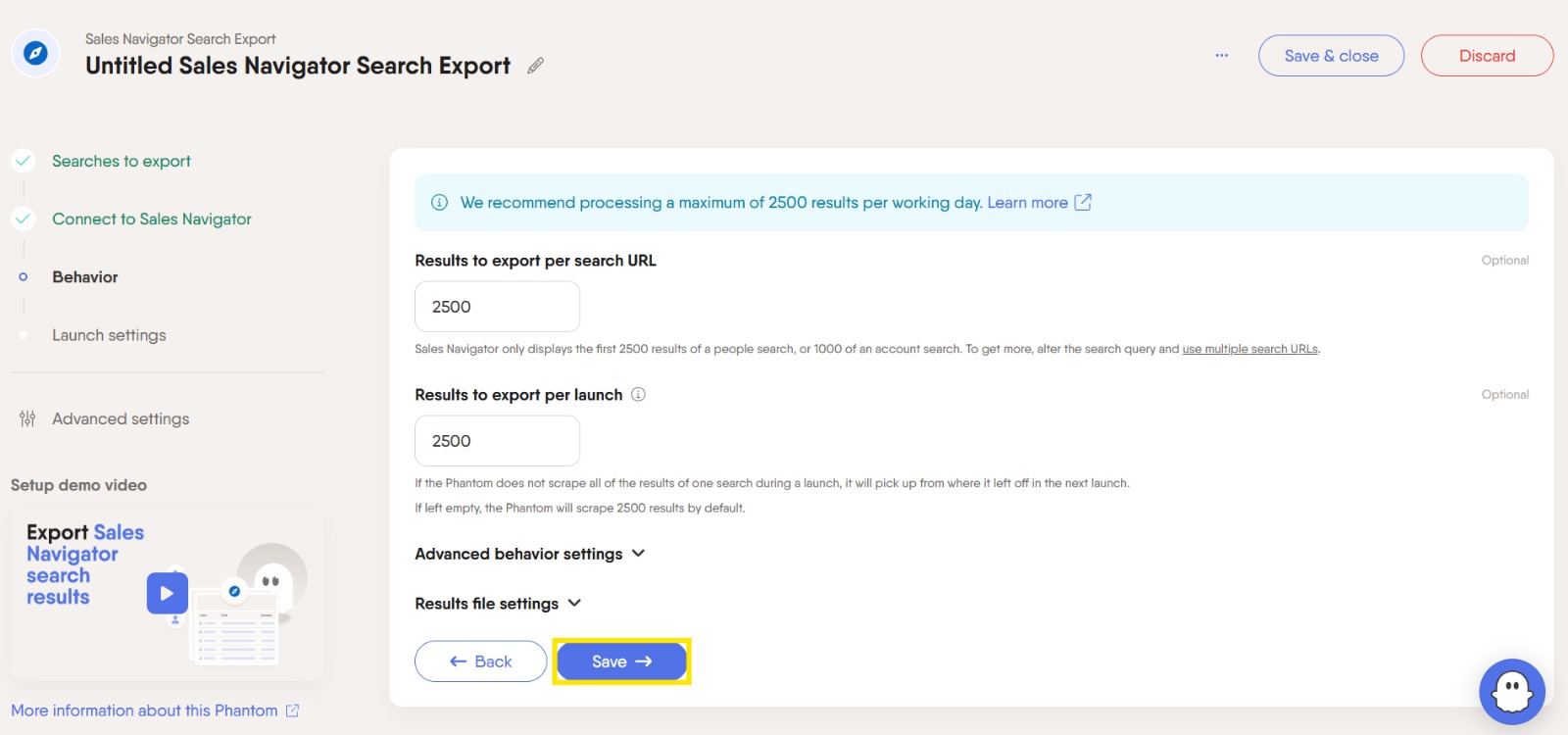
5. Configure export behavior (optional)
You can keep the default settings, or adjust them if needed:
- Results to export per search URL
Default: 2,500 - Results per launch
Controls how many profiles are processed in a single run
These limits help keep your account safe and aligned with Sales Navigator usage restrictions.
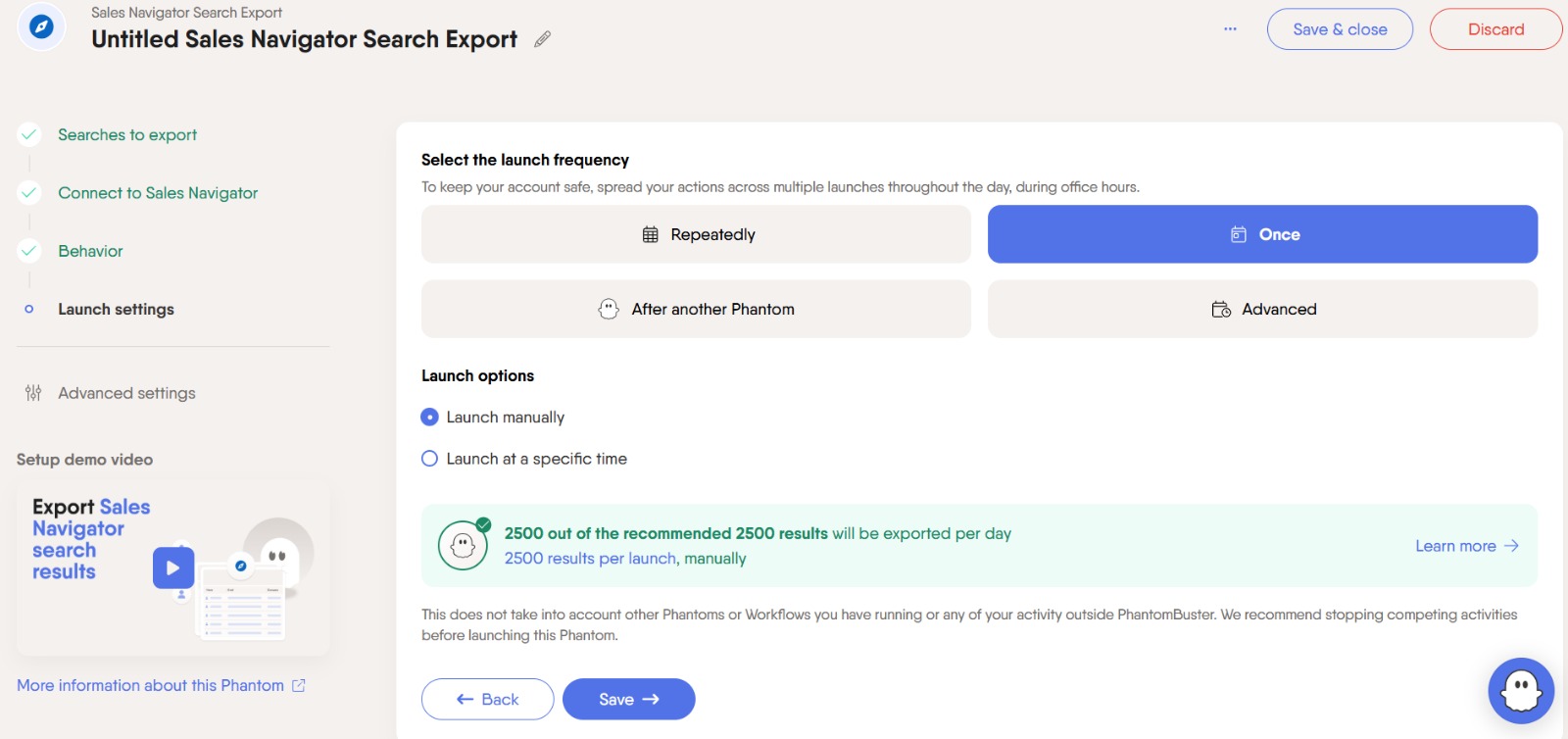
6. Choose the launch frequency
This setting controls how often PhantomBuster runs the export.
- Once → Runs the export a single time (recommended for one-off lists)
- Repeatedly → Re-runs the search on a schedule to capture new results over time
- After another Phantom → Used only for advanced workflows
For most cases, select Once.
You can also choose to:
- Launch manually
- Schedule the launch for a specific time
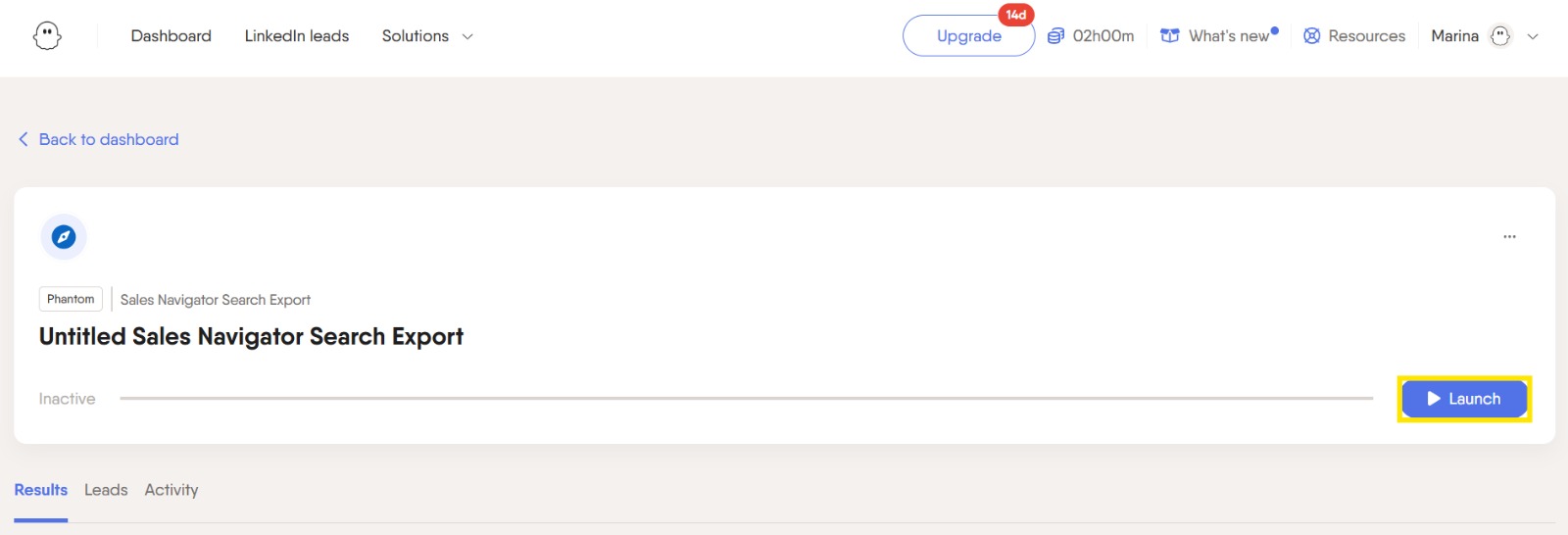
7. Launch the Phantom
- Save the configuration
- Click Launch
PhantomBuster will start extracting profiles from your Sales Navigator search.
8. Access your results
Once the Phantom finishes running:
- Go to the Results tab
- Download the exported data as a spreadsheet (CSV / Google Sheets)
The file typically includes:
- Name
- Job title
- Company
- LinkedIn profile URL
- Location
- Industry (when available)
Common issues and how to avoid them
- “This is not a valid LinkedIn people search URL”
→ Make sure you’re using the Sales Navigator Search Export Phantom and a People search URL - Session or connection errors
→ Confirm you’re logged into Sales Navigator and the PhantomBuster extension is active - Missing results
→ Split large searches into multiple URLs


.avif)