Profile Settings vs General Settings
 May 12, 2026
 5 min read
Profile Settings
Profile Settings apply to a specific outreach profile rather than only to the individual user. They control elements like ICP, excluded companies, LinkedIn connections, calendar link, operating user, and notifications. If the profile is shared, the settings affect all team members using it.

What you can configure here:
- Configuration
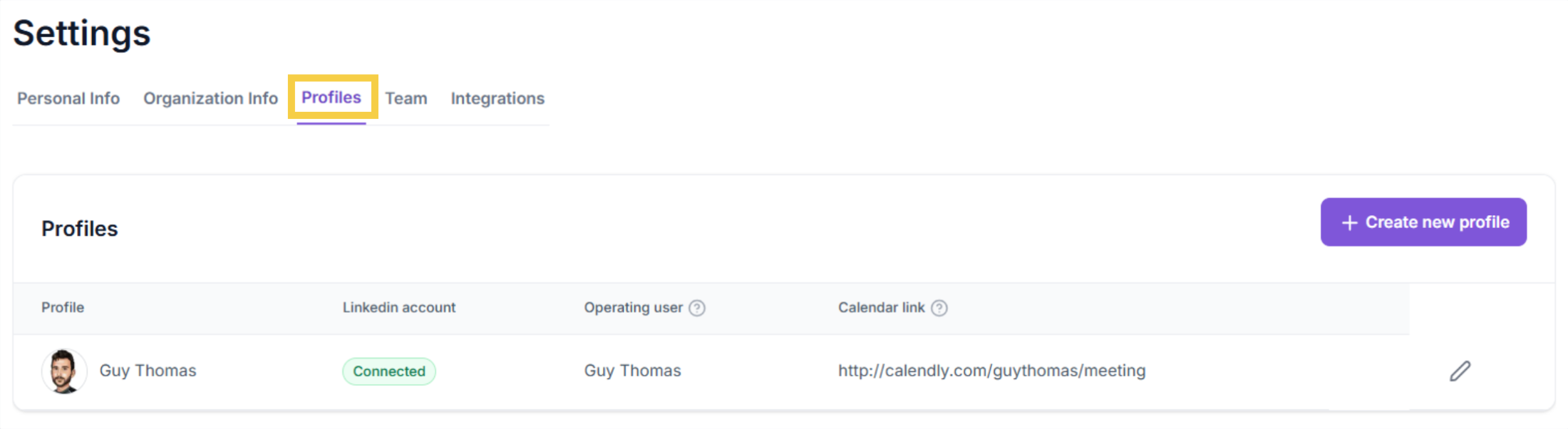
- Operating User – Assign the user who runs or owns this profile (e.g., Guy Thomas).
- Additional Notification Recipients – Add team members who should receive notifications related to this profile’s activity.
- Calendar Link – Connect a scheduling link (such as Calendly) so prospects can automatically book meetings through this profile.

- LinkedIn Connections – Upload your connections to avoid messaging existing contacts
Tip: Set your timezone so prospects arrive at your preferred hours.

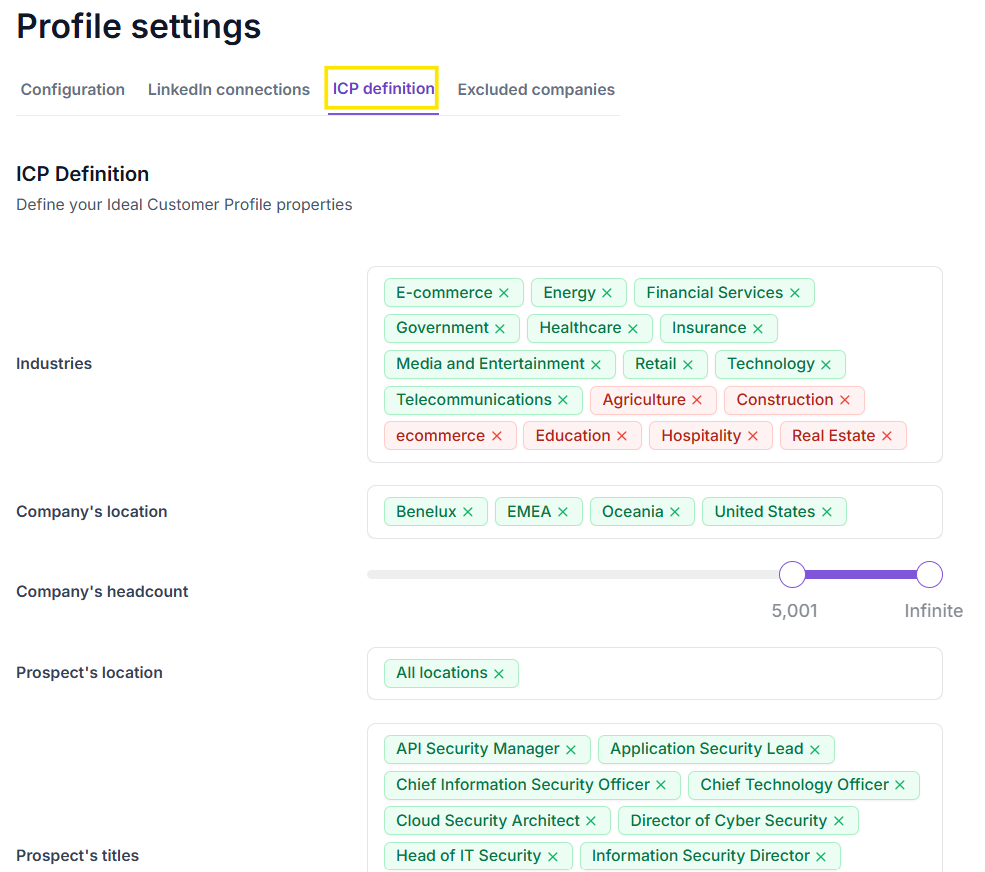
- ICP definition
In this section, define the Ideal Customer Profile (ICP) for the outreach profile. These filters tell the system which companies and prospects to target. The ICP set here applies to the profile only and can be overridden at the campaign level.
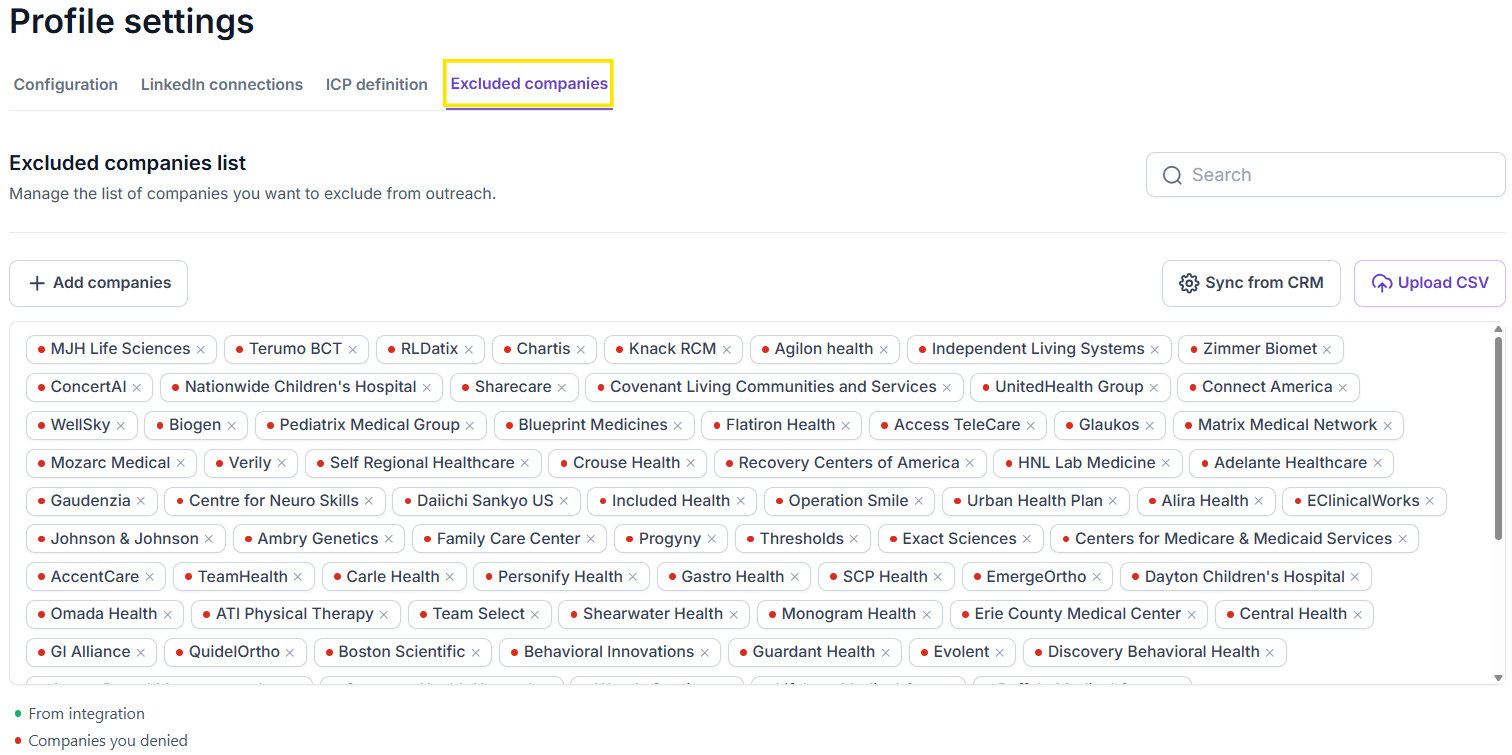
- Excluded companies list - Manage the list of companies you want to exclude from outreach.
GENERAL SETTINGS
General settings include options for both the individual user and the entire organization.
Personal fields—such as name, email, timezone, and profile photo—affect only the current user.
Organization-level sections—such as Organization Info, Teams, Profiles, and Integrations—apply to everyone in the workspace.
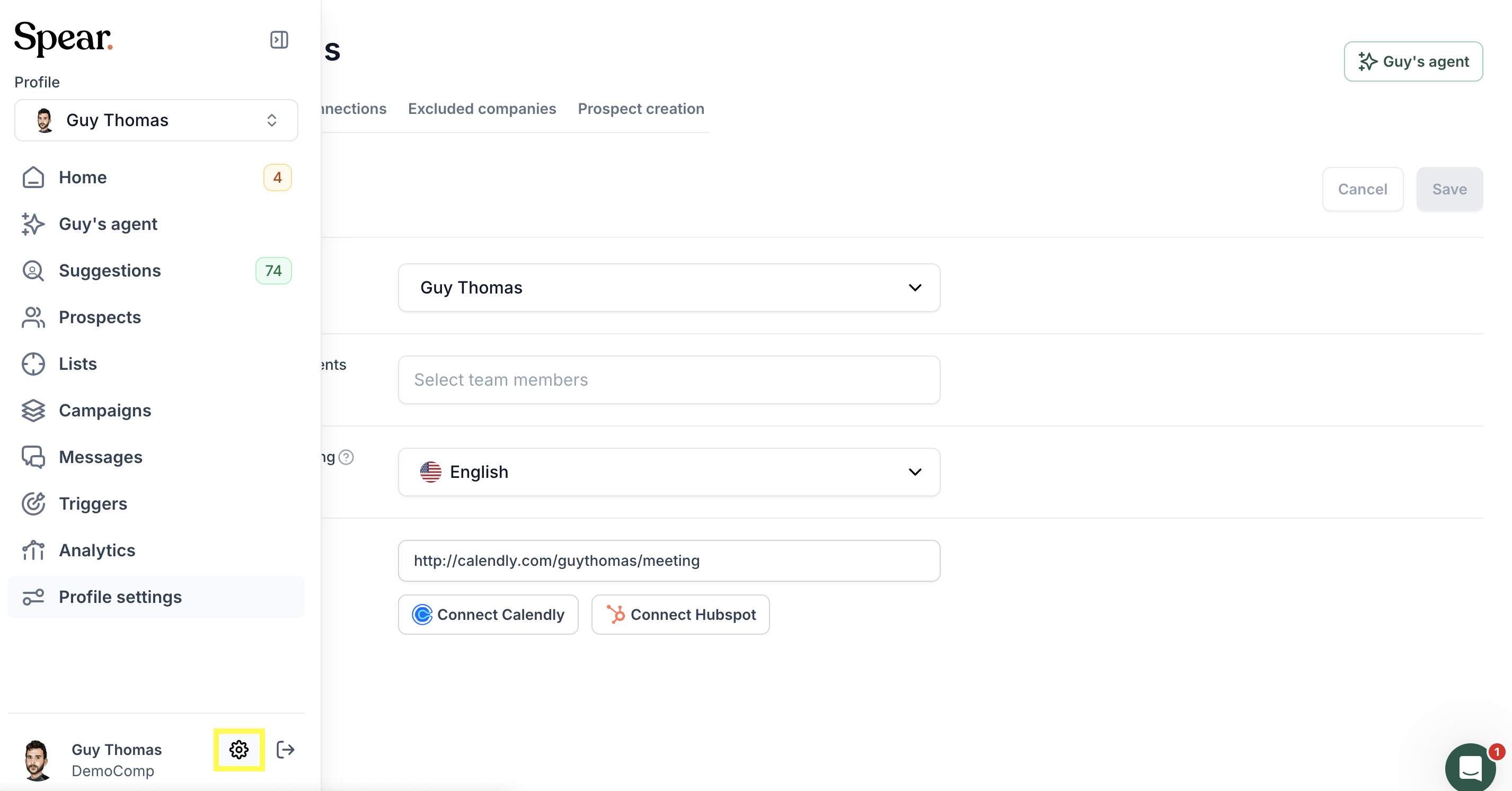
What you can configure here:
- Personal Info –Update your name, email, company, timezone, and profile photo. These changes affect only your own account.

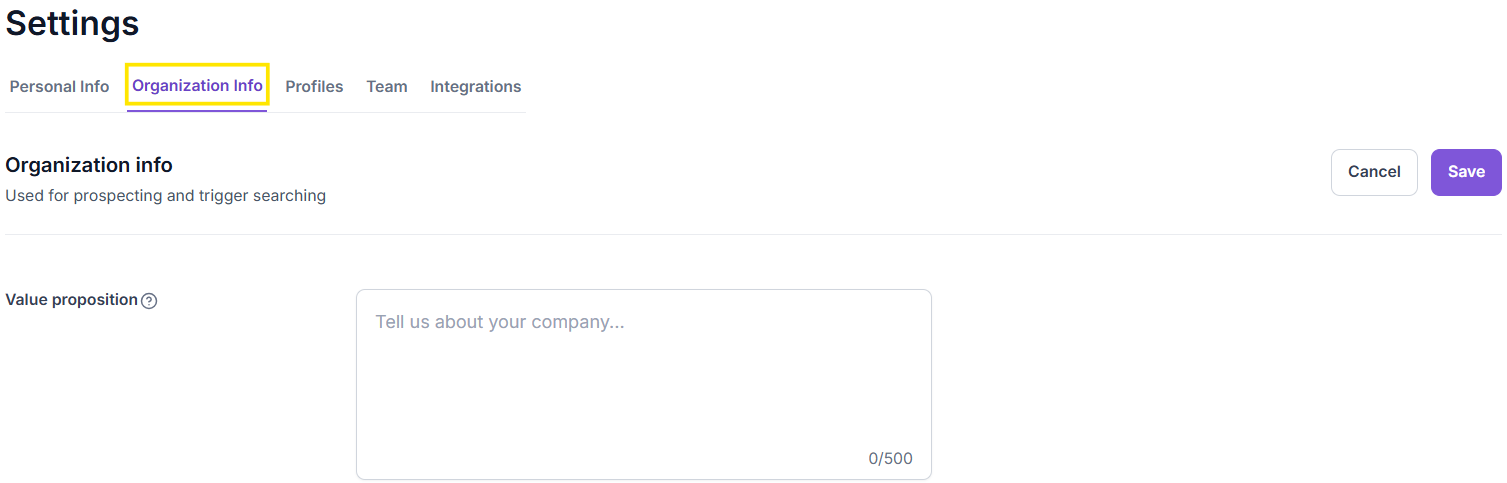
- Organization Info:Store company-level details that apply across the entire workspace. This information is used in:
- Prospecting – to personalize outreach messages with your company’s value proposition.
- Trigger-based searching – to help the system understand what your company does and identify relevant buying signals or intent triggers.
- Profiles – Add, edit, or remove personal profiles and manage access for team members.
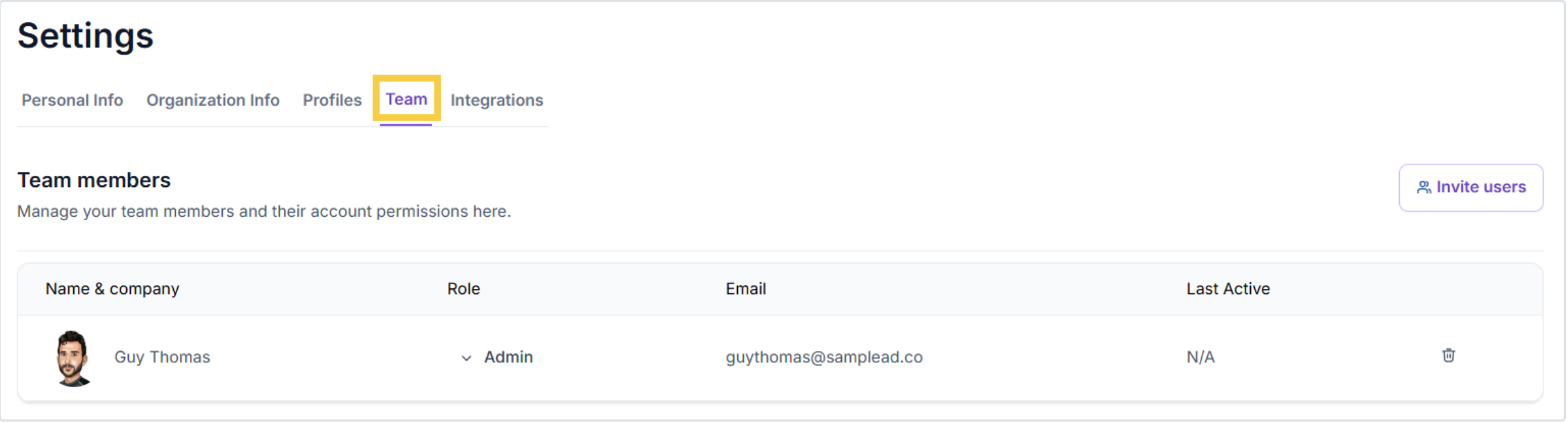
- Teams The Team section allows you to manage users who have access to the workspace. From here, you can:
- Invite new team members to the account.
- Assign roles or permissions (e.g., Admin, User, Viewer).
- View existing members — including their name, company, role, email, and last active status.
- Integrations
The Integrations section allows you to connect Spear with other tools your organization uses. These are company-level integrations, meaning once connected, they are available for all users in the workspace.

Conclusion
Profile and General Settings help you control how outreach is managed across your workspace. While Profile Settings apply to a single outreach profile, General Settings define the structure and information used by the entire organization.
Together, these settings ensure consistent targeting, clear ownership, and a streamlined experience for all users in Spear.


.avif)