Home>Knowledge Base>FAQs>What to do if a prospect was approved or denied by mistake?

What to do if a prospect was approved or denied by mistake?

Calendar icon marking the date this article was publishedMay 12, 2026
Clock icon marking how long this article takes to read5 min read

I mistakenly denied or approved a prospect. What should be done?

Denied a prospect by mistake

You can update a prospect’s classification if it was denied unintentionally. This can be done directly from the Prospects tab.

1. Open the Dashboard.
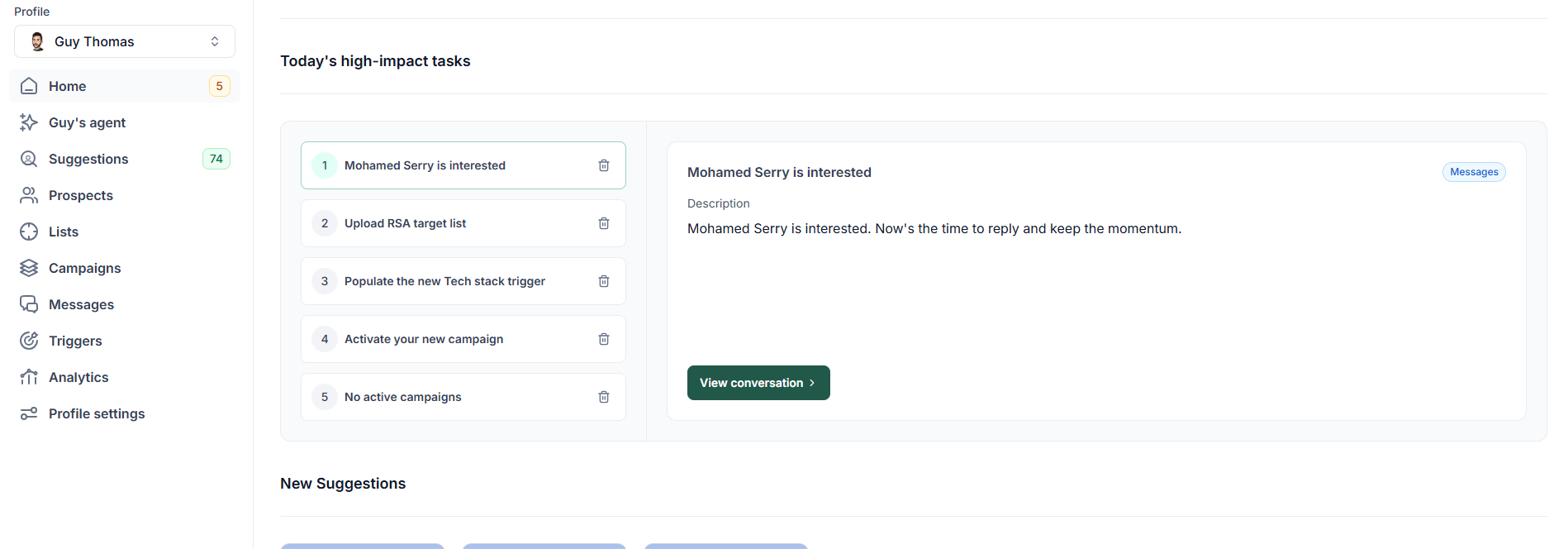
Home screen listing today's high impact tasks, with the description of the selected task and a link through to the conversation

2. Open the Prospects tab.

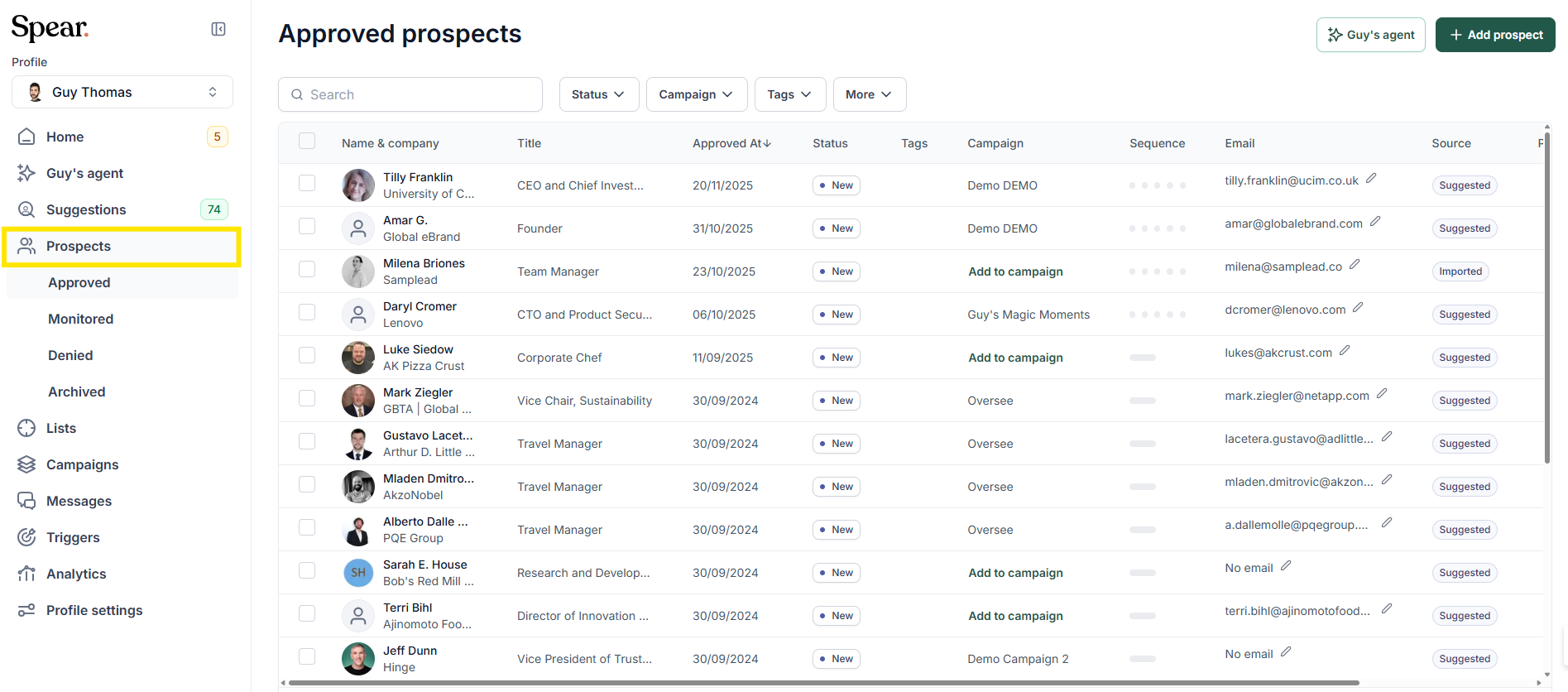
Approved prospects table with the prospects section highlighted in the side navigation while the approved view stays selected underneath it

3. Select the Denied filter.

Approved prospects table with the denied view highlighted in the prospects section of the side navigation

4.

Denied prospects table with the row menu button highlighted, showing the denial date and reason columns beside each prospect

Click the three dots on the right side of the prospect row to open the options menu.

5. A menu will appear with the available actions: Approved, Monitor and Archive.
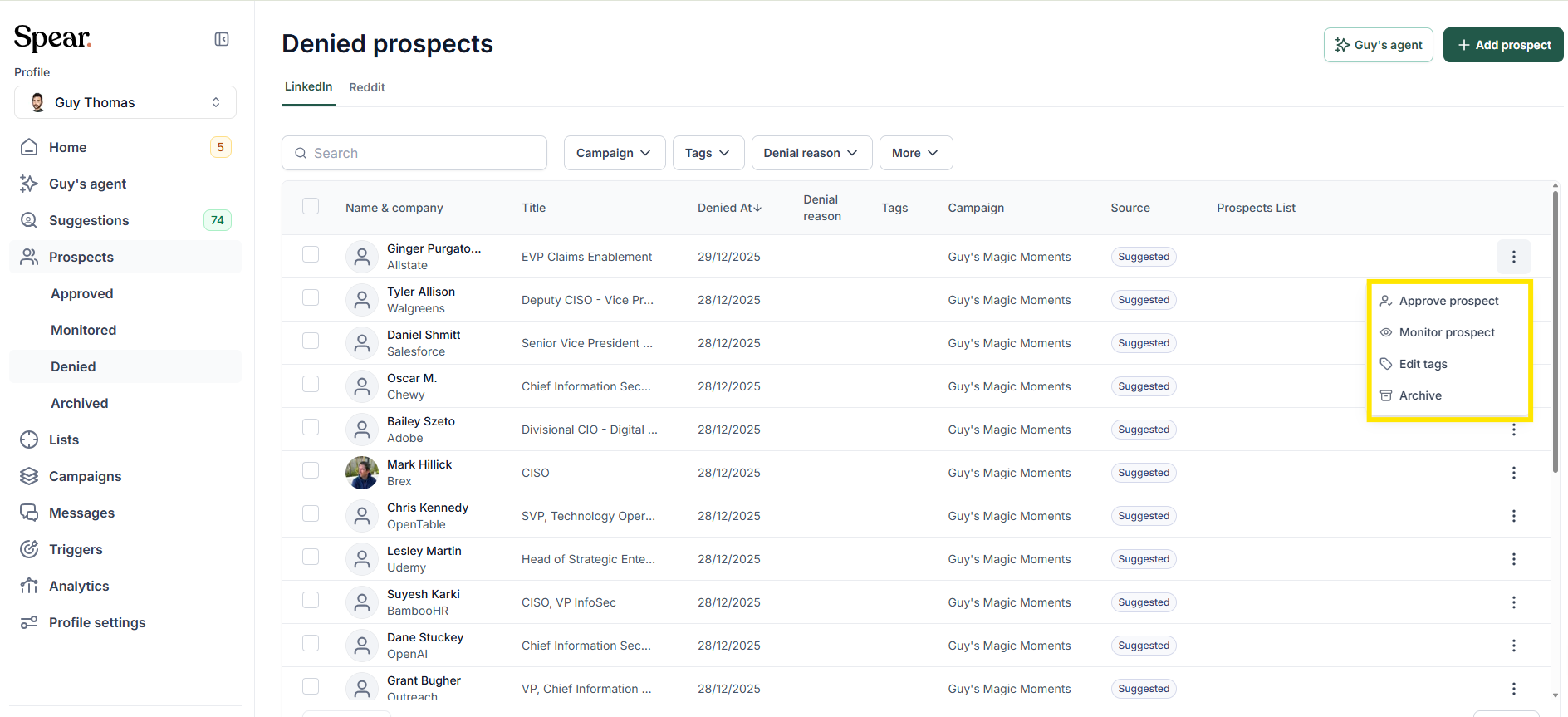
Denied prospects table with a row menu open, offering to approve the prospect, monitor it, edit its tags or archive it

Select the correct option to update the prospect’s status.

Approved a prospect by mistake

Once a prospect is approved, the outreach process begins immediately, and the connection request may already have been sent.
Because of this, an approved prospect cannot be moved back into the review flow.

The only available action is to archive the prospect.

1. Open the Prospects tab.
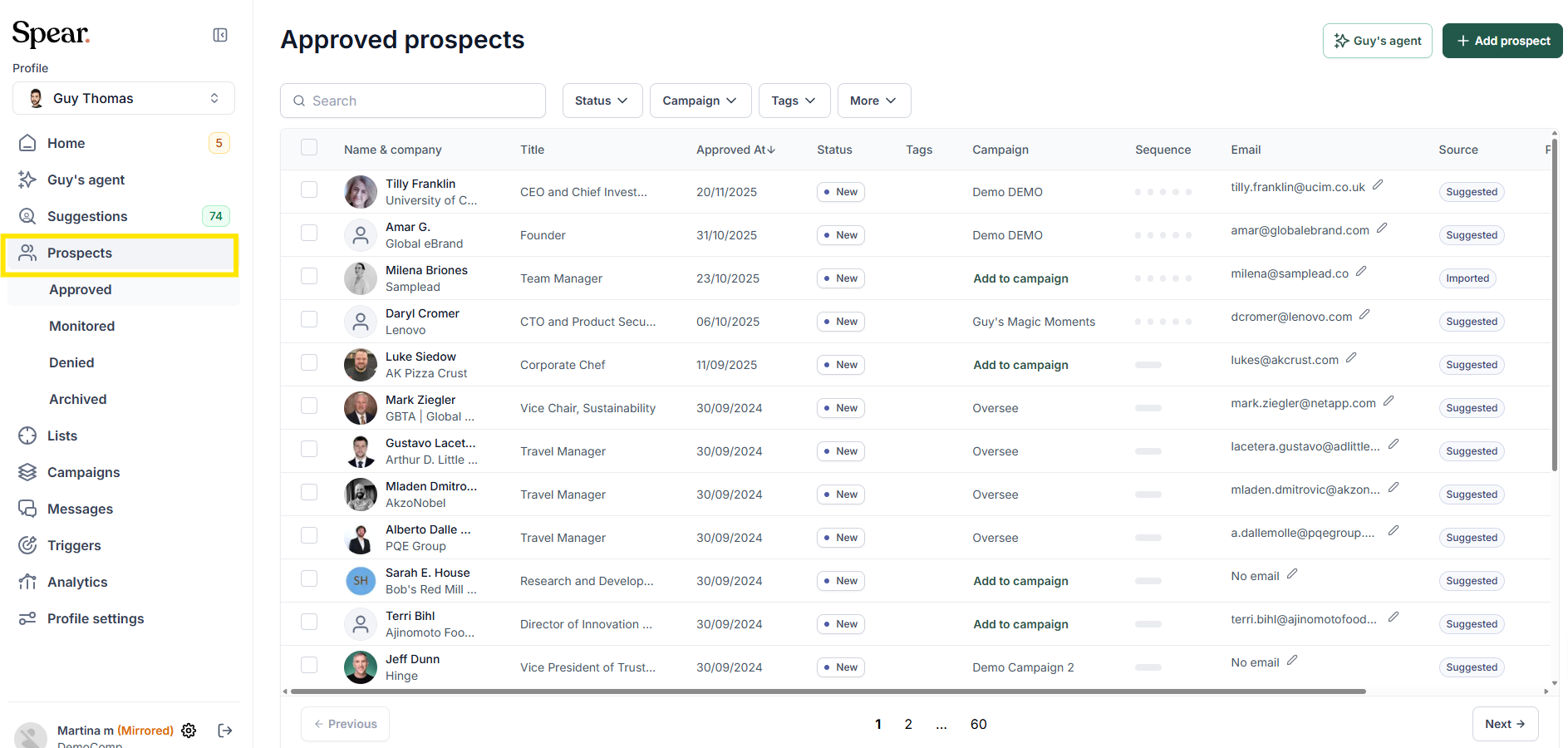
Approved prospects table with the prospects section highlighted in the side navigation and its four views listed underneath

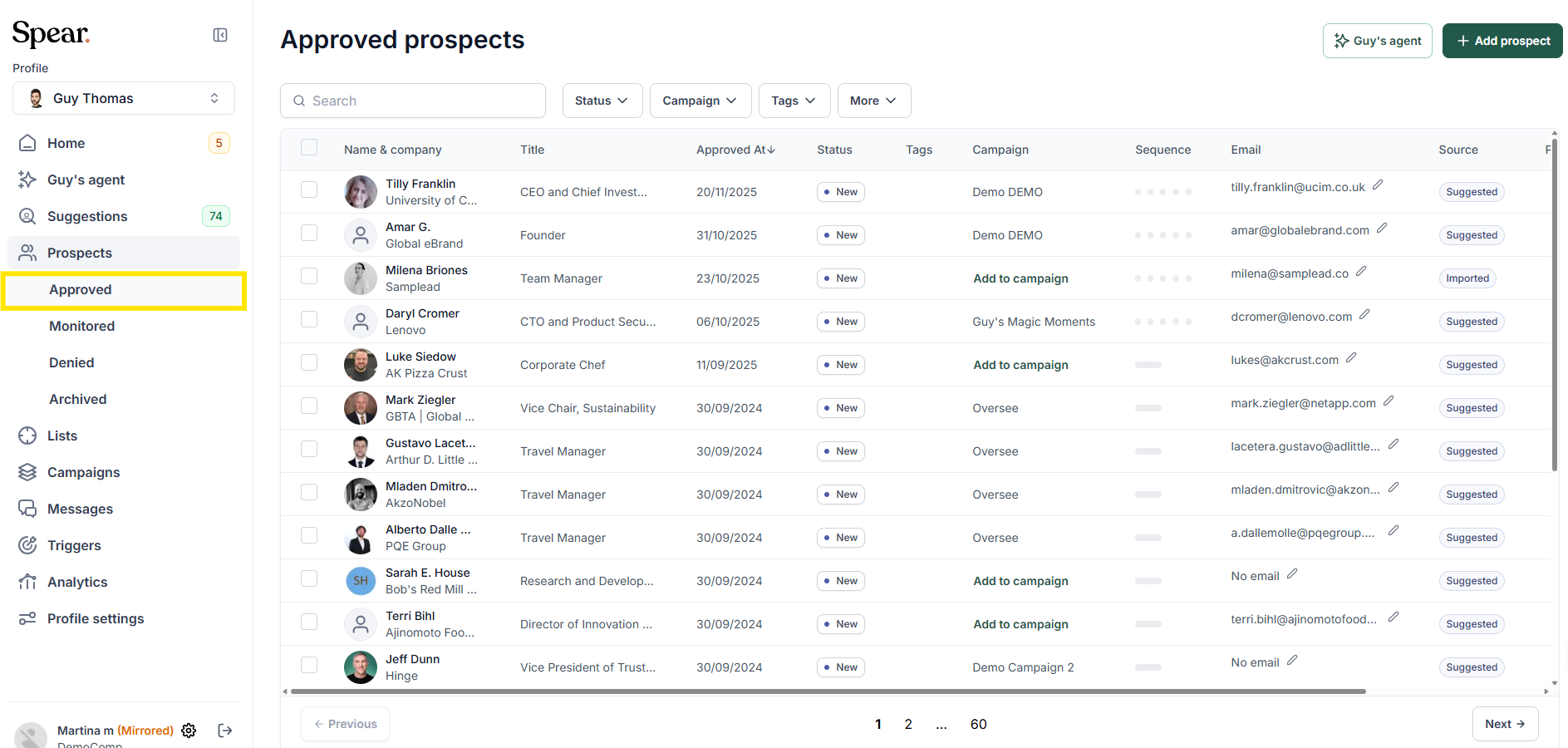
2. Select the Approved filter.

Approved prospects table with the approved view highlighted in the side navigation, listing every prospect with its campaign, sequence progress and source

3. Open the options menu using the three dots on the right side of the prospect row.
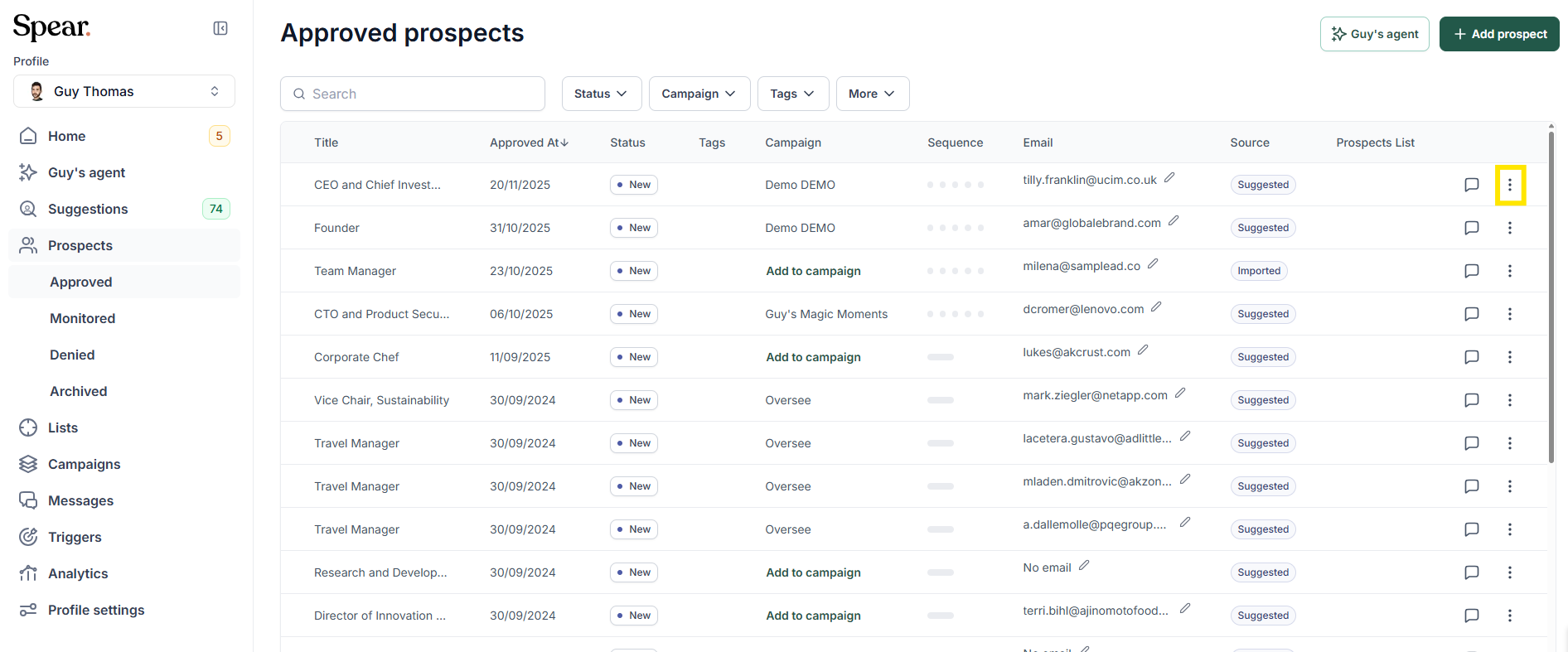
Approved prospects table with the row menu button highlighted at the end of the first prospect row

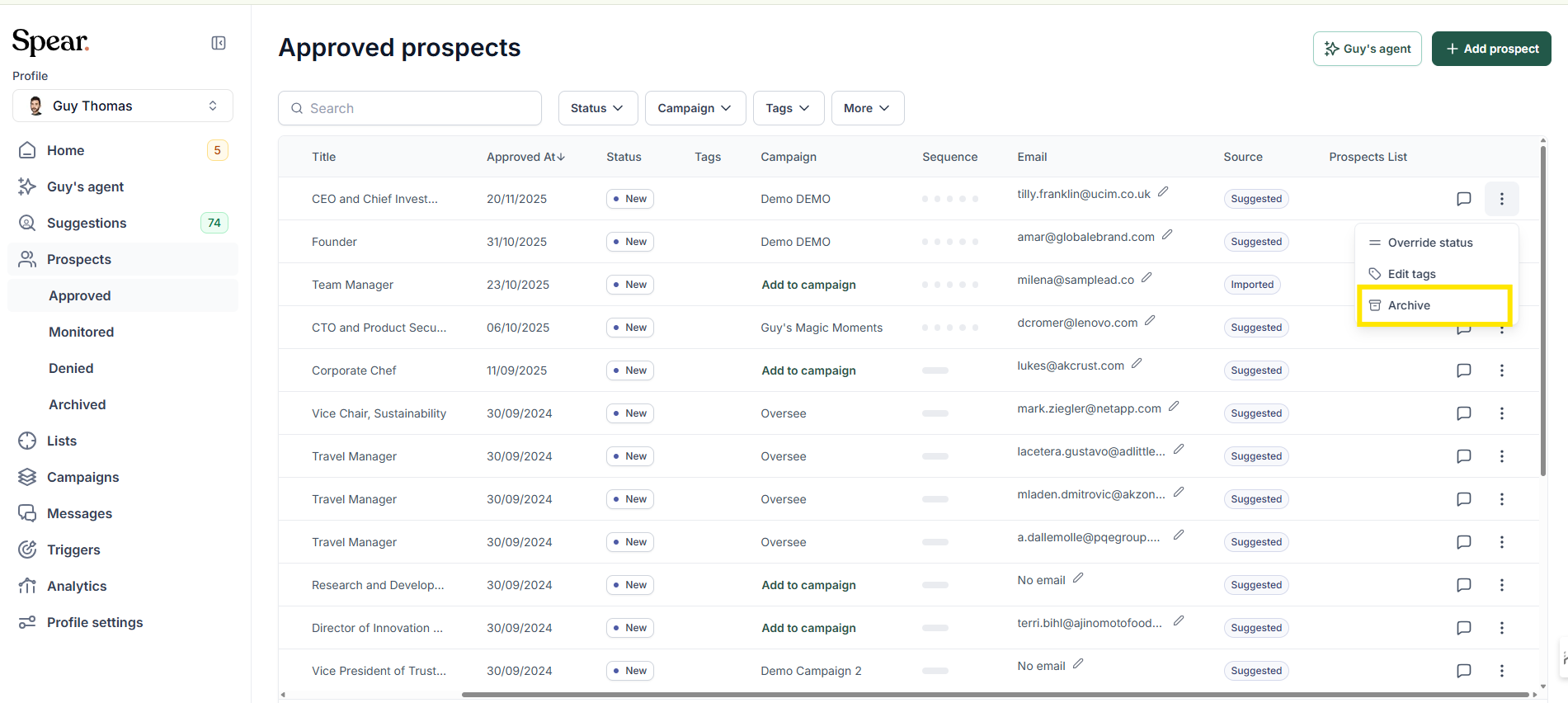
4. Select Archive to remove the prospect from the approved list.
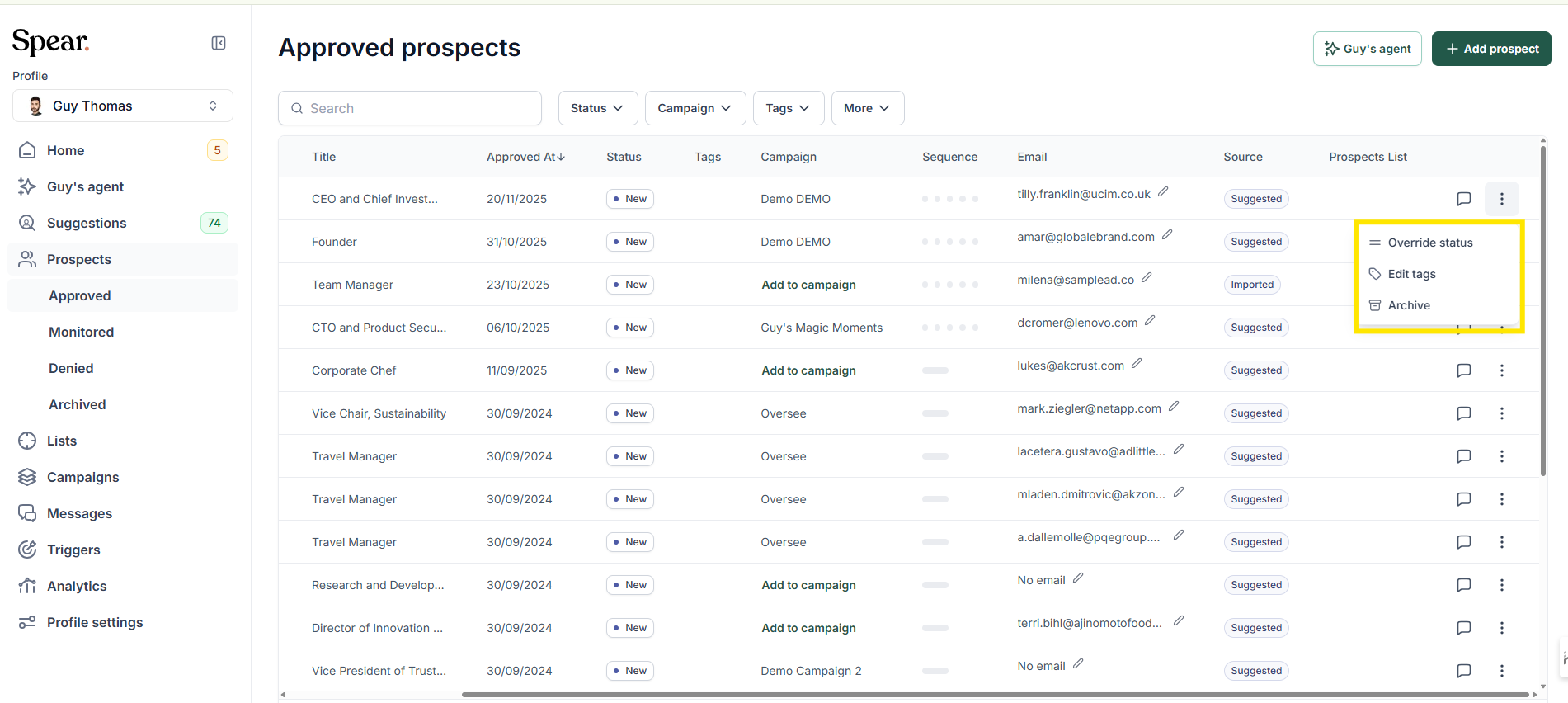
Approved prospects table with a row menu open, offering to override the prospect status, edit its tags or archive it
Approved prospects table with a row menu open and the archive option highlighted, below override status and edit tags

Final Note
If you accidentally approved or denied a prospect, don’t worry — you can always correct it by adjusting their status directly from the Prospects page.

Sign up for Updates

Get the playbook on outbound that actually converts.

We care about data. Check out our privacy policy.

Thank you!
Your submission has been received!
Oops! Something went wrong while submitting the form.
Line illustration of a spear on a coral background, beside the newsletter signup

Turn Triggers Into Pipeline

With Spear, companies leverage trigger-based outbound to craft a quality-driven GTM motion that actually books meetings.

Illustration of a person holding a spear on a hilltop path at sunriseIllustration of a person holding a spear on a hilltop path at sunrise