Home>Knowledge Base>Messages>How to access and modify campaign filters (MA)

How to access and modify campaign filters (MA)

Calendar icon marking the date this article was publishedApril 7, 2026
Clock icon marking how long this article takes to read5 min read

Steps:

1. From the left side of the Dashboard, open the Campaigns tab.
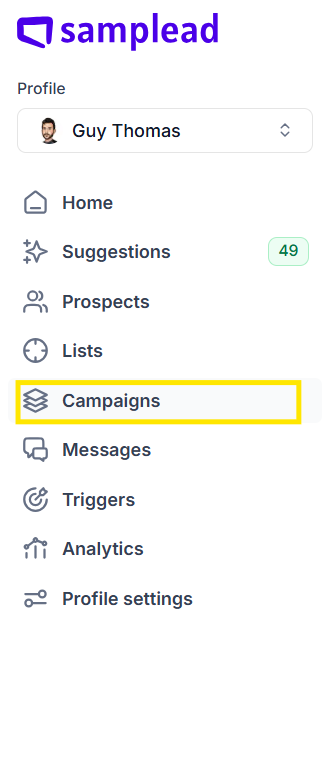
Spear sidebar with the Campaigns item highlighted

2. Select the campaign you want to configure
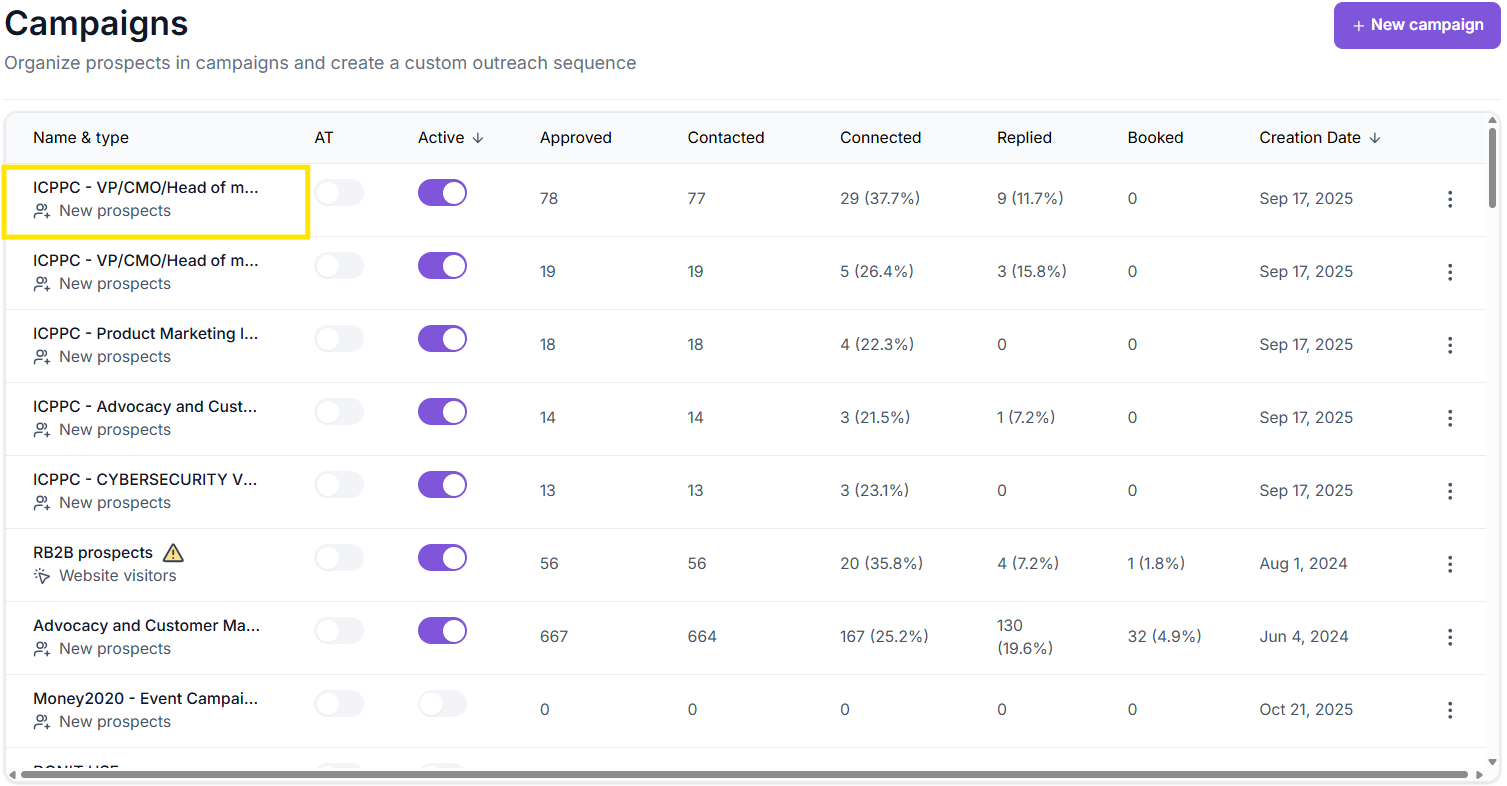
Campaigns table with the first campaign row highlighted, listing approved, contacted, connected, replied and booked counts for each campaign

3. Click ICP Definition

ICP definition tab highlighted, showing the audience filters on the left and a preview of matching prospects and their companies on the right

4. Adjust any company-level or prospect-level filters as needed.

5. Select Apply to save changes

Changes take effect immediately — Spear will start searching for prospects based on your updated filters.

Related Articles

Sign up for Updates

Get the playbook on outbound that actually converts.

We care about data. Check out our privacy policy.

Thank you!
Your submission has been received!
Oops! Something went wrong while submitting the form.
Line illustration of a spear on a coral background, beside the newsletter signup

Turn Triggers Into Pipeline

With Spear, companies leverage trigger-based outbound to craft a quality-driven GTM motion that actually books meetings.

Illustration of a person holding a spear on a hilltop path at sunriseIllustration of a person holding a spear on a hilltop path at sunrise