Meaning of ‘In queue’ and how to move these prospects to a different campaign
 May 12, 2026
 5 min read
In Queue: The Waiting Stage
The "In queue" status is a preliminary stage that indicates a prospect has been approved for outreach and is waiting for its turn for the system to send the initial connection request with the personalized message.
The 'In queue' status is defined by the following:
- Prospect Approval: The prospect was approved and is ready to enter the sending sequence.
- Regulated Sending: Prospects remain 'in queue' because the system regulates daily sends (15–25 per day) to protect the health of the Outreach Platform.
- Active Campaign: Prospects are only sent if the campaign they belong to is active.
Why didn't a prospect receive a message?
The prospect is likely just waiting in line because the system spaces out messages to protect your account safety. Also, nothing sends if the campaign is paused, so the 'In queue' status can stop activity until you make it active again
Key Benefits
- Profile Protection: The sending regulation ensures the LinkedIn profile is not flagged or blocked due to high-volume activity.
- Management Flexibility: When the prospect is 'In queue', it can be moved to another campaign or deleted without interrupting any sequence.
How to move prospects 'In queue' to a different campaign
Step 1: Access the 'Prospects' tab.
Step 2: Filter by status — click the Queue filter to display only prospects currently in queue.
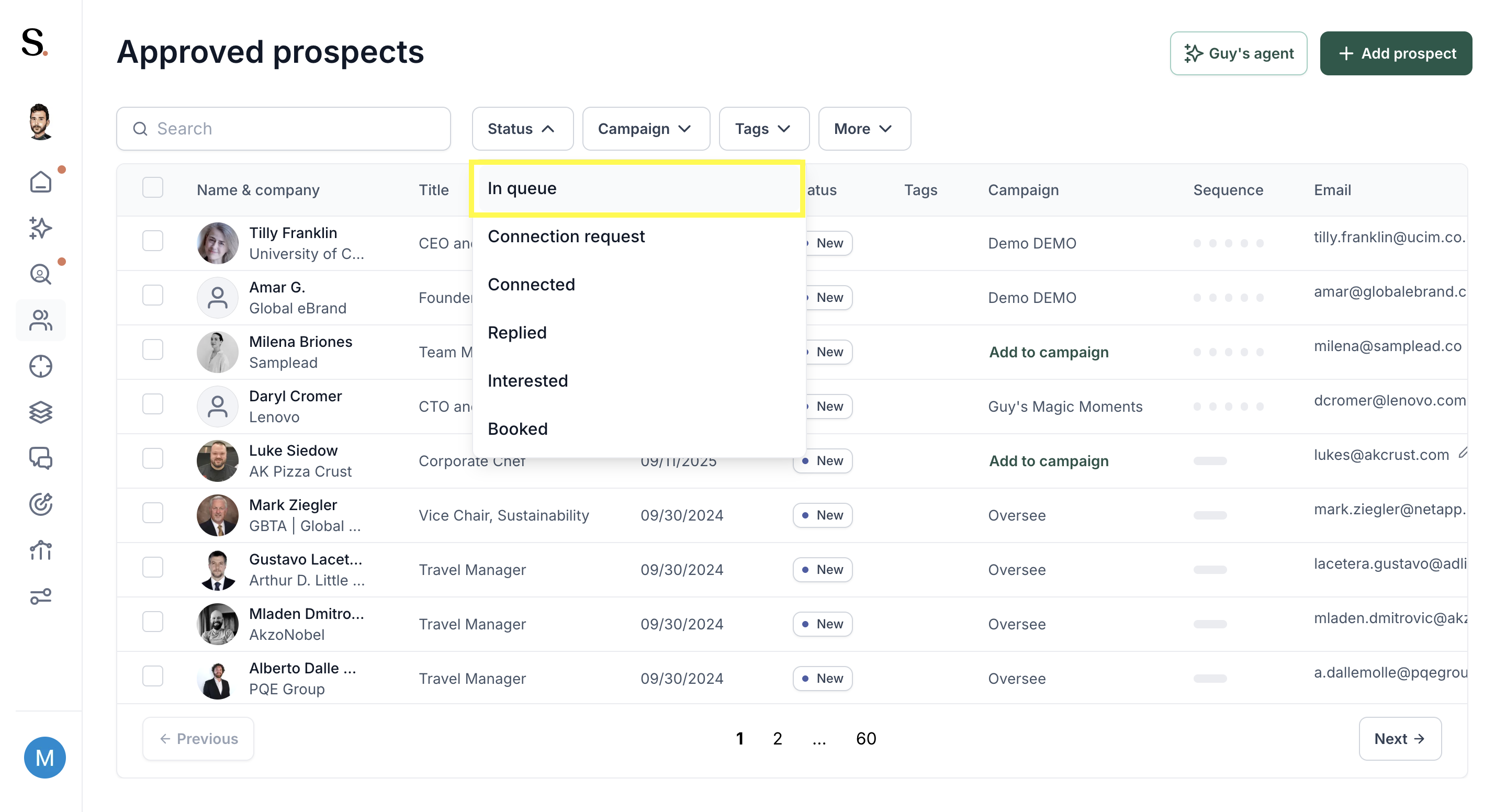
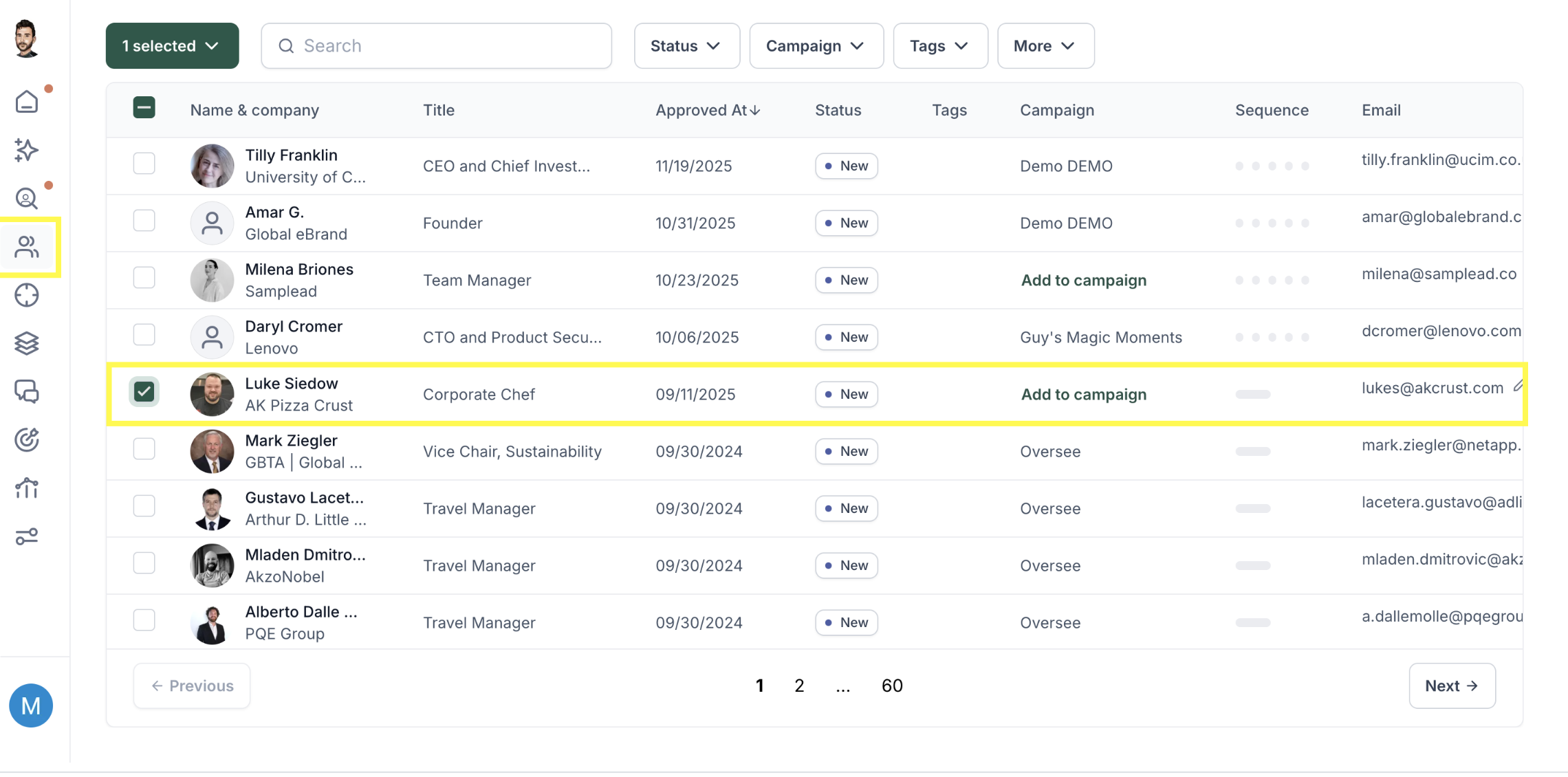
Step 3: Click the checkbox to the left of the prospect(s) you want to move.
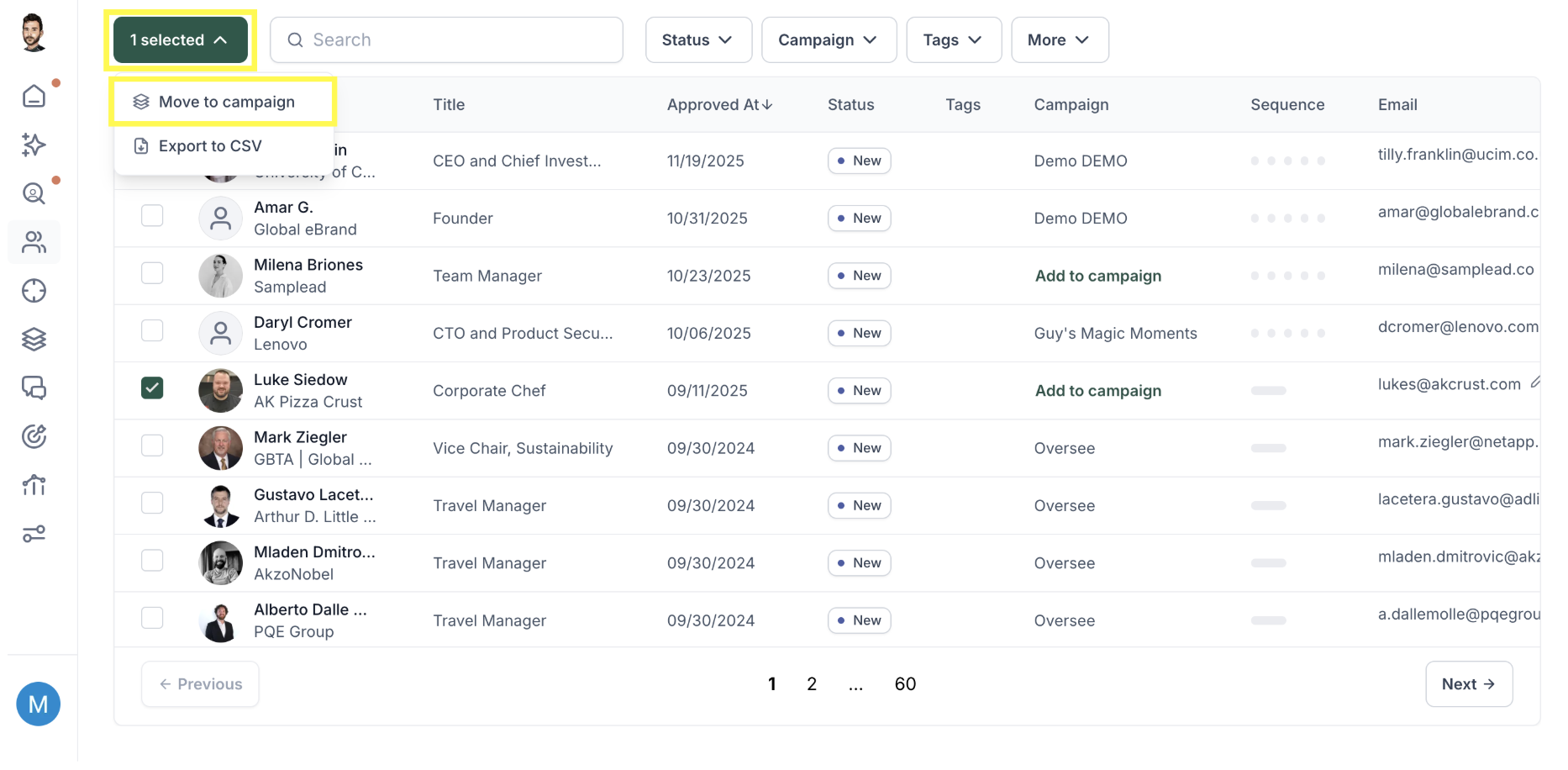
Step 4: Click the 'Selected' button and choose 'Move to campaign' from the dropdown list.
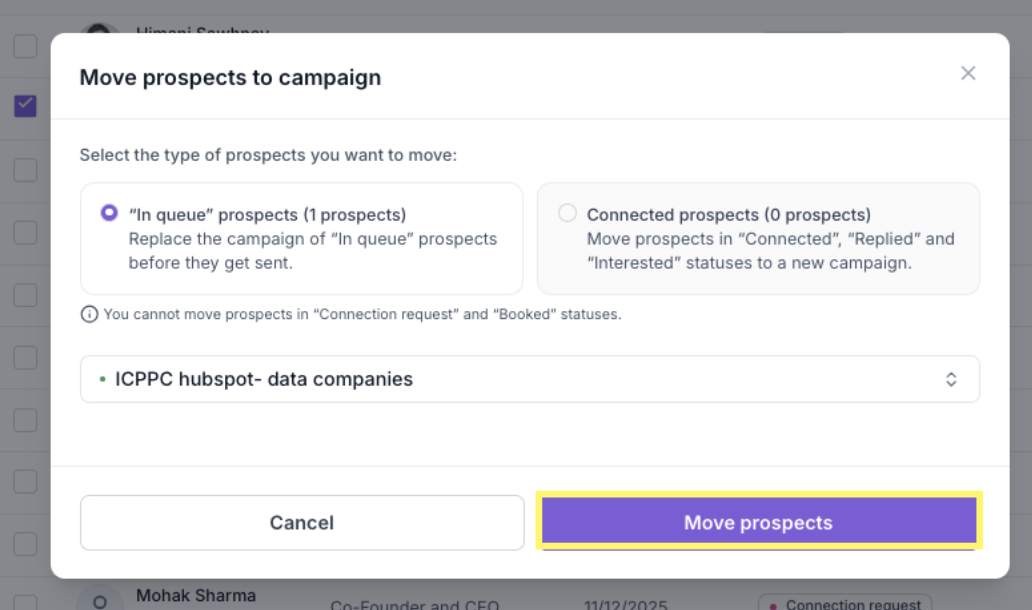
Step 5: When the pop-up appears, click 'Select campaign' and choose the destination campaign.
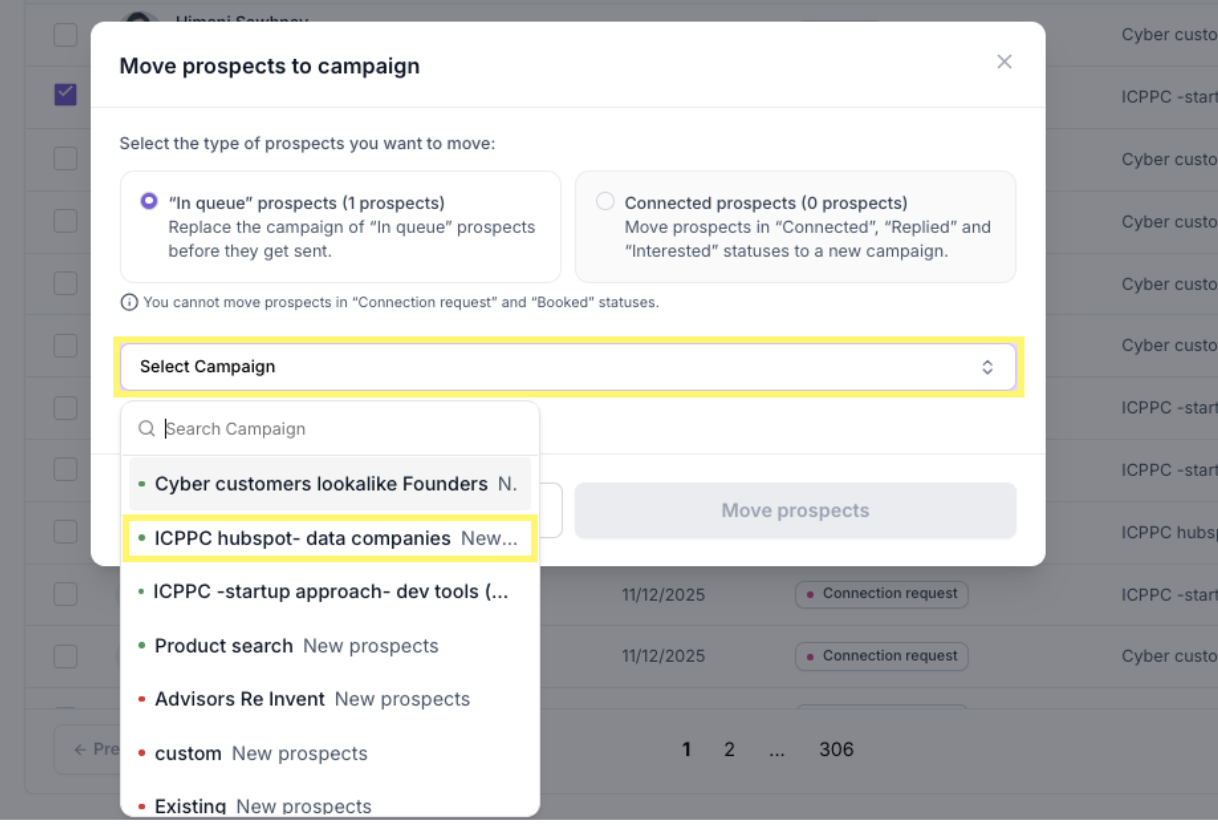
Step 6: Click "Move prospects" to confirm.
FAQ: Frequently Asked Questions
Q: Is it possible to stop or edit a message that is "Awaiting to be sent"? A: Yes, you have a few options depending on what you need to achieve:
- To stop the message: You can either stop the sequence or open the Buzz tool to stop it there.
- To edit the message: You can change the text directly in Buzz. This change will be reflected in the actual message sent to the prospect.
- Regarding the Interface (UI): Please note that while the message is updated in Buzz, the updated text will only appear in Spear once the message is sent on LinkedIn and synced back. If you need the UI to reflect the change immediately before sending, a manual Database update by the technical team is required.
Related Articles
Ready to put this knowledge into action? Now that you understand the "In queue" status, read our step-by-step guide on how to move prospects in suggestions to a different campaign or profile


.avif)