What are tags and how to add a tag
 May 12, 2026
 5 min read
What is a Tag?
A tag is a custom label applied manually to a prospect or message thread. Unlike automated statuses, tags are custom identifiers used to group specific sets of prospects (e.g., "Conference Leads" or "Urgent Follow-up") within your inbox.
The Value of Tags
Tags allow you to create custom workflows on top of standard system automation. While the system automatically tracks statuses like "Replied" or "Booked," tags let you manually mark high-priority leads, organize specific event lists, or assign ownership in shared accounts.
Step 1: Navigate to the 'Messages' tab.

Step 2: Click the prospect you want to add a tag to.
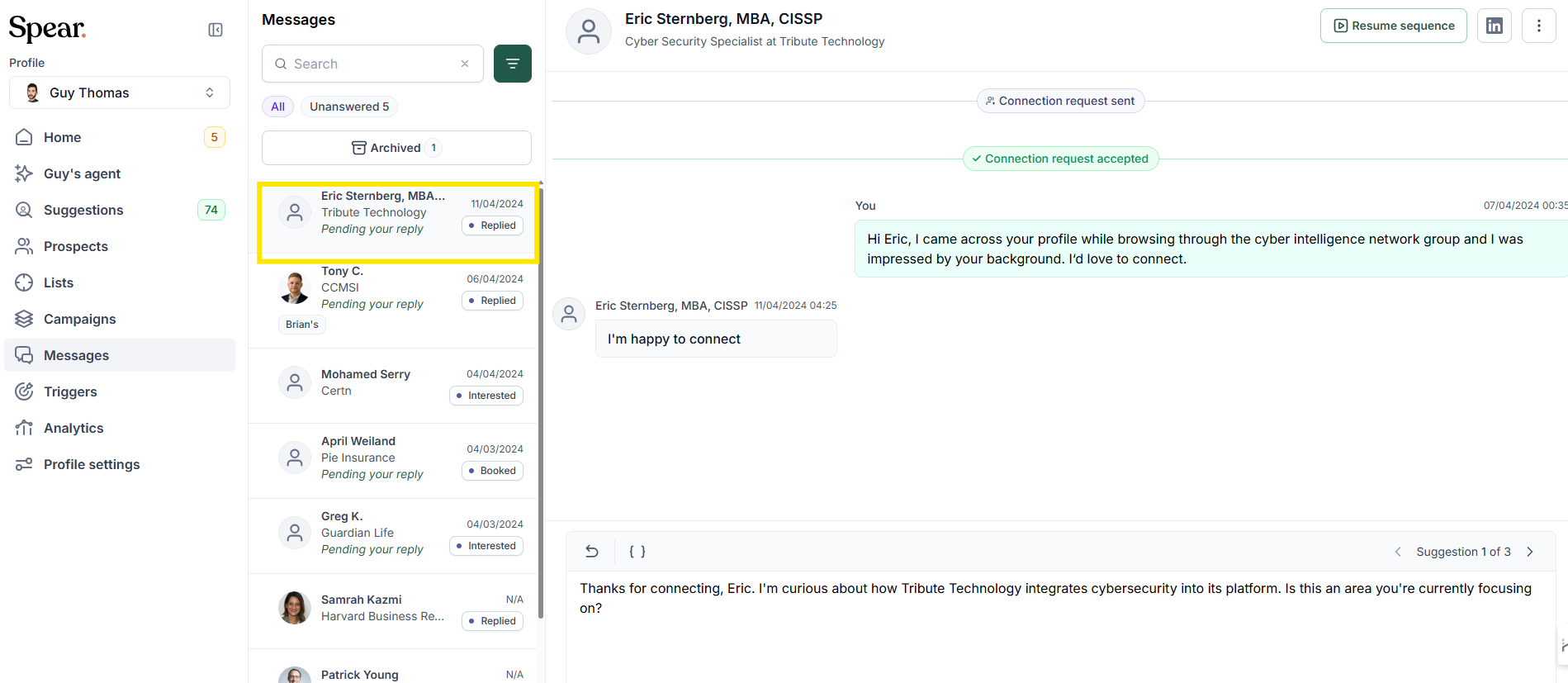
Step 3: Click the three dots (...) menu on the specific prospect card.
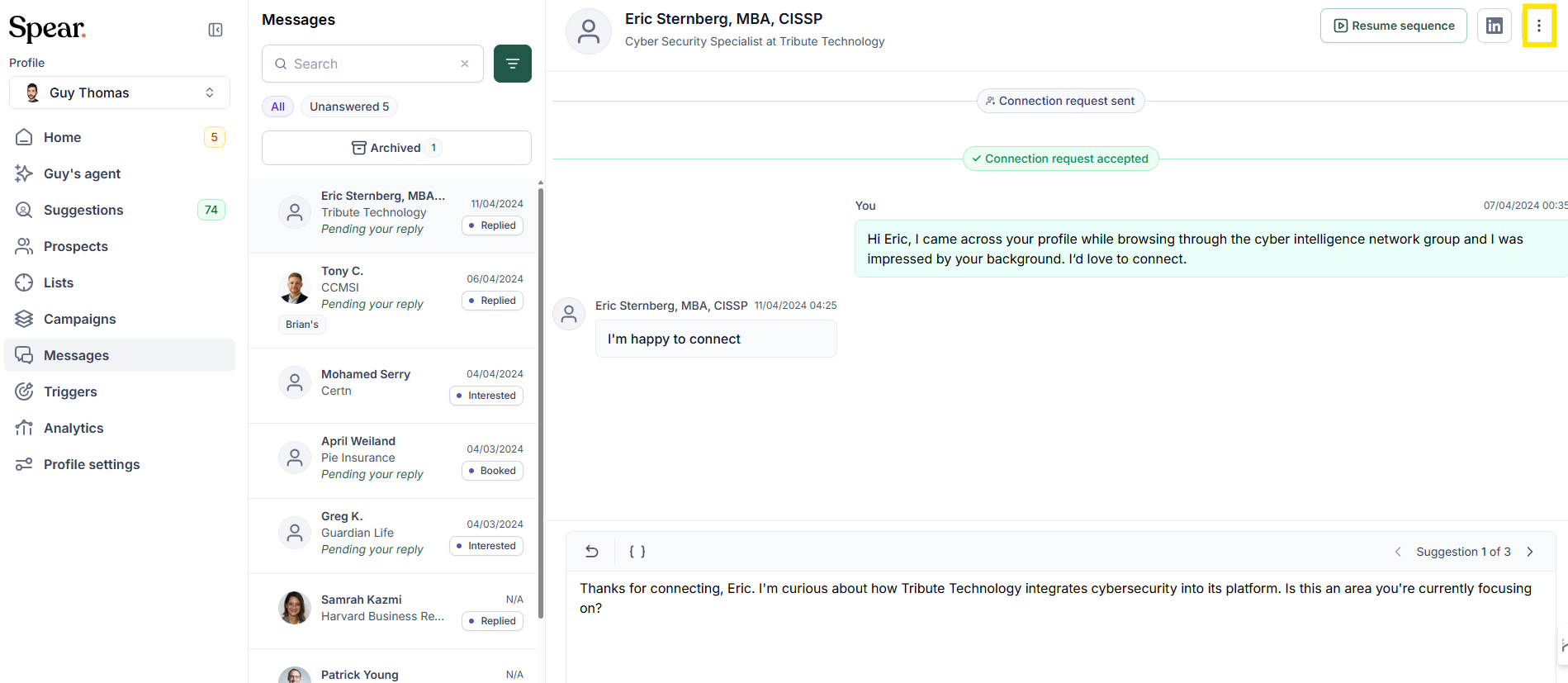
Step 4: Select 'Edit tags'.
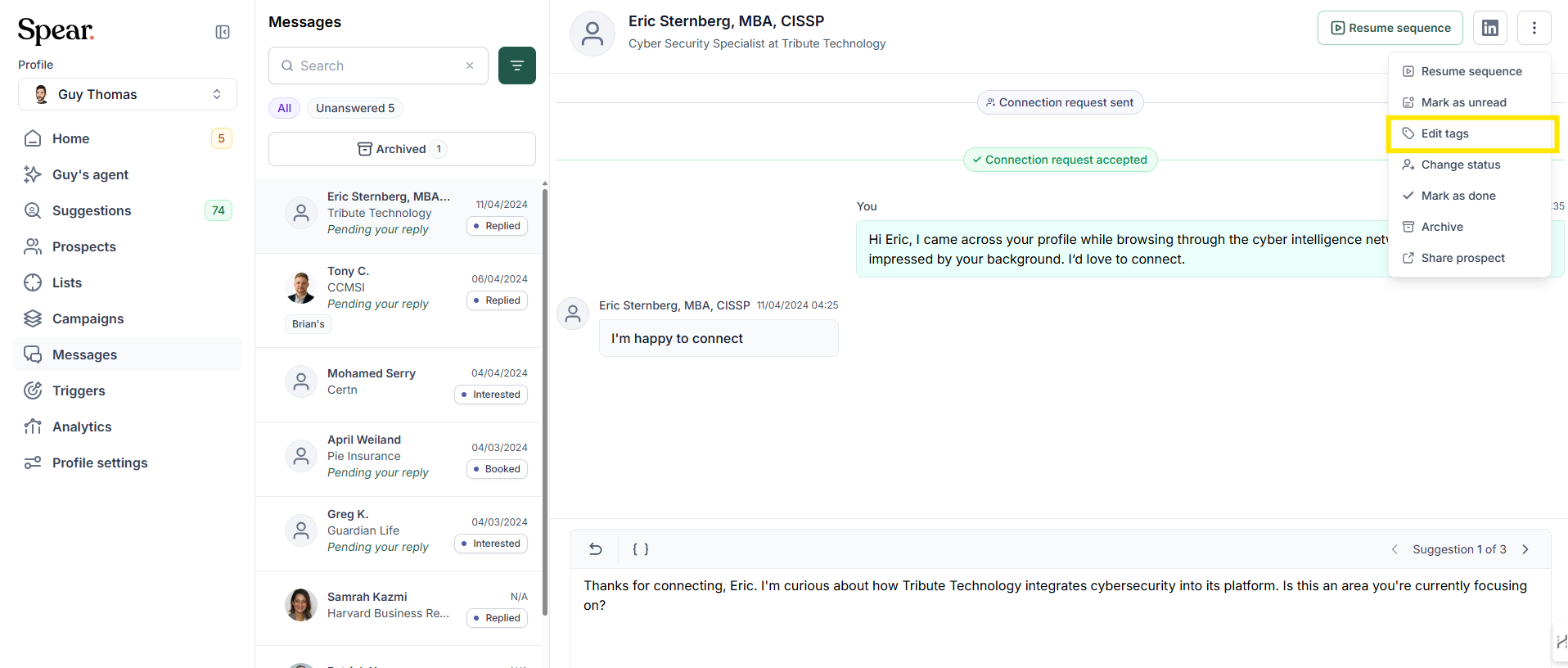
Step 5: Type your custom label in the 'Search or add your own' field and select it from the dropdown; Spear will create the tag and you can then click
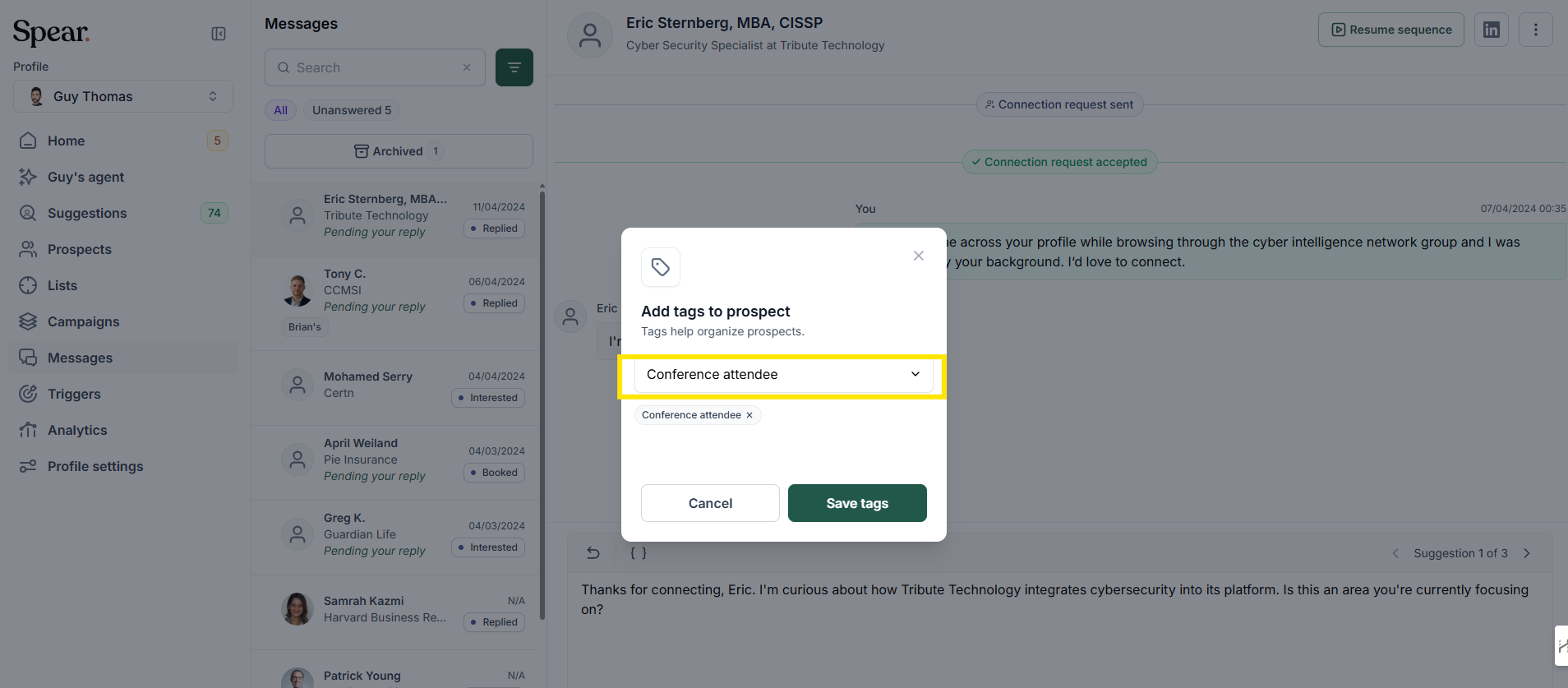
'Save tags'
Step 6 (optional): You can add more than one at the same time!

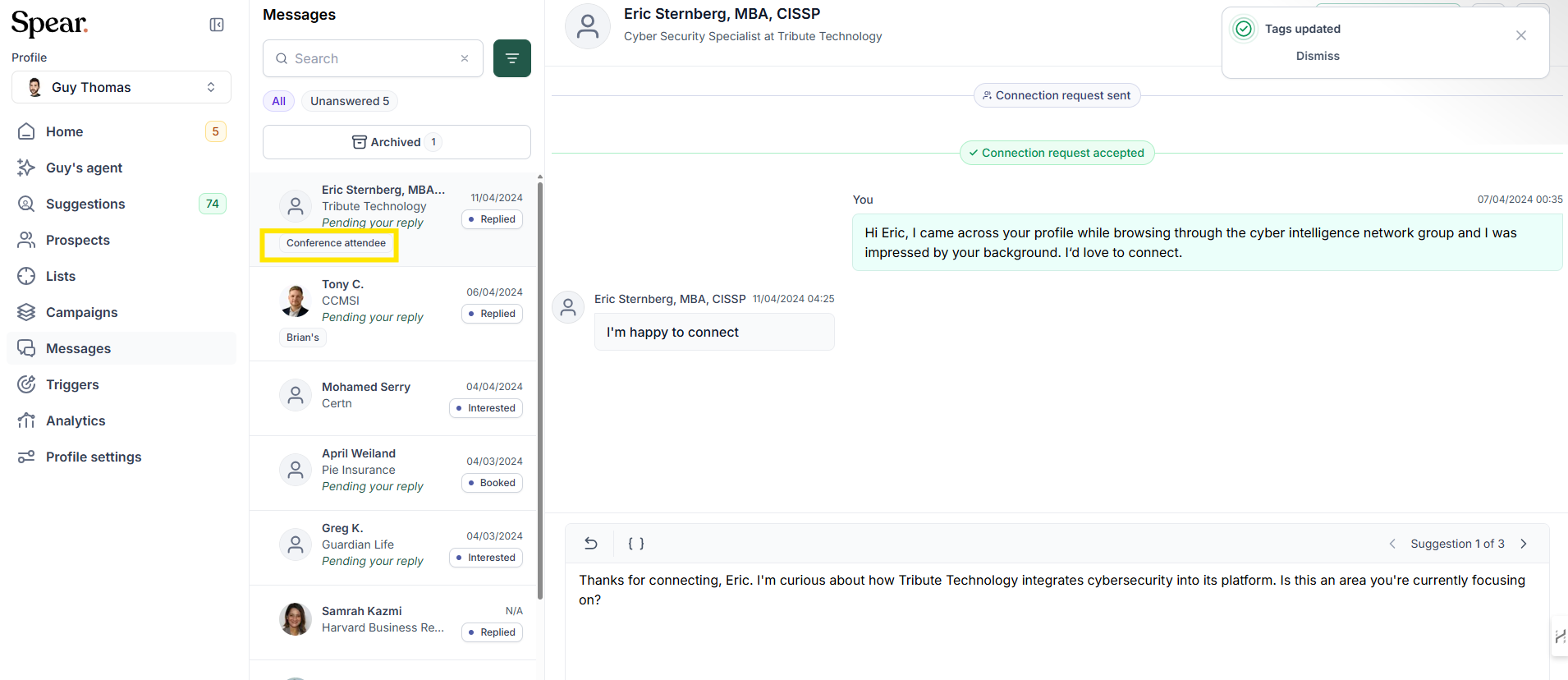
This is where they'll appear once you save them (highlight in yellow box)
Best Practices
- Account Ownership: In multi-user accounts, use tags to separate prospects by Account Executive (e.g., "AE: Ryan", "AE: Sandra") to ensure clear ownership of responses.
- Event Management: Tag prospects who showed interest in specific events (e.g., Black Hat London) to run targeted follow-ups later.
- High-Priority Segmentation: Use tags to mark high-potential conversations that need manual nurturing before a meeting is set.
Related Articles
Ready to put this knowledge into action? Now that you understand the specific signals that define a prospect's potential, read our comprehensive guide on What is an indicator? to see exactly how indicators fit into the automated process of finding your ideal audience.


.avif)