What is a Trigger and how do I activate one? (MA)
 May 12, 2026
 5 min read
A trigger is a real-world signal that tells Spear when to reach out to a prospect. Instead of sending cold messages, Spear uses triggers to make every outreach timely and relevant.
Examples of triggers:
- A prospect just got a promotion
- Their company announced a new product
- They engaged with a LinkedIn post related to your space
Where do I find Triggers?
In the left navigation menu, click Triggers.
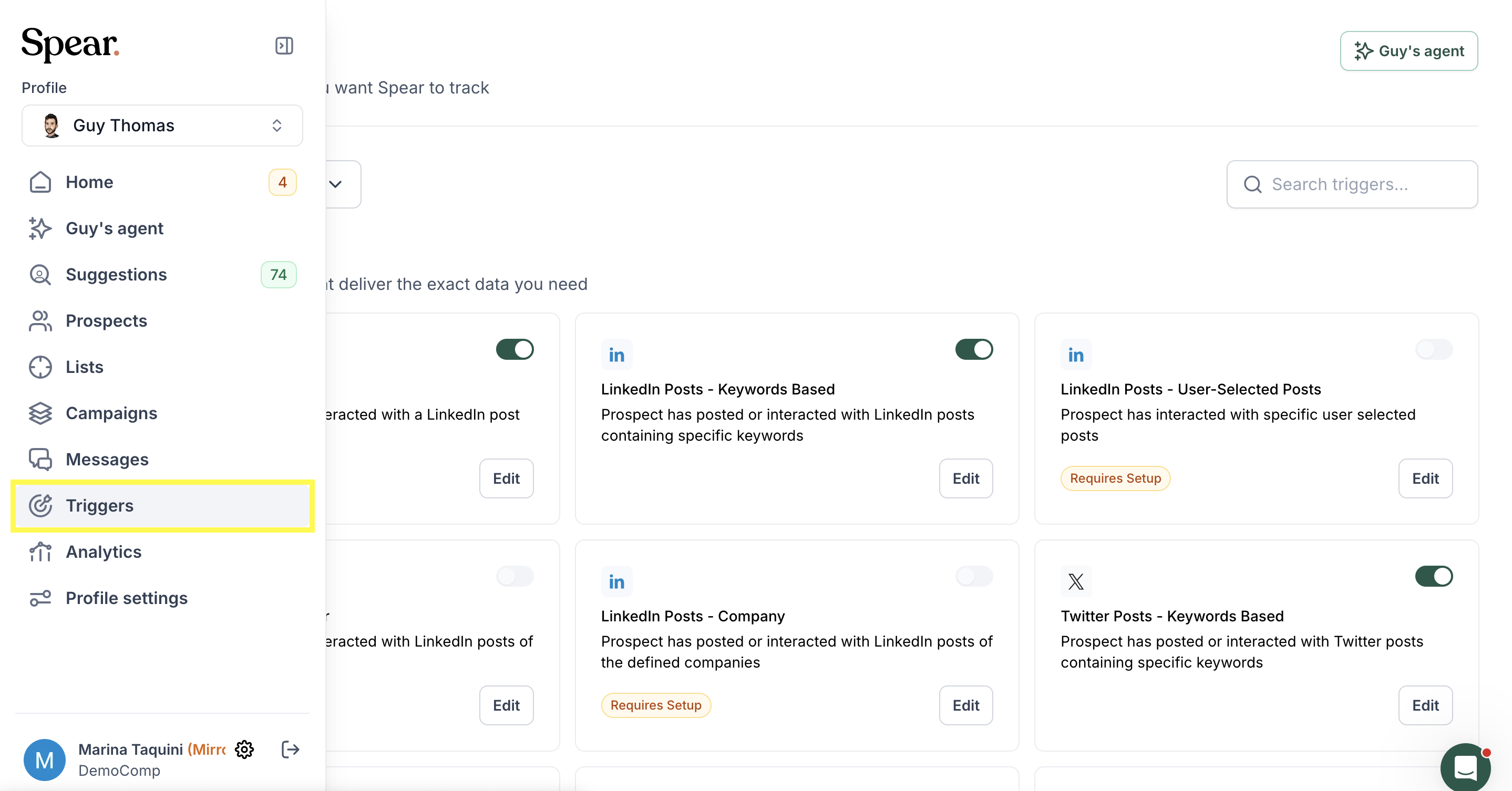
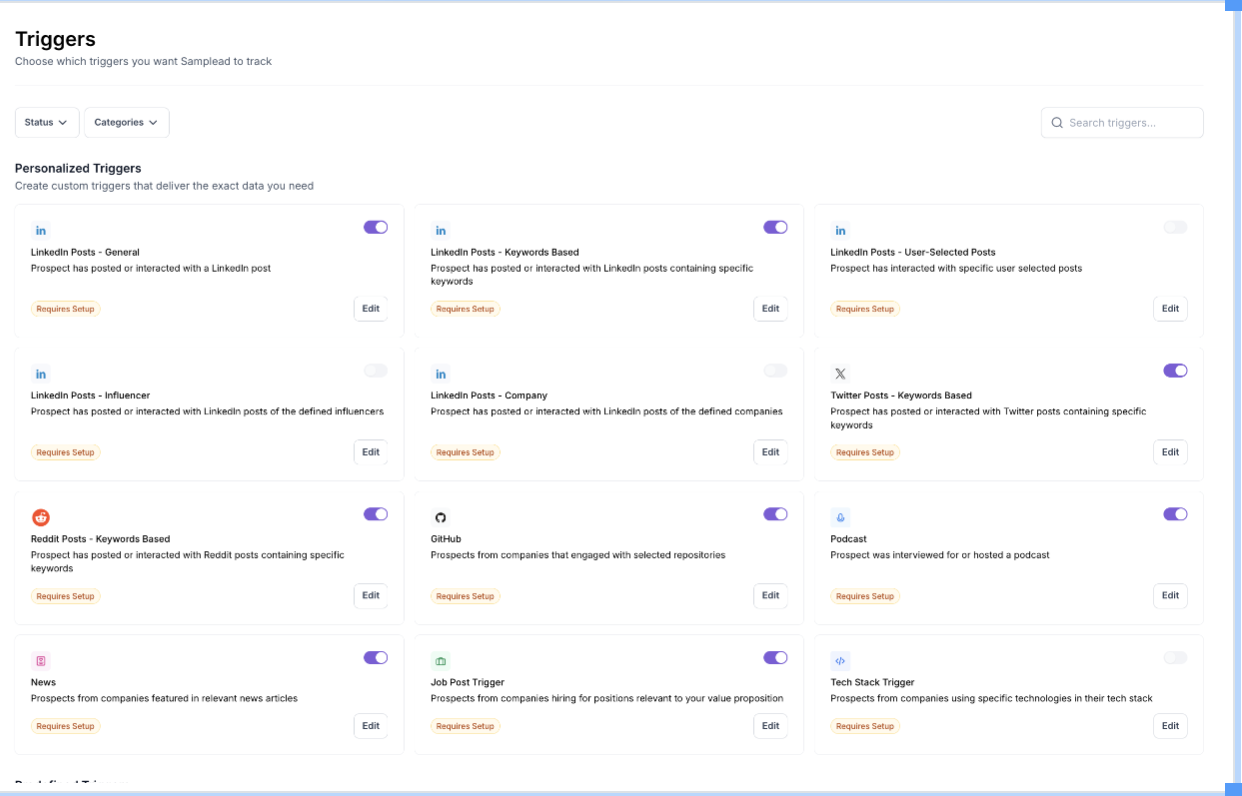
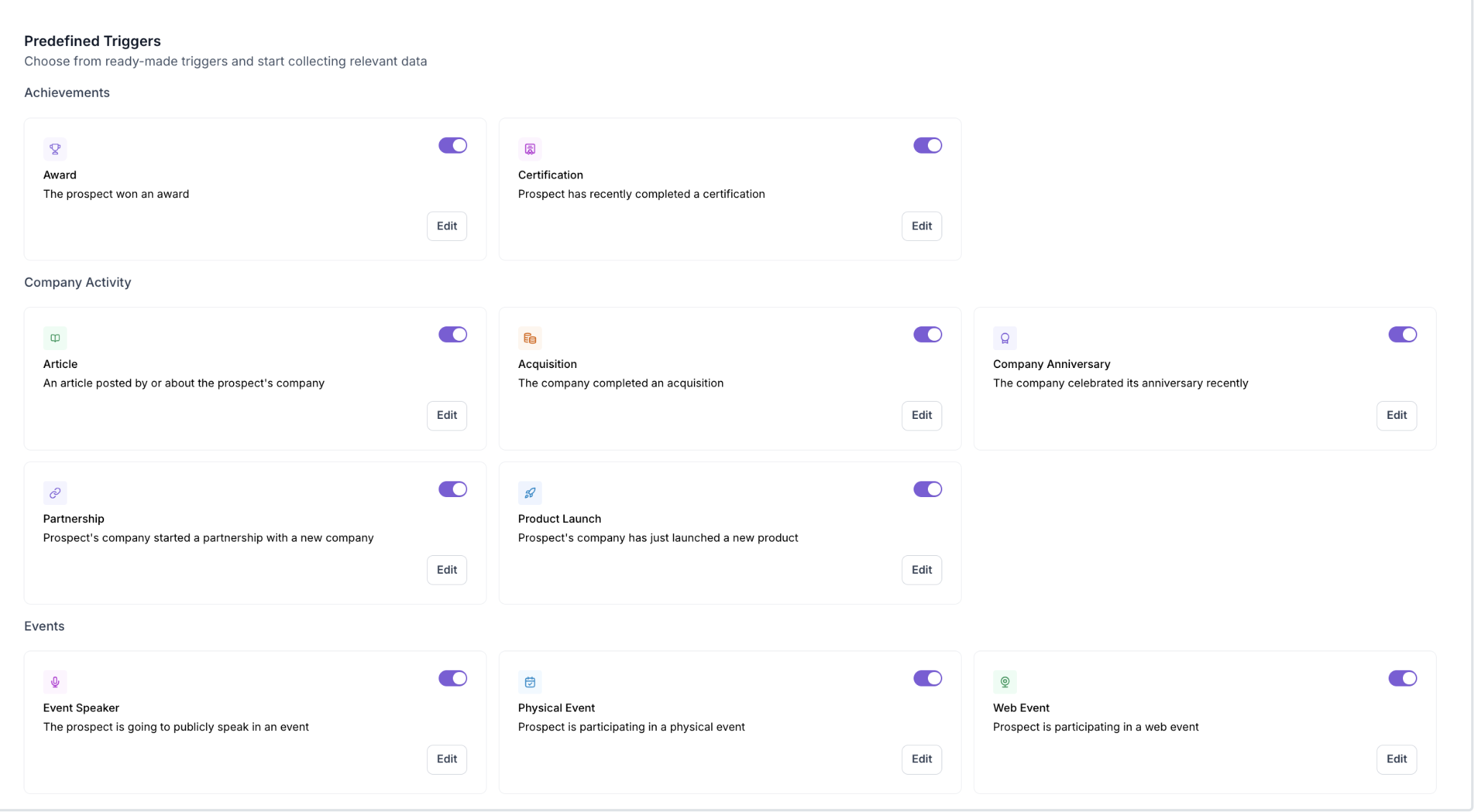
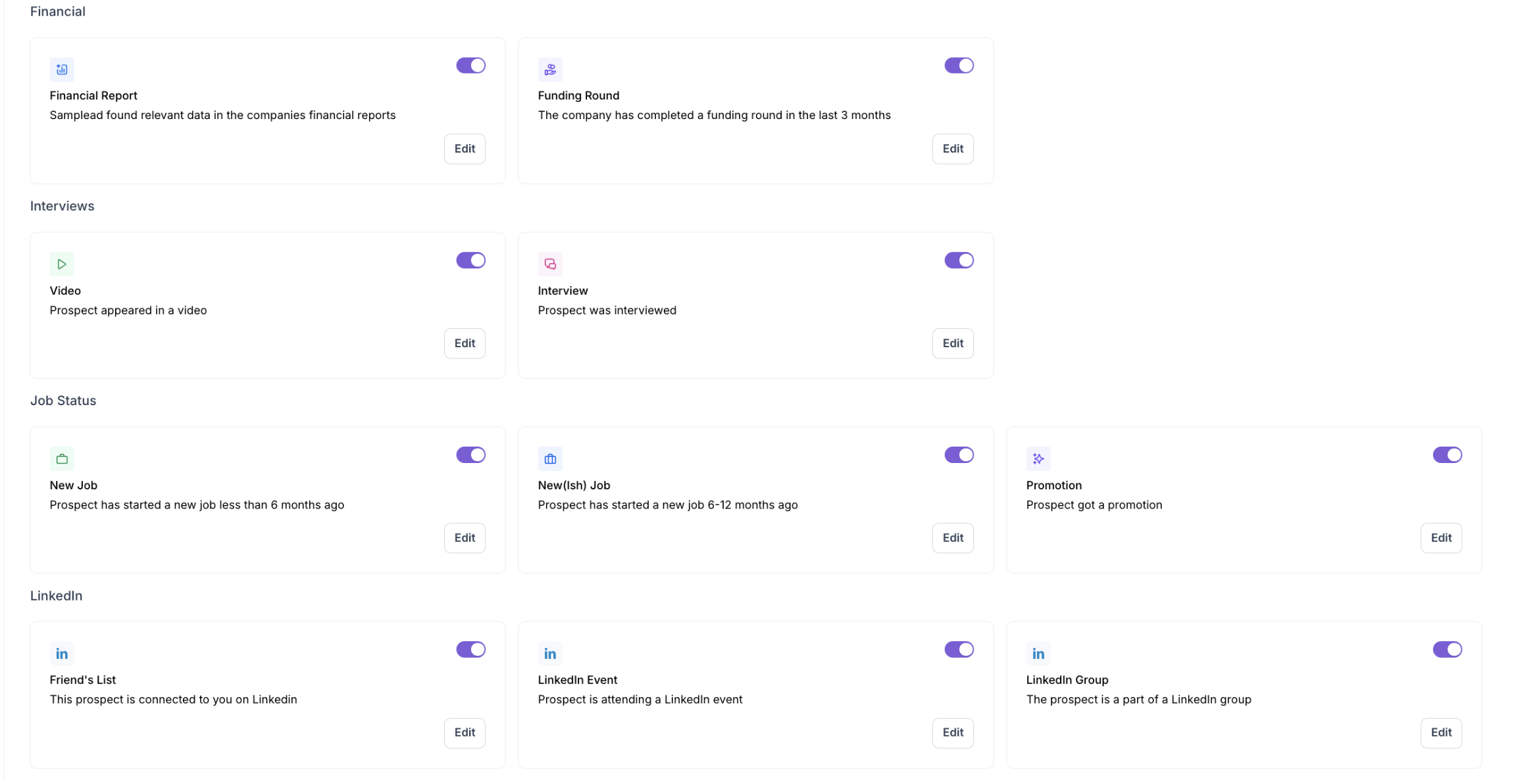
The page is divided into two sections:
- Personalized Triggers — custom triggers you configure with your own keywords, URLs, or settings.
- Predefined Triggers — ready-made triggers that work out of the box with minimal setup.
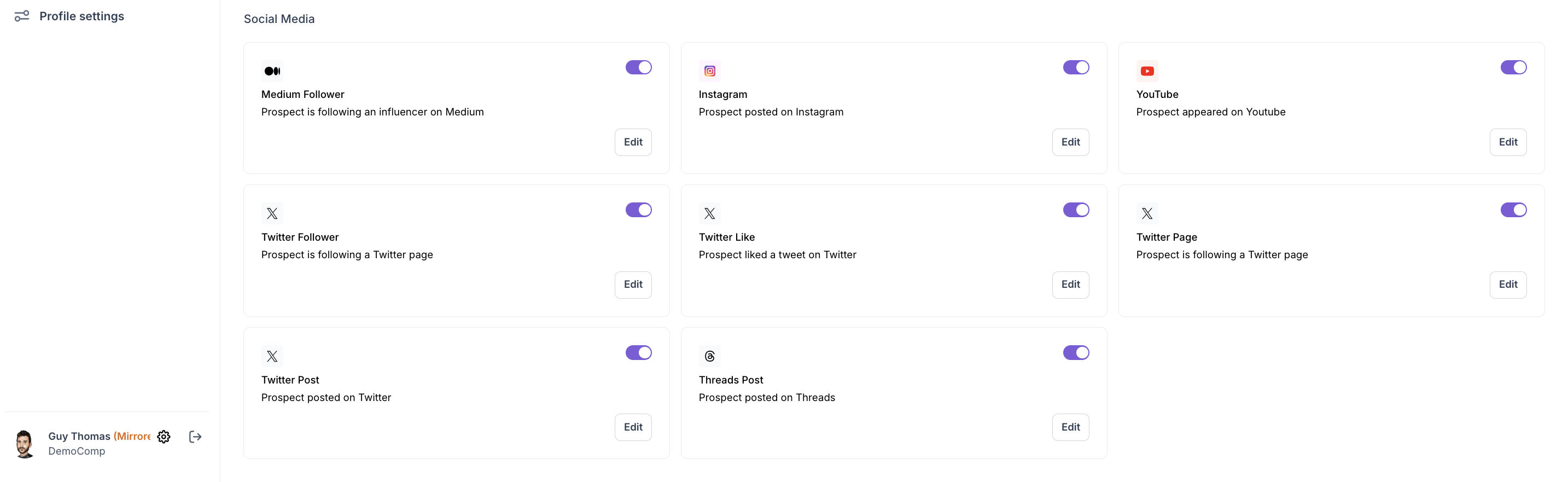
How do I activate a trigger?
- Go to Triggers in the left menu.
- Find the trigger you want to enable.
- Toggle it ON.
- If the trigger shows "Requires Setup", click Edit to configure it before activating.
💡 The more triggers you enable, the more prospects the system can identify.
How are triggers connected to campaigns?
Triggers work together with your campaign's ICP. When a trigger detects a matching signal, the system looks for prospects that fit the ICP of your active campaigns — and surfaces them in your Suggestions tab.
- If you have multiple campaigns running, the system matches each prospect to the most relevant one based on ICP.
- Some triggers (like Job Post and Tech Stack) let you select which specific campaigns they apply to during setup.
👉 Related Articles
- What are the Personalized Triggers?
- What are the Predefined Triggers?
- How to review and approve prospects


.avif)