Home>Knowledge Base>Product overview>Understanding the dashboard (MA)

Understanding the dashboard (MA)

Calendar icon marking the date this article was publishedMay 12, 2026
Clock icon marking how long this article takes to read5Β min read

A Simple Guide to Understanding the Spear Dashboard

Your dashboard is your prospecting command center. Here's what each section does:

1. Home Overview of new suggestions, message status & key metrics.
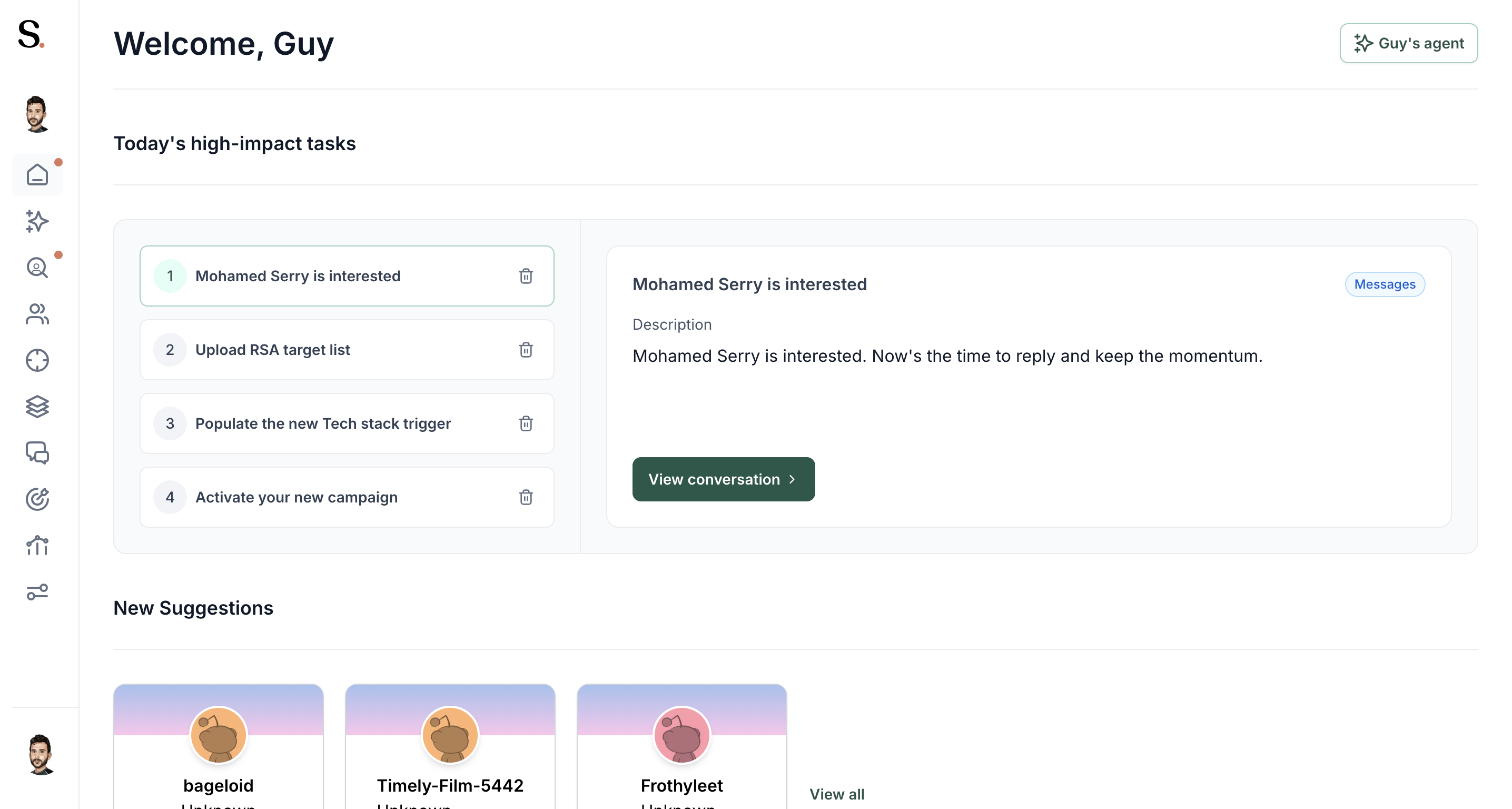
Home screen greeting the user, with today's high impact tasks on the left, the details of the selected task beside them and new prospect suggestions below

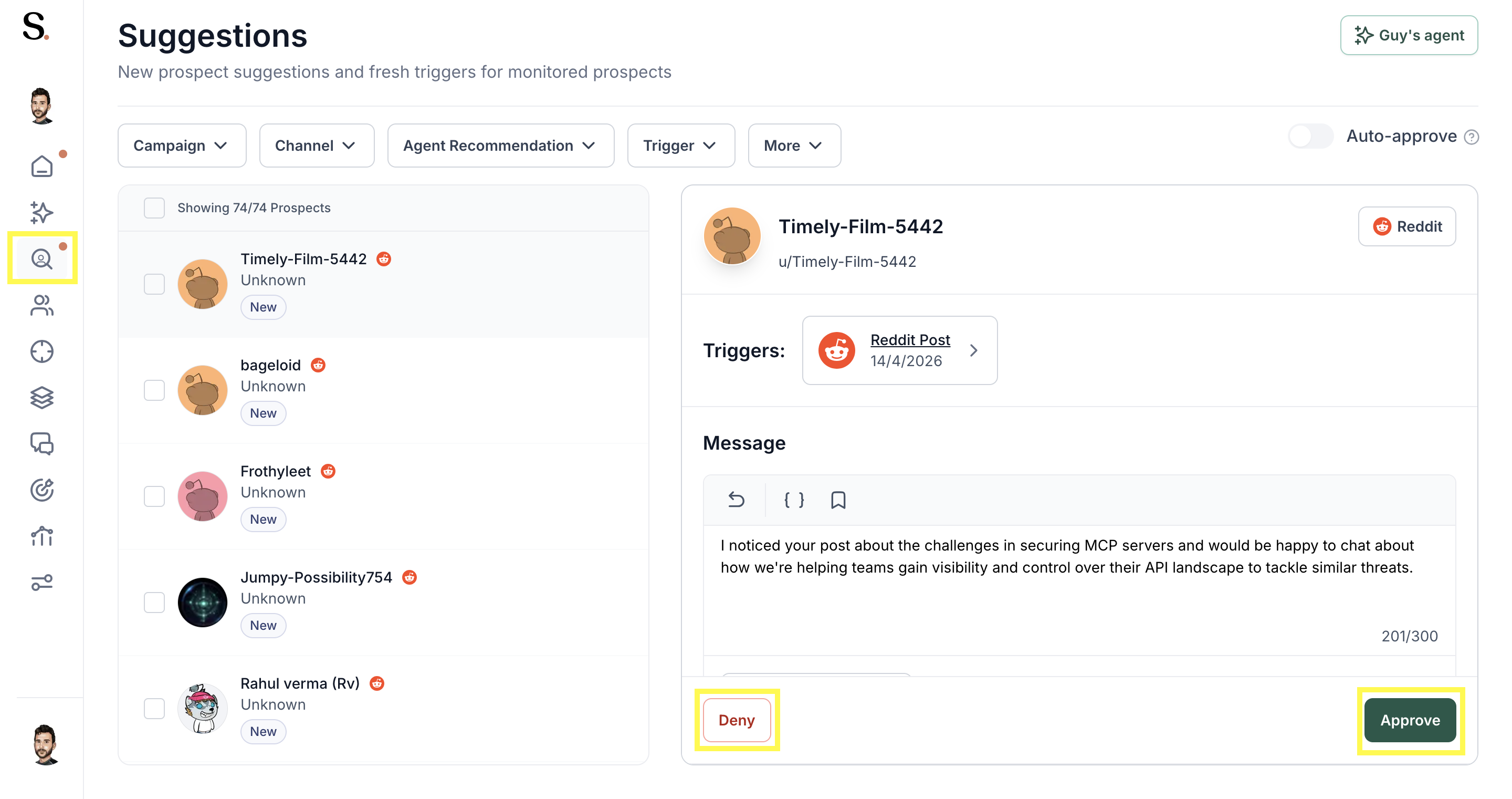
2. Suggestions Approve or deny new prospects β€” Tinder-style!

Suggestions page with a suggested prospect selected, the social post that triggered it, the drafted message and the deny and approve buttons highlighted

3. Like the prospect but not the trigger? Click Review Message β†’ Monitor to resurface them when a new trigger is found.

For more information about this feature, click here.
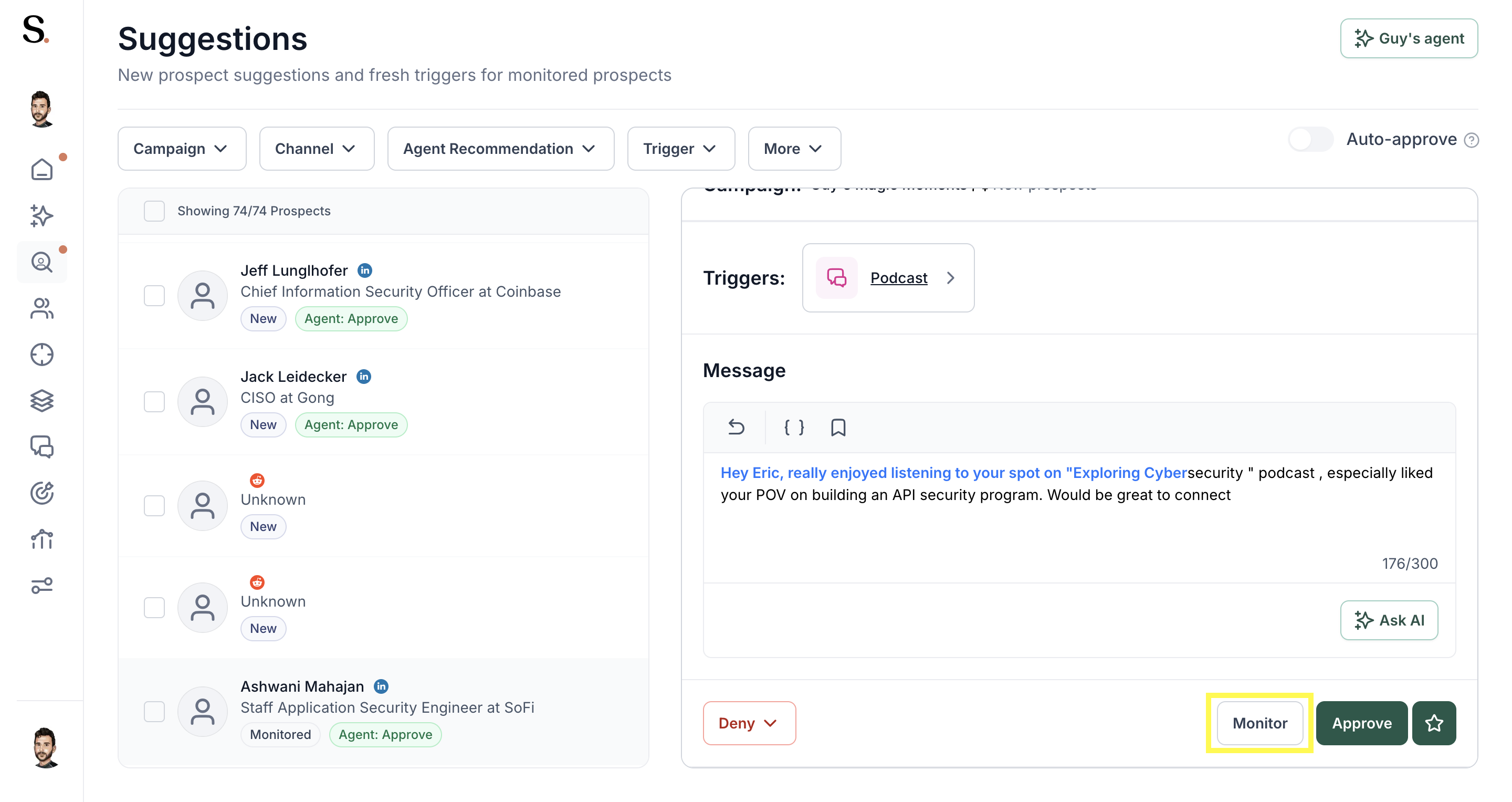
Suggestions page showing a podcast appearance as the trigger, the drafted opening message and the highlighted monitor and approve buttons

4. Prospects View all approved, monitored, denied & archived contacts.
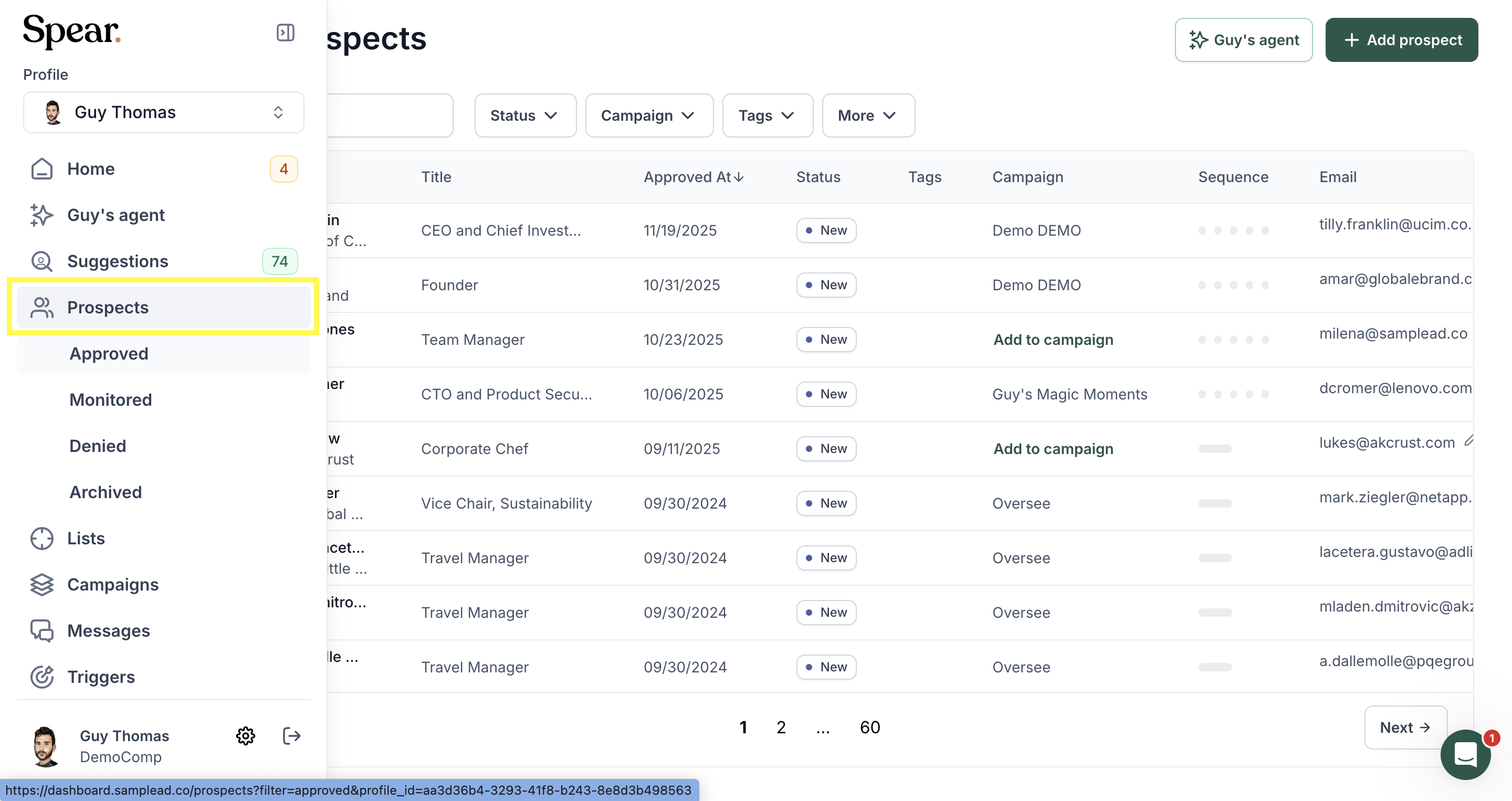
Expanded side navigation with Prospects highlighted and opened into its approved, monitored, denied and archived views, over the prospects table

For more information about this feature, click here.

5.  Lists Upload and manage your own prospect lists.

This section lets you upload and manage your own prospect lists, allowing the system to process them and track results, including monitoring, contact status, and ICP matching.
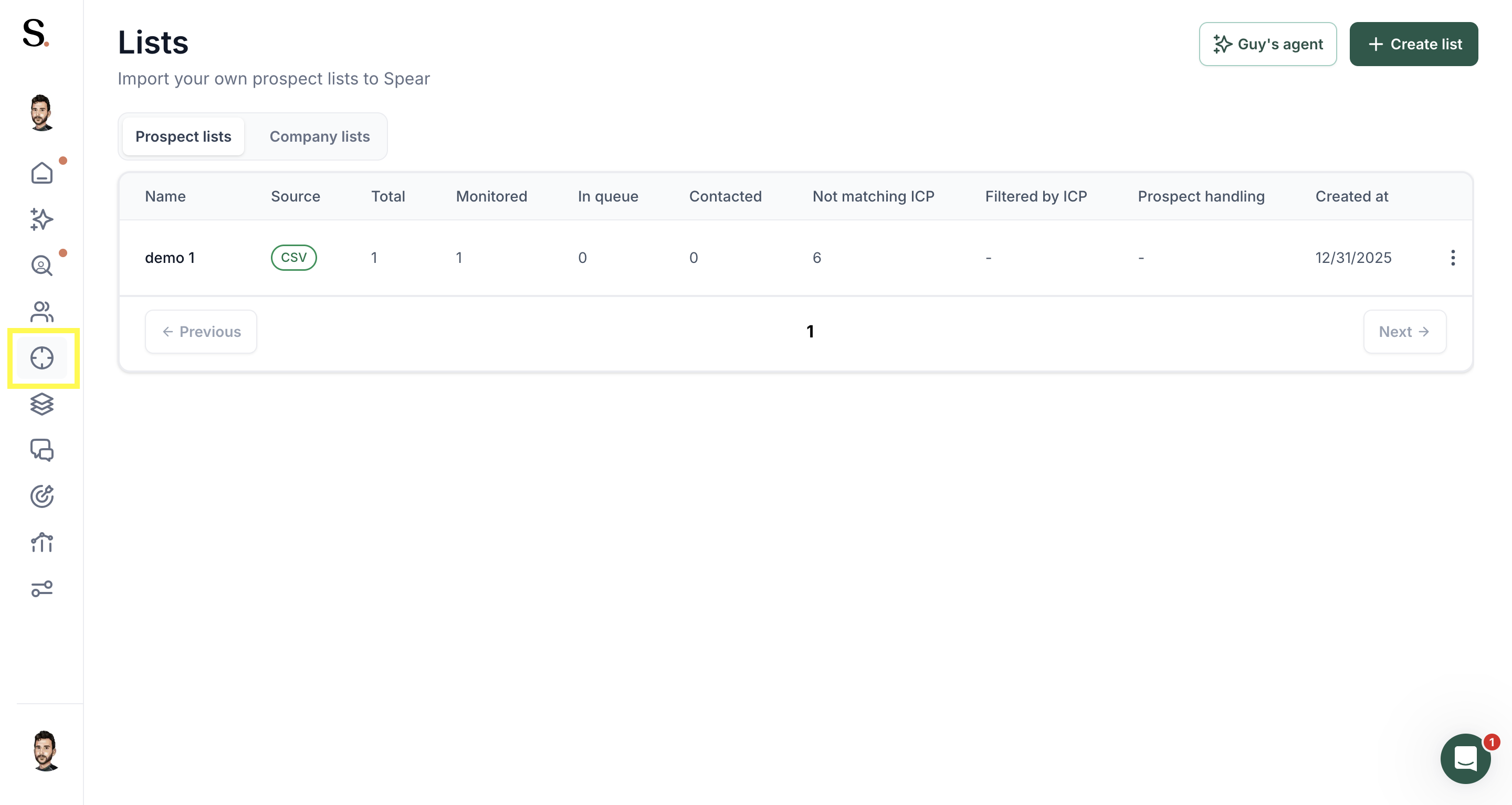
Lists page with the lists icon highlighted in the side rail, showing an imported prospect list with its source and handling counters

For more information about this feature, click here

6. Campaigns : Create & manage outreach campaigns, test copies & ICP variations.
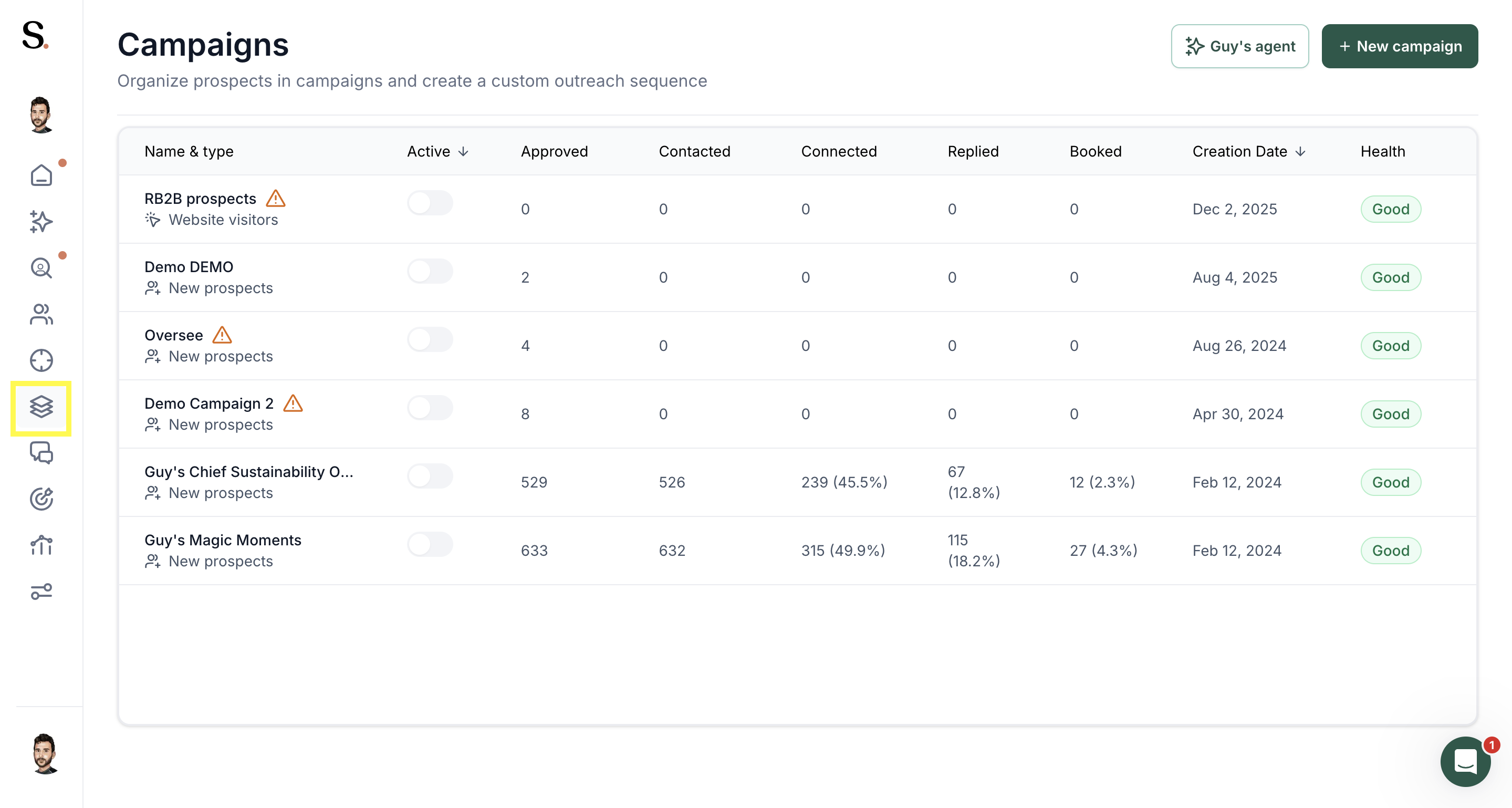
Campaigns page with the campaigns icon highlighted in the side rail, listing every campaign with its counters, creation date and health status

For more information about this feature, click here.

7. Messages

Inbox for all prospect replies. AI flags high-interest leads automatically.
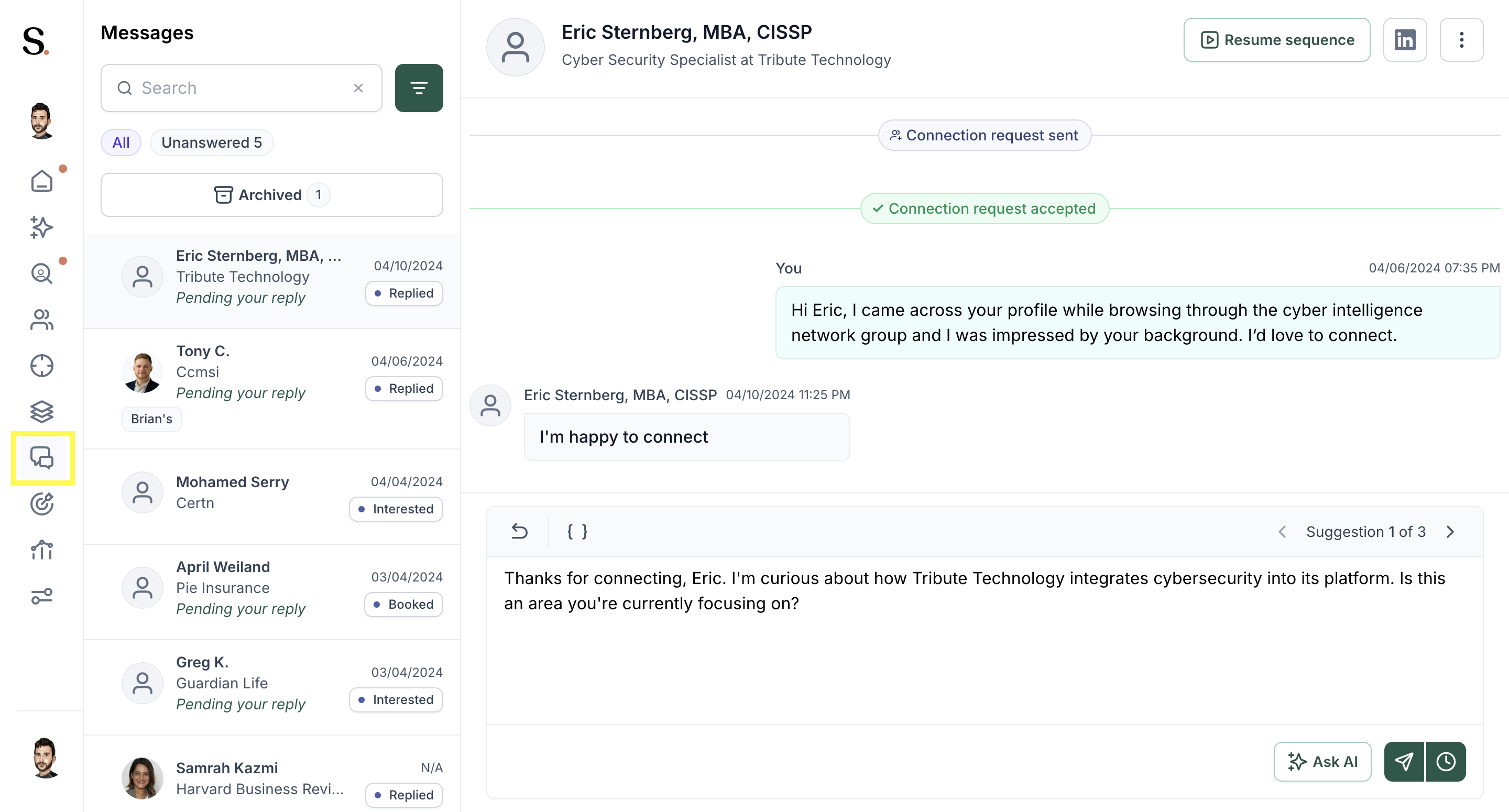
Messages screen with the conversation list on the left and an open thread on the right, the composer holding the first of three suggested replies
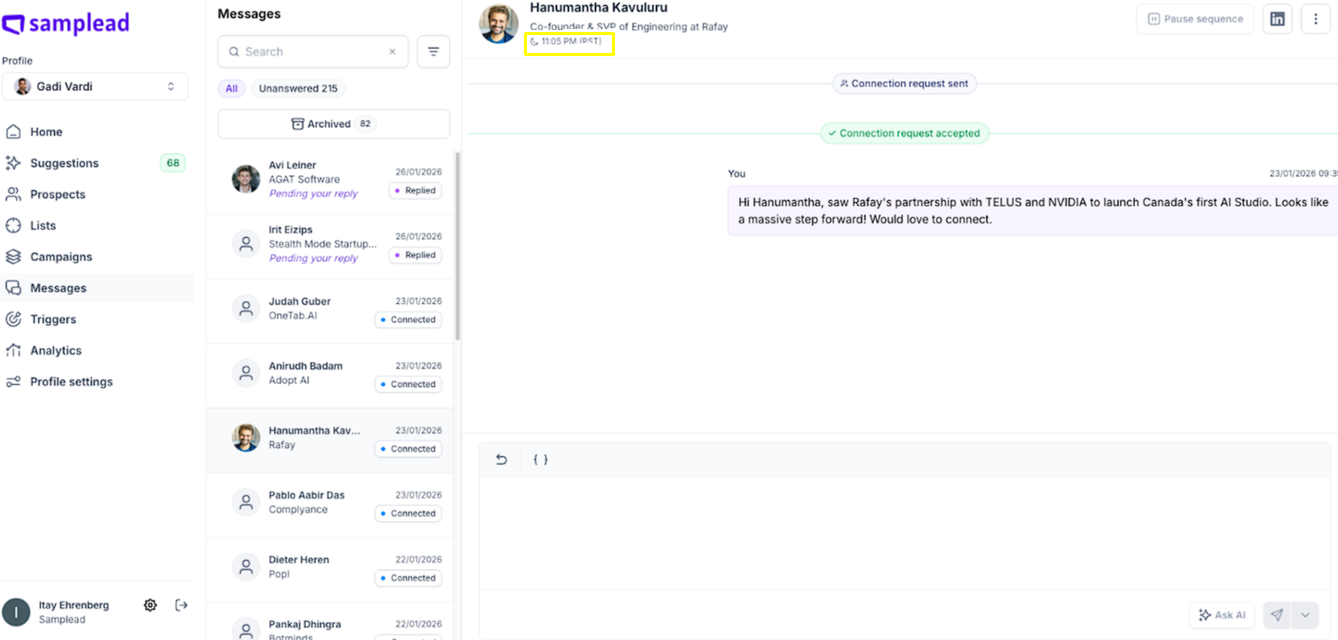
Messages inbox with the conversation list on the left and an open thread on the right showing the accepted connection request and the first message

πŸ’‘ Timezone: All activity shows in each prospect's local time β€” so you know the best moment to reach out and avoid contacting them outside business hours.

For more information about this feature, click here.

8. Triggers

Select the signals Spear searches for. More triggers = more prospects.
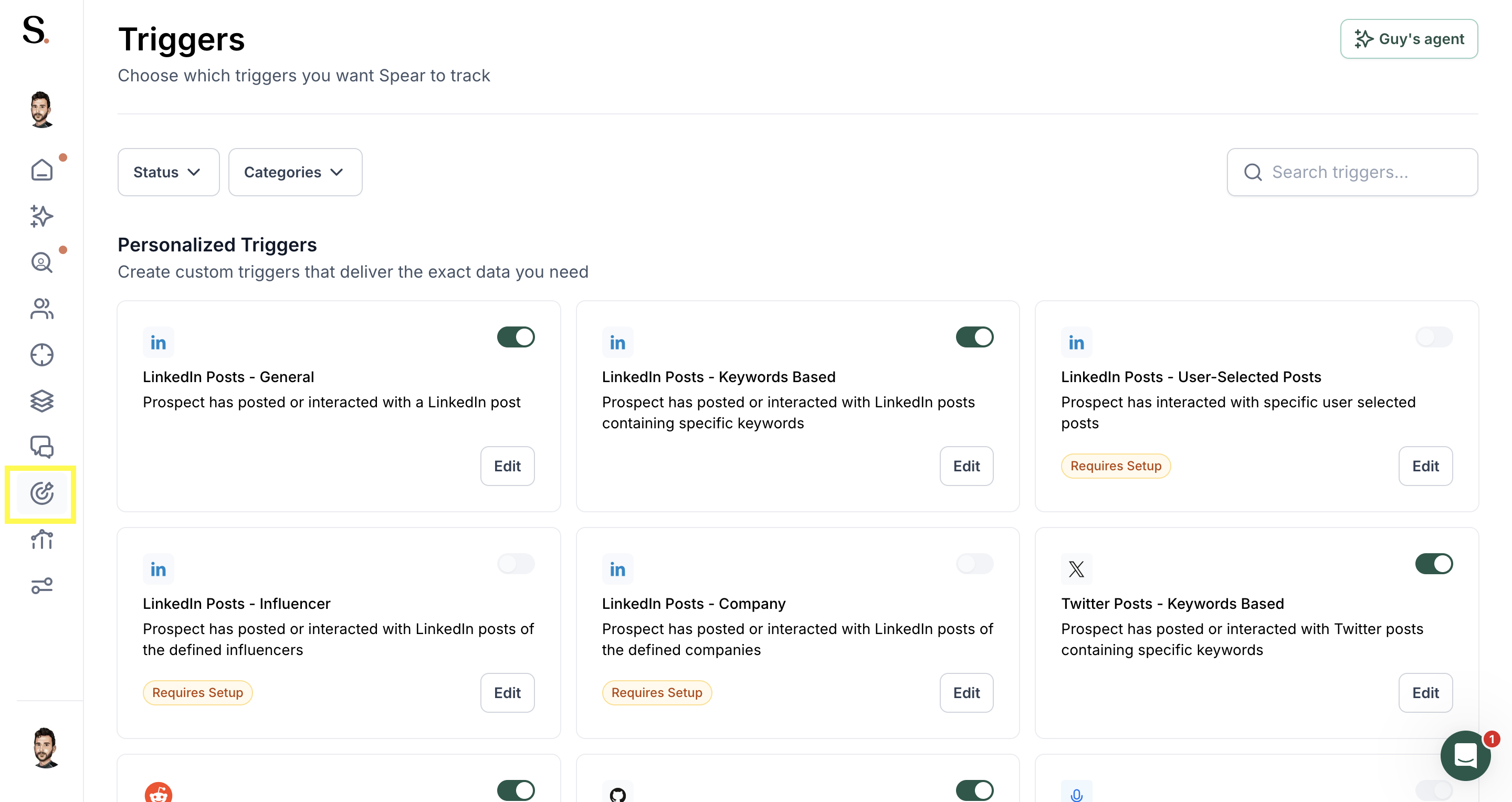
Triggers page with the triggers icon highlighted in the side rail, showing the personalized trigger cards for social posts and their on and off switches

For more information about this feature, click here.

9. Analytics

Track your full funnel: Contacted β†’ Connected β†’ Replied β†’ Booked.

How does Spear know if a prospect has scheduled a meeting? Find out more here
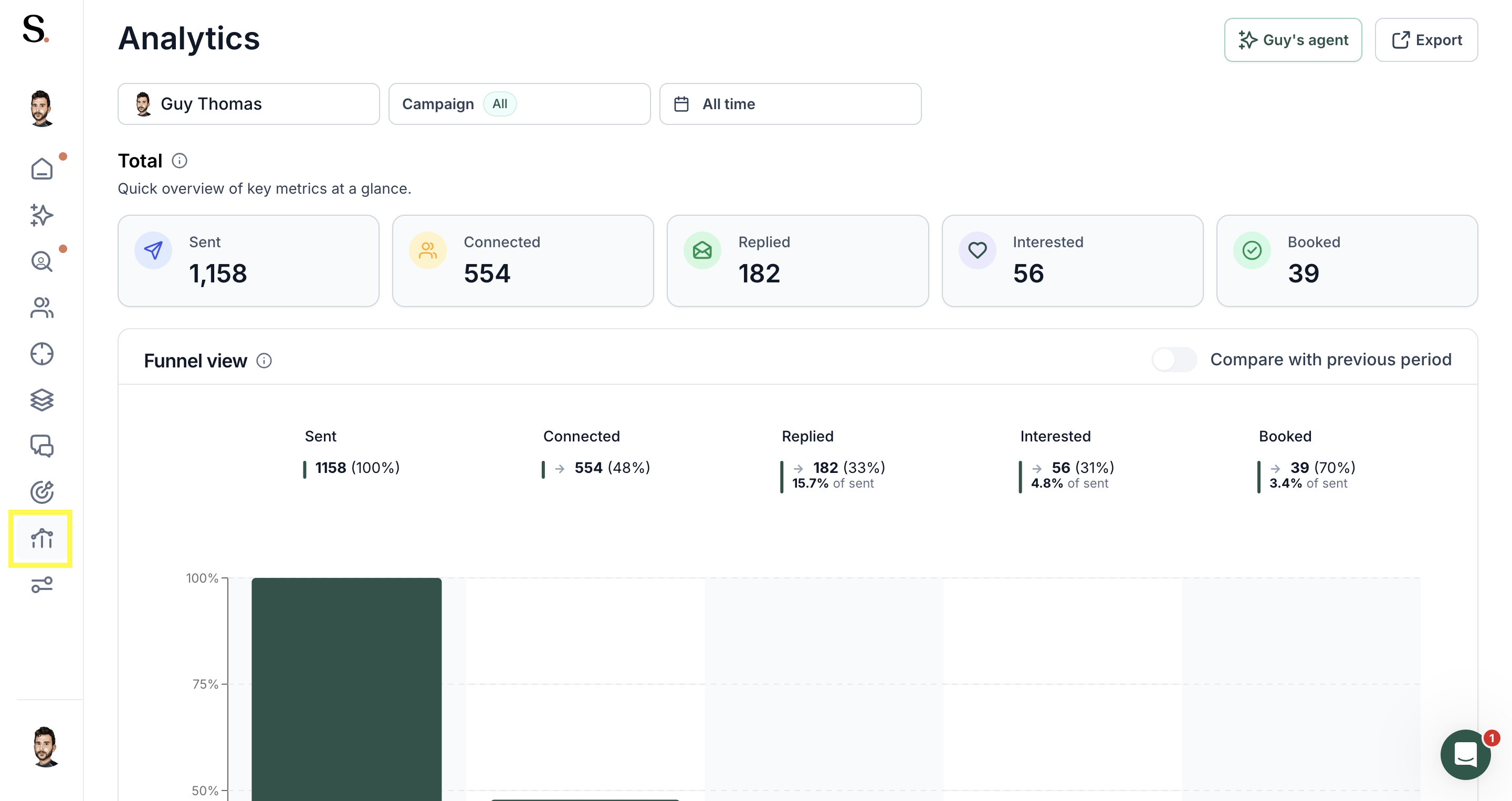
Analytics page with the analytics icon highlighted in the side rail, showing the sent, connected, replied, interested and booked tiles above the funnel chart

10.

Profile Settings Personal account-level settings β€” changes here only affect your own profile.

  • Personal Info – Update name, email, company, timezone & photo
  • LinkedIn Connections – Upload your connections to avoid messaging existing contacts
  • Excluded Companies – Manage companies you want to skip from outreach

Profile configuration tab with the settings icon highlighted in the side rail, showing the operating user, notification recipients, message language and calendar link

11. General Settings Organization-level settings β€” changes here affect all users under the account. Access it from the gear icon at the bottom-left corner of the dashboard.

  • Integrations – Connect your CRM
  • Profiles – Add, edit or remove team members
  • Value Proposition – Helps Spear improve prospect targeting accuracy
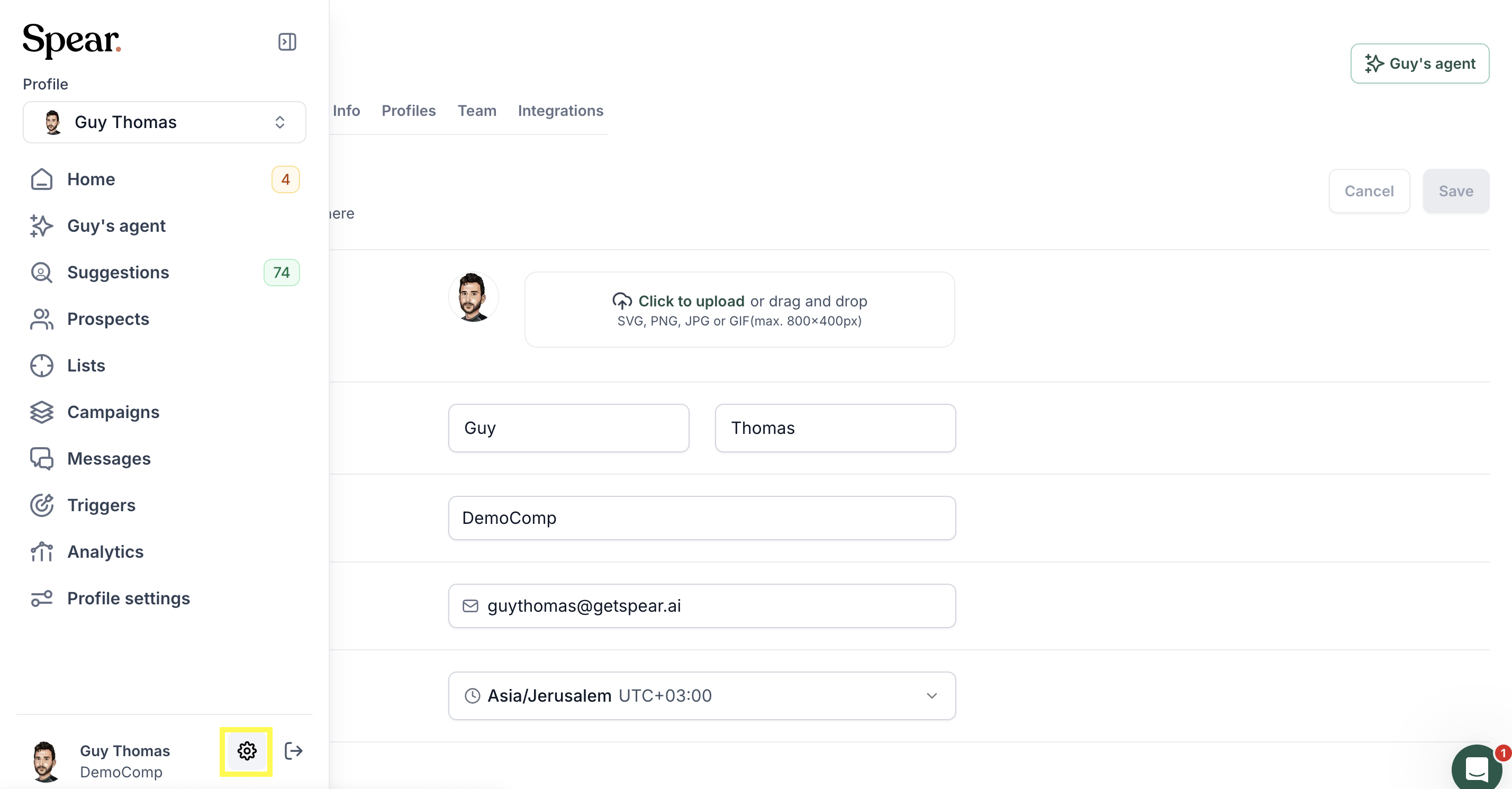
Expanded side navigation with the settings gear highlighted next to the signed in user, over the personal details form

For more information about this feature, click here.

‍

Sign up for Updates

Get the playbook on outbound that actually converts.

We care about data. Check out our privacy policy.

Thank you!
Your submission has been received!
Oops! Something went wrong while submitting the form.
Line illustration of a spear on a coral background, beside the newsletter signup

Turn Triggers Into Pipeline

With Spear, companies leverage trigger-based outbound to craft a quality-driven GTM motion that actually books meetings.

Illustration of a person holding a spear on a hilltop path at sunriseIllustration of a person holding a spear on a hilltop path at sunrise